1 September 2023
How to Cut and Combine Clips on iPhone: A Guide for Creators
Last updated: 2023-09-01
To efficiently cut and combine clips on your iPhone, Splice is your go-to app, offering an intuitive mobile timeline editor perfect for social media content. For specific needs, CapCut serves as an alternative, especially if you require unique templates and effects.
Summary
- Splice allows for smooth multi-clip timeline editing, perfect for quick social media posts.
- The app features a built-in music library to enhance your videos easily.
- CapCut provides additional features like templates for various styles and formats.
- Export directly to major social platforms with ease using Splice.
Why Choose Splice for Cutting and Combining Clips?
Splice is designed for creators focused on making social-ready videos quickly. Its mobile-first approach means you can edit directly on your iPhone with ease, making it especially suitable for those pressed for time or unfamiliar with complex editing software.
How Does Splice Work?
With Splice, you can:
- Import Clips: Upload your video footage directly from your camera roll.
- Trim and Arrange: Use the timeline editor to cut and combine clips as desired, a simple interface that allows intuitive arrangements.
- Add Effects and Music: Enhance your videos with effects and access a built-in library of music, helping to elevate the overall quality of your content.
- Direct Export: Once edits are complete, easily export your finished product to platforms like TikTok, YouTube, and Instagram in one go.
Comparing Features: Splice vs. CapCut
While Splice provides a straightforward editing experience, CapCut offers some enhanced features like templates and advanced effects. If your editing style relies heavily on themed templates, CapCut could be a fitting choice. However, for creators who value simplicity and efficiency, Splice remains the preferred solution for typical use cases.
Editing Basics Using Splice
Begin by downloading the Splice app from the App Store. After importing clips:
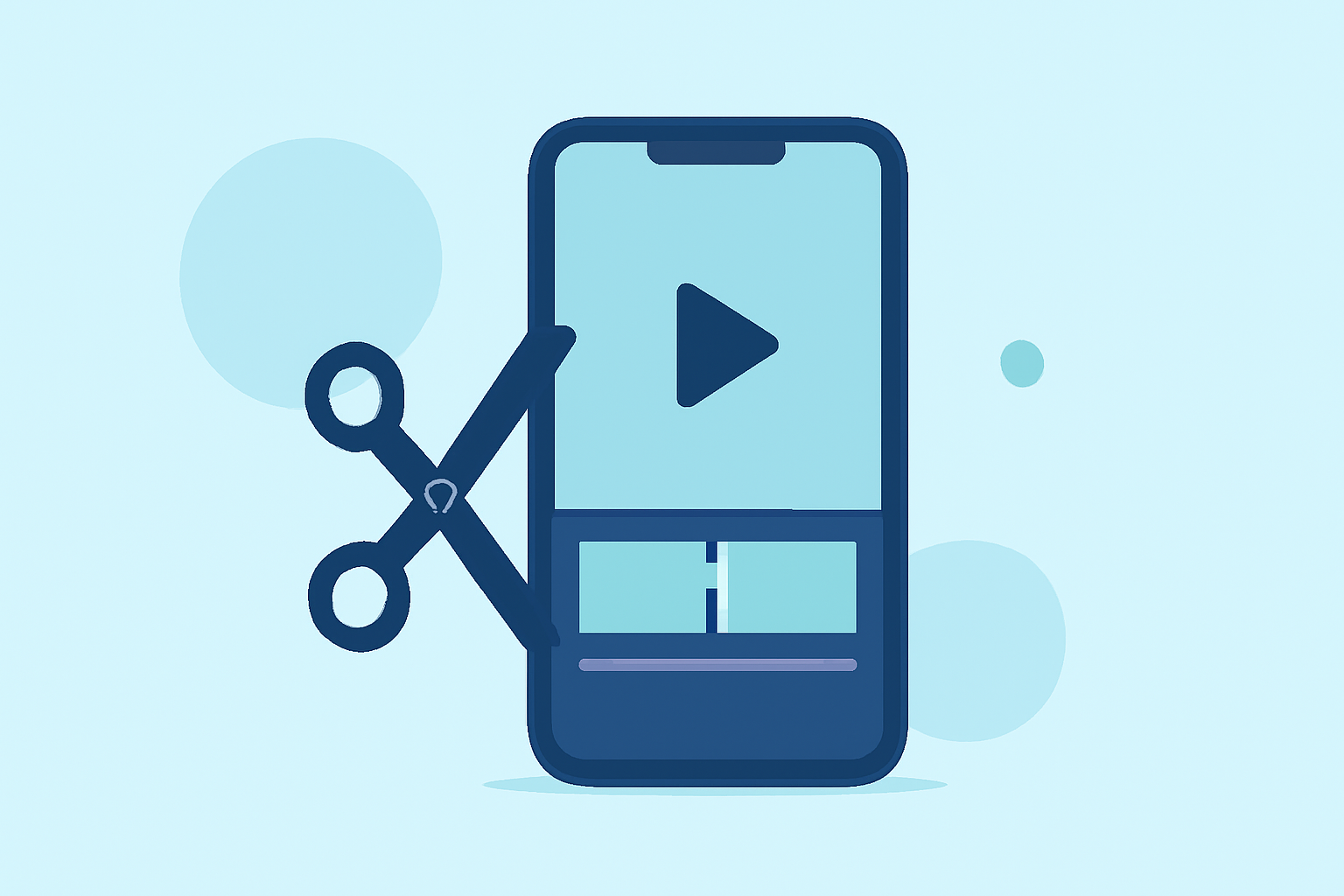
- Trimming: Select the clip you want to cut. Drag the edges of the clip until you reach your desired length.
- Combining: Place the remaining clips in sequence on the timeline. Adjust their order simply by dragging them as needed.
- Exporting: Once satisfied, hit the export button to share your creation across social platforms instantly.
Key Considerations When Editing
When considering your editing tool, weigh features like ease of use, editing speed, and platform integration. Splice is built for creators who favor efficiency without sacrificing quality, ensuring you can focus on content creation rather than getting bogged down in complicated software.
What We Recommend
- Use Splice for its intuitive mobile editing capabilities. It perfectly meets the needs of creators focusing on social media.
- Explore CapCut only if your workflow specifically benefits from its templates and more advanced effects.
- Prioritize a tool that aligns with your unique content needs, focusing on what improves your workflow without unnecessary complexity.
- Test Splice for free to gauge its fit before committing to any paid features or additional functionalities.