22 June 2026
Mastering Airport Timelapse Editing on Your iPhone
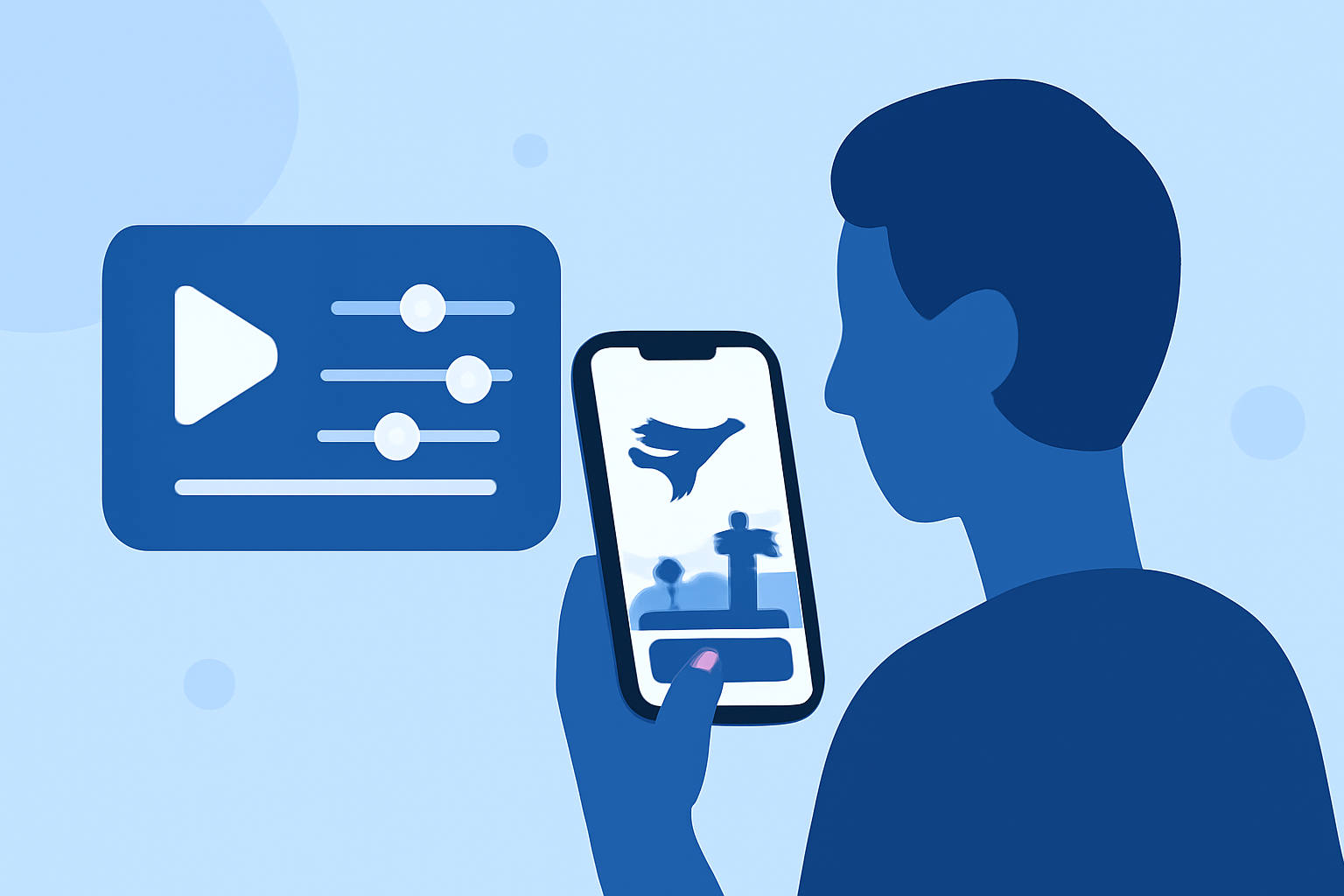
Capturing the dynamic environment of an airport through timelapse photography can yield captivating videos that showcase the hustle and bustle of air travel. With your iPhone, you have a powerful tool to create and edit these videos on the go. Here's a comprehensive guide to help you master airport timelapse editing on your iPhone.
1. What Is Timelapse Photography?
Timelapse photography involves capturing a series of images at set intervals over a period of time and then playing them back at a faster speed. This technique condenses hours or days into a few seconds, revealing changes that are typically imperceptible to the naked eye.
2. How to Capture Airport Timelapse Videos on Your iPhone
-
Use the Built-in Camera App:
- Open the Camera app and swipe to the 'Time-Lapse' mode.
- Frame your shot to include the desired airport scene.
- Tap the red record button to start capturing.
- Tap the button again to stop recording.
-
Utilize Third-Party Apps for Enhanced Control:
- Apps like TimeLapsed offer advanced features such as real-time effects and manual settings, providing greater creative control over your timelapse videos. (shutterspeedapps.com)
3. Tips for Capturing High-Quality Airport Timelapse Videos
-
Stabilize Your iPhone:
- Use a sturdy tripod or mount to keep your iPhone steady during the recording.
- Ensure the iPhone is securely positioned to prevent accidental movement.
-
Choose the Right Location:
- Select a spot with a clear view of the airport's activity, such as near the runway or overlooking the terminal.
- Be mindful of airport regulations and security protocols when setting up your equipment.
-
Monitor Lighting Conditions:
- Be aware of changing light conditions throughout the day, as they can affect the exposure and overall quality of your timelapse.
4. How to Edit Your Timelapse Videos on iPhone
-
Using iMovie:
- Open iMovie and create a new project.
- Import your timelapse video.
- Use the speed adjustment feature to slow down or speed up the footage as desired.
- Trim any unnecessary sections and add transitions or effects to enhance the video.
-
Using TimeLapsed App:
- Import your timelapse footage into the app.
- Apply real-time effects and adjust settings to refine your video.
- Export the final product directly to your Photos app or share it on social media platforms. (shutterspeedapps.com)
5. How to Share Your Timelapse Videos
-
Direct Sharing:
- Share your edited timelapse videos directly from your iPhone to platforms like YouTube, Instagram, or Facebook.
-
Cloud Services:
- Upload your videos to cloud services such as iCloud or Google Drive for easy access and sharing.
6. Recommended Tools for Enhanced Timelapse Editing
-
TimeLapsed App:
- Offers advanced features for capturing and editing timelapse videos, including real-time effects and manual settings. (shutterspeedapps.com)
-
iMovie:
- A user-friendly video editing app that allows for speed adjustments and basic editing functions.
Conclusion
Creating and editing airport timelapse videos on your iPhone is a rewarding endeavor that combines creativity with technical skills. By following the steps outlined above and utilizing the recommended tools, you can produce professional-quality timelapse videos that capture the dynamic essence of airport environments.
Highlights:
- How to shoot timelapses on iPhone - Matthew Vandeputte, Published on Tuesday, March 21
- Step-by-Step Guide | How to Edit A Time Lapse Video on iPhone, Published on Monday, January 05
- 3 Ways to Make Time Lapse on iPhone [from Photos Included], Published on Tuesday, July 20