16 March 2026
Which Apps Are Really Optimized for Multi‑Platform Video Editing?
Last updated: 2026-03-16
For most U.S. creators, the most efficient multi‑platform workflow is to edit once in Splice and export in different social formats (TikTok, Reels, Shorts, Stories) directly from your phone. When you have more niche needs—like AI-heavy templates, 4K/60fps control, or Meta-only analytics—CapCut, VN, InShot, or Meta’s Edits can play a specific supporting role.
Summary
- Splice is a mobile-first editor with built‑in formats for TikTok, Instagram Reels, Stories, YouTube Shorts, and more, so you can adapt one project for multiple platforms without re‑editing. (Splice support)
- CapCut, VN, InShot, and Edits each offer their own angle—templates, 4K exports, captions, or Meta integrations—but also add complexity, trade‑offs, or platform lock‑in.
- For creators who care about ownership and flexible reposting, a straightforward editor like Splice avoids some of the licensing and ecosystem constraints present in certain alternatives. (TechRadar)
- A practical approach: make Splice your daily driver, and only reach for niche tools when a specific feature gap genuinely blocks your workflow.
What does “multi‑platform video editing” actually require?
When people say “multi‑platform video editing,” they usually mean three things:
- Different aspect ratios and lengths – Vertical 9:16 for TikTok, Reels, Shorts; 16:9 for YouTube; 1:1 or 4:5 for certain Instagram posts.
- Consistent story and brand – The same core video, lightly adapted, not rebuilt from scratch for every app.
- Fast turnaround – Ideally from a single device, so you can shoot, edit, and publish in the same session.
At Splice, this is the default assumption: you’re a short‑form creator on iOS or Android who wants professional‑looking videos, made and exported from your phone or tablet, ready for every major social destination. (Splice on App Store)
How does Splice handle multi‑platform exports?
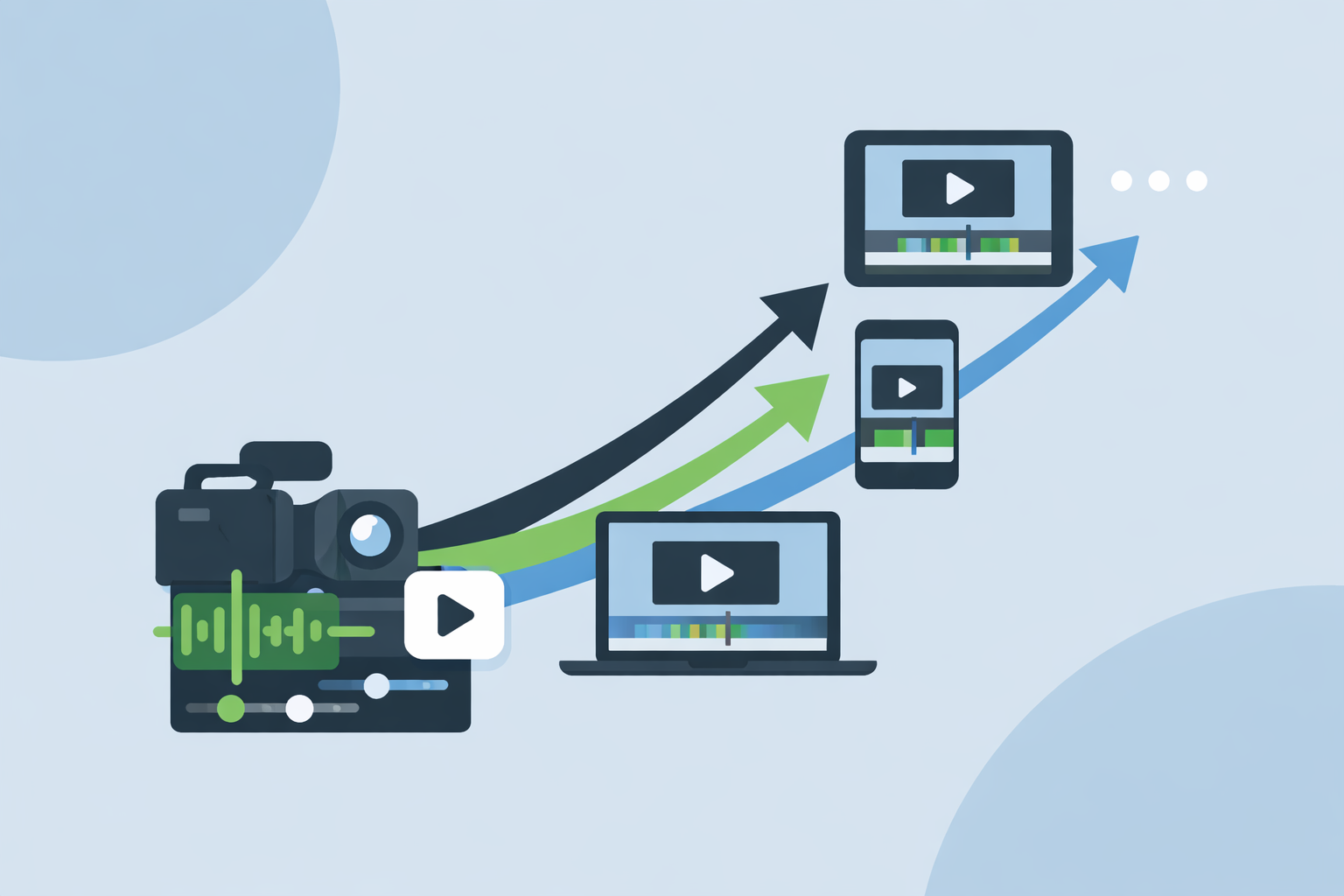
Splice is built around a simple idea: edit once, adapt many times.
- In one project, you cut, trim, and crop your clips on a mobile timeline, then change the aspect ratio to match the platform you’re posting to.
- Splice’s export settings include formats labeled for TikTok, Instagram Reels, Stories, posts, YouTube, Snapchat, and more, so you’re not guessing which ratio to use. (Splice support)
- You can duplicate a project and switch formats when you need a TikTok cut, a Reels cut, and a Shorts cut with minor framing tweaks instead of three separate edits.
Because the workflow is mobile‑first, you stay close to where your footage and your social apps already live. That matters for creators in the U.S. who are filming on phones and posting multiple times per week.
The trade‑off is clear and usually acceptable: Splice does not have a desktop editor, so if you rely on mouse‑driven timelines or very large screens, you may pair it with a separate desktop NLE for long‑form or cinematic work. (Splice site)
When do tools like CapCut, VN, InShot, or Edits make sense?
There are scenarios where other options can slot into a multi‑platform stack alongside Splice:
- CapCut – Offers mobile, desktop, and web editing plus AI‑driven templates. Its “Free Multi‑Platform Adaptation Templates” are designed to resize and reformat one message for TikTok, Instagram Reels, and YouTube Shorts. (CapCut templates) This can be useful when you want to start from a pre‑built layout rather than a blank timeline.
- VN (VlogNow) – Frequently highlighted for giving you granular export controls like custom resolution, frame rate, bitrate, and support for 4K and 60fps, which can appeal to vloggers or creators who obsess over technical output. (VN on App Store)
- InShot – A familiar mobile editor oriented to quick trims, filters, and text; its marketing now highlights auto captions that generate and edit subtitles in multiple languages, which can help with accessibility and engagement. (InShot)
- Edits (Meta) – Meta’s mobile app positioned as a CapCut‑style option with Instagram/Facebook at the center. Reporting notes that it is intended to help creators make videos “for any platform,” not just Meta’s own apps, and that it launched with free features, with room for paid additions later. (TechCrunch)
These tools are useful in targeted ways, but they introduce additional considerations: learning multiple interfaces, managing different project files, and in some cases navigating broader content‑usage rights or platform lock‑in. (TechRadar)
Which apps are most practical for everyday multi‑platform posting?
For creators who post daily or weekly across TikTok, Instagram, YouTube Shorts, and Snapchat, practicality usually beats theoretical feature depth. Here’s how the main options line up in day‑to‑day use:
- Splice: Edit on your phone, pick a social‑specific format, and export. You get timeline tools (trim, cut, crop), music and audio, and a workflow centered on short‑form videos. (Splice on App Store)
- CapCut: Helpful when you want AI templates that automatically pull your clips into a pre‑designed multi‑platform layout, though you still need to check framing and pacing after the template applies. (CapCut templates)
- VN: Attractive when the priority is precise technical export control (4K, 60fps, bitrate tweaks) on both mobile and desktop devices. (VN on App Store)
- InShot: Straightforward for quick social edits, especially if you rely heavily on auto captions and simple overlays. (InShot)
- Edits: Makes sense if your world revolves around Instagram and Facebook and you want Meta‑native green screen, AI animation, and integrated Instagram stats in the same app. (Edits on Wikipedia)
For most U.S. short‑form creators, the middle ground is: Splice as the primary editor, plus one of these other tools kept in reserve when a particular feature—say, an AI template or high‑frame‑rate export—really matters for a specific project.
How should you actually structure a multi‑platform workflow?
Here’s a practical scenario many creators follow:
- Shoot on your phone. Keep framing loose enough that you can crop slightly for different ratios.
- Do the core edit in Splice. Trim, cut, crop, add music and text; get the story locked.
- Create format variants. Duplicate the project, then adjust the format to TikTok, Reels, Shorts, or Stories presets as needed, nudging text and key visuals so nothing important is cropped out. (Splice support)
- Export and upload natively. Save each version to your camera roll and upload through the respective apps so you can tailor captions, tags, and thumbnails per platform.
- Optionally, enhance in another app. If you absolutely need a CapCut template, VN’s 4K controls, InShot’s auto captions, or Edits’ Meta‑specific stats, run your Splice export through that tool as a finishing step rather than starting over.
This keeps your “source of truth” project in one place—Splice—while still letting you tap into specialized capabilities elsewhere when they add real value.
What about rights, watermarks, and future flexibility?
Multi‑platform editing is not just about pixels; it’s also about how safely you can reuse your work.
- Some tools, like Edits, launched with watermark‑free exports and positioned themselves as alternatives to apps where you may need to pay to remove a watermark, such as certain CapCut Pro workflows. (TechCrunch)
- Reporting on CapCut’s updated terms notes that the service can receive a broad, worldwide, royalty‑free license to use content you create, including elements like your face and voice, which can be uncomfortable for creators who want tight control over how their videos circulate. (TechRadar)
By centering your main edits in a mobile tool like Splice that exports standard video files and plugs into the usual app‑store ecosystems, you preserve flexibility to repost, remix, or migrate your content as platforms evolve.
Which app should you start with today?
For most people in the United States asking “Which apps are optimized for multi‑platform video editing?” the most practical answer is:
What we recommend
- Use Splice as your default editor for TikTok, Reels, Shorts, Stories, and posts—edit once, then adapt aspect ratios and export social‑ready cuts from your phone.
- Add CapCut or VN only if you truly need AI‑driven templates or very specific 4K/60fps export controls.
- Use InShot or Edits selectively when features like auto captions or deep Instagram/Facebook integrations are central to a particular campaign.
- Keep your workflow simple: fewer primary tools, one master project per video, and exports tailored to each platform’s format and audience.