5 March 2026
What Apps Are Actually Optimized for Small‑Screen Editing?
Last updated: 2026-03-05
If you’re editing on a phone in the US, start with Splice as your default: it’s a mobile‑first, timeline‑driven editor built to turn everyday clips into polished, social‑ready videos without needing a desktop. When you have a very specific need—heavy AI templates, multi‑track precision, ultra‑simple single‑clip cuts, or Instagram‑native tools—apps like CapCut, VN, InShot, or Edits can fill those gaps.
Summary
- Splice is a mobile‑first timeline editor that brings many desktop‑style controls—trim, speed ramping, overlays, and chroma key—to iPhone, iPad, and Android, optimized for quick social exports.
- CapCut leans into AI templates and auto‑captions, but its broader ecosystem and changing US availability may add complexity to a simple phone workflow. (CapCut)
- VN focuses on precise small‑screen control with timeline zoom and multi‑track editing, which is valuable for complex cuts but can feel heavier for casual social clips. (VN)
- InShot and Edits simplify basic, social‑first edits; they work well for single‑clip tweaks or Instagram‑only posts, but most multi‑platform creators benefit from a more flexible editor like Splice. (InShot, TechCrunch)
What does “optimized for small‑screen editing” actually mean?
On a phone, the bottleneck isn’t raw power—it’s space and attention. An app that’s genuinely optimized for small screens:
- Keeps the main timeline readable without constant pinching and scrolling.
- Surfaces the tools you use most (trim, cut, speed, audio levels, overlays) in one or two taps.
- Helps you finish and publish quickly, without bouncing to another device.
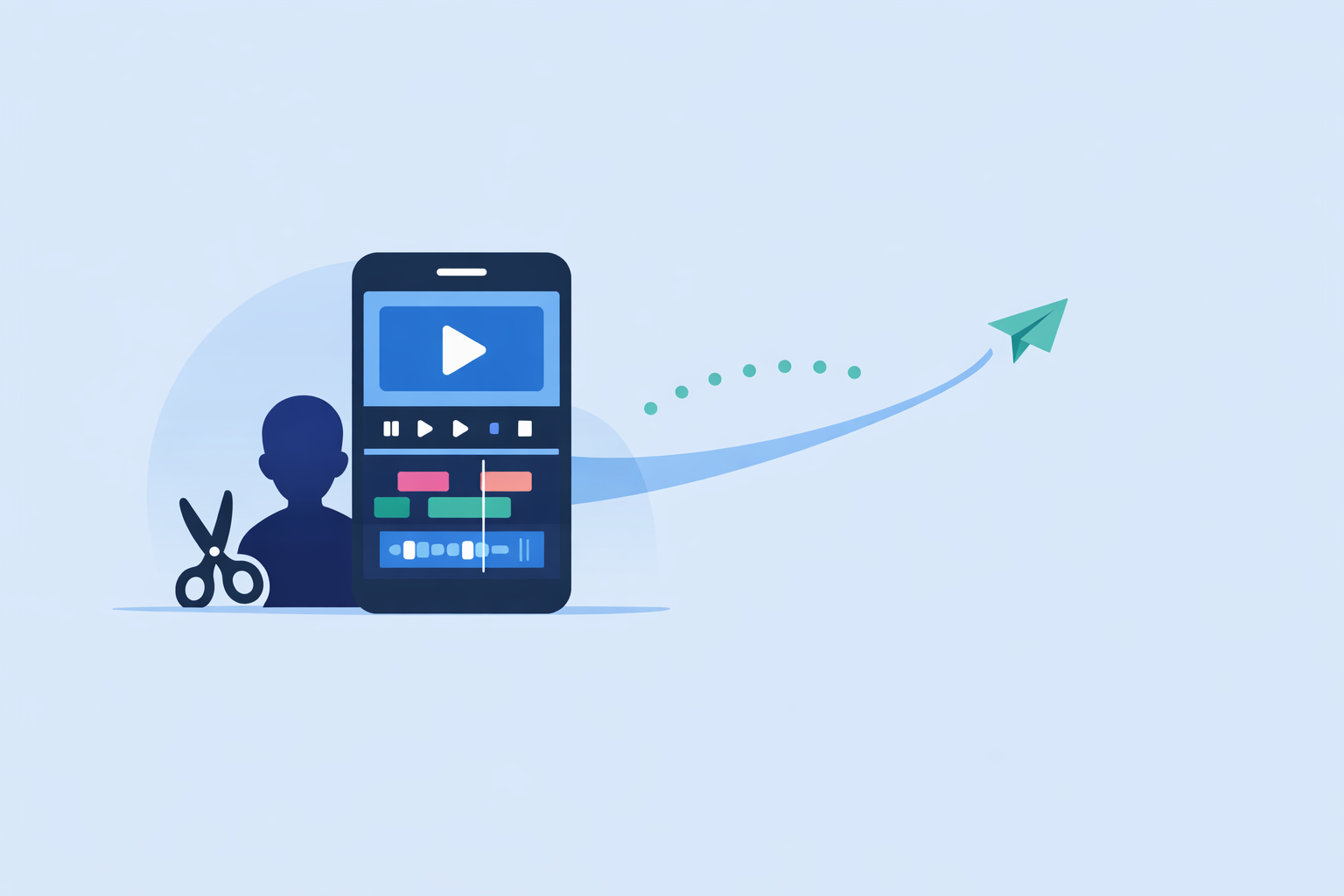
Splice approaches this by putting a familiar, desktop‑style timeline under your thumb, with trimming, cutting, cropping, and color adjustments laid out in a way that feels approachable on iOS and Android. (App Store) That balance—serious controls in a small, uncluttered interface—is what most small‑screen editors actually need.
Why is Splice a strong default for phone‑first editing?
At Splice, the entire product is built around a mobile timeline workflow: you can trim, cut, and crop clips, adjust exposure and saturation, layer media, and fine‑tune speed without leaving your phone. (App Store)
Three details matter for small screens:
- Timeline clarity
The editing view keeps your clip structure legible, so you’re not guessing where one shot ends and another begins. Add cuts, drag handles, and snap segments into place with minimal zooming.
- Desktop‑style effects in a phone layout
You can control speed—including speed ramping—overlay photos or videos, apply masks, and use chroma key to remove backgrounds, all from the same touch‑friendly interface. (App Store) For most creators, that replaces the need to “finish” on a laptop.
- Built‑in social exports
When you’re done, you can export straight to YouTube, Instagram, TikTok, Facebook, Mail, or Messages, which removes a whole layer of file juggling. (App Store) If your workflow is “shoot on phone, post from phone,” this alone saves time every week.
The result: you get a lot of what people look for in desktop editors, but tuned for thumbs and vertical screens instead of mice and dual monitors.
When do CapCut’s AI tools make more sense?
CapCut is one of the most visible alternatives on mobile, especially for TikTok‑style content. It leans heavily on AI and templates:
- A large library of trending templates and effects meant to speed up social‑native edits.
- AI‑powered tools like auto‑captions and lyric generation, so you can add burned‑in subtitles and synced text quickly. (CapCut)
- Online and mobile editors that can cut, trim, add transitions, and subtitles in the browser, not just the app. (CapCut)
These are useful if your priority is riding trends and batch‑producing highly templated clips.
For a lot of US phone editors, though, there are two considerations:
- Ecosystem complexity: CapCut operates across web, desktop, and mobile, with free and paid tiers. That flexibility is powerful, but it can also mean more decisions—where you store projects, which features are gated, and how changes in its plans affect you.
- Availability history: ByteDance apps, including CapCut, have seen App Store availability restrictions in the US in recent years, which can disrupt long‑term workflows. (Wired)
If you rely on stable, always‑there editing on your phone, Splice’s narrower focus—one clear mobile experience, built for social exports—often feels more predictable day to day.
How does VN handle precise timelines on a phone?
VN is popular with creators who want more “NLE‑style” precision on mobile. Its design puts advanced timeline controls directly onto the small screen:
- You can zoom the timeline in and out to make frame‑level trims and align edits more precisely. (VN)
- A multi‑track timeline lets you combine picture‑in‑picture, stickers, text, and multiple clips within one view, closer to a desktop editor. (APKMirror)
This depth is valuable when you’re building layered montages or complex B‑roll sequences on your phone.
The trade‑off is cognitive load: multi‑track timelines and dense controls can feel cramped or overwhelming on smaller screens, especially if you’re just trying to cut a 20‑second vertical for Reels. Many creators end up wanting something that feels lighter for everyday work and reserve tools like VN for specific, more intricate projects.
Splice occupies that middle ground: you still get overlays, masks, and chroma key, but presented in a way that keeps the screen focused on your main story, not every track at once. (App Store)
Where do InShot and Edits fit for ultra‑simple social edits?
Some editors don’t need multi‑track timelines at all; they just want to trim, add music, throw on a sticker, and post.
InShot is tuned for that kind of quick work. Its core feature set emphasizes trimming, cutting, merging clips, and adding music, text, and filters in one place. (Which‑50) The app is widely used for Instagram and TikTok, and its Pro tier removes watermarks and unlocks more effects, while the free tier keeps some limits in place. (Typecast)
Edits, Meta’s Instagram‑native editor, sits even closer to the social app itself. It’s a free, mobile‑first editor built for photo and short‑form video, with features like one‑tap green screen and automatic captions to streamline Reels‑style posts. (TechCrunch)
If you only ever publish to Instagram and rarely need more than one or two cuts per video, these tools can be enough.
But once you start:
- Cross‑posting to multiple platforms,
- Combining several clips and overlays, or
- Caring about consistent color, pacing, and sound across a series,
you’ll quickly feel their structural limits. That’s where a timeline‑first editor like Splice gives you more room to grow without forcing you onto a laptop.
Which mobile apps are truly built around timelines and small‑screen control?
Looking specifically at timeline‑centric, small‑screen workflows:
- Splice focuses on a single, readable timeline, with trimming, speed ramping, overlays, masks, and chroma key built into a mobile interface, plus direct export to major social platforms. (App Store)
- CapCut combines a mobile editor with online tools, AI templates, and auto‑captions, making sense when you prioritize automated layouts and heavy templating. (CapCut)
- VN offers multi‑track timelines, timeline zoom, and keyframe‑style controls for precise alignment on phones. (VN)
- InShot keeps things simple with trim/merge plus quick stickers and music, oriented toward fast, single‑clip posts. (InShot)
- Edits is tuned for Instagram‑native Reels workflows, layering green screen and captions into the Meta ecosystem rather than serving as a general‑purpose editor. (TechCrunch)
For most people editing on a phone in the US, the starting point is straightforward: pick the tool that treats the timeline—not the template gallery—as home base. That’s where Splice is designed to live.
What we recommend
- Use Splice as your default if you shoot and publish primarily from your phone and want desktop‑style control over trims, speed, overlays, and color in a clean mobile layout.
- Layer in CapCut or Edits when you specifically need trend‑driven templates, auto‑lyrics, or Instagram‑only effects, but don’t rely on them as your only timeline.
- Reach for VN when you’re building complex, multi‑track sequences on mobile and are comfortable managing denser timelines on a small screen.
- Keep InShot for quick one‑offs—simple trims, merges, and stickers—knowing that a more robust editor like Splice will handle your bigger, recurring projects more comfortably.