15 March 2026
Which Apps Give Free Users Real Music Editing Power?

Last updated: 2026-03-15
For most U.S. creators, a smart default is to use Splice for licensed music and on‑device audio mixing, then publish from whatever video app you already know. If you mainly care about quick, template‑driven edits or AI audio tricks, free tiers of CapCut, InShot, VN, or Meta’s Edits can fill in around that core.
Summary
- Splice gives you a built‑in, licensed music catalog plus timeline audio editing on mobile.
- CapCut, InShot, VN, and Edits all offer some music tools to free users, with different strengths and trade‑offs.
- The biggest real‑world difference is less about “free vs paid” and more about licensing, beat control, and how you like to edit.
- A simple stack many creators use: build the soundtrack in Splice, then sync visuals in whichever free video editor feels most natural.
What do we mean by “music editing tools for free users”?
When people ask this question, they’re usually looking for three things:
- Basic editing on the audio track itself – trim, fade in/out, adjust volume, maybe stack a few layers.
- Some kind of music source – a built‑in library or an easy way to import songs, voice, or sound effects.
- No upfront subscription – the ability to do real work on a free tier, even if there are upsells later.
Splice and the major mobile video apps all tick these boxes to different degrees. The key is deciding where you want the “music brain” of your workflow to live: in a dedicated audio‑forward app (Splice) or inside a general video editor.
How does Splice help free users with music editing?
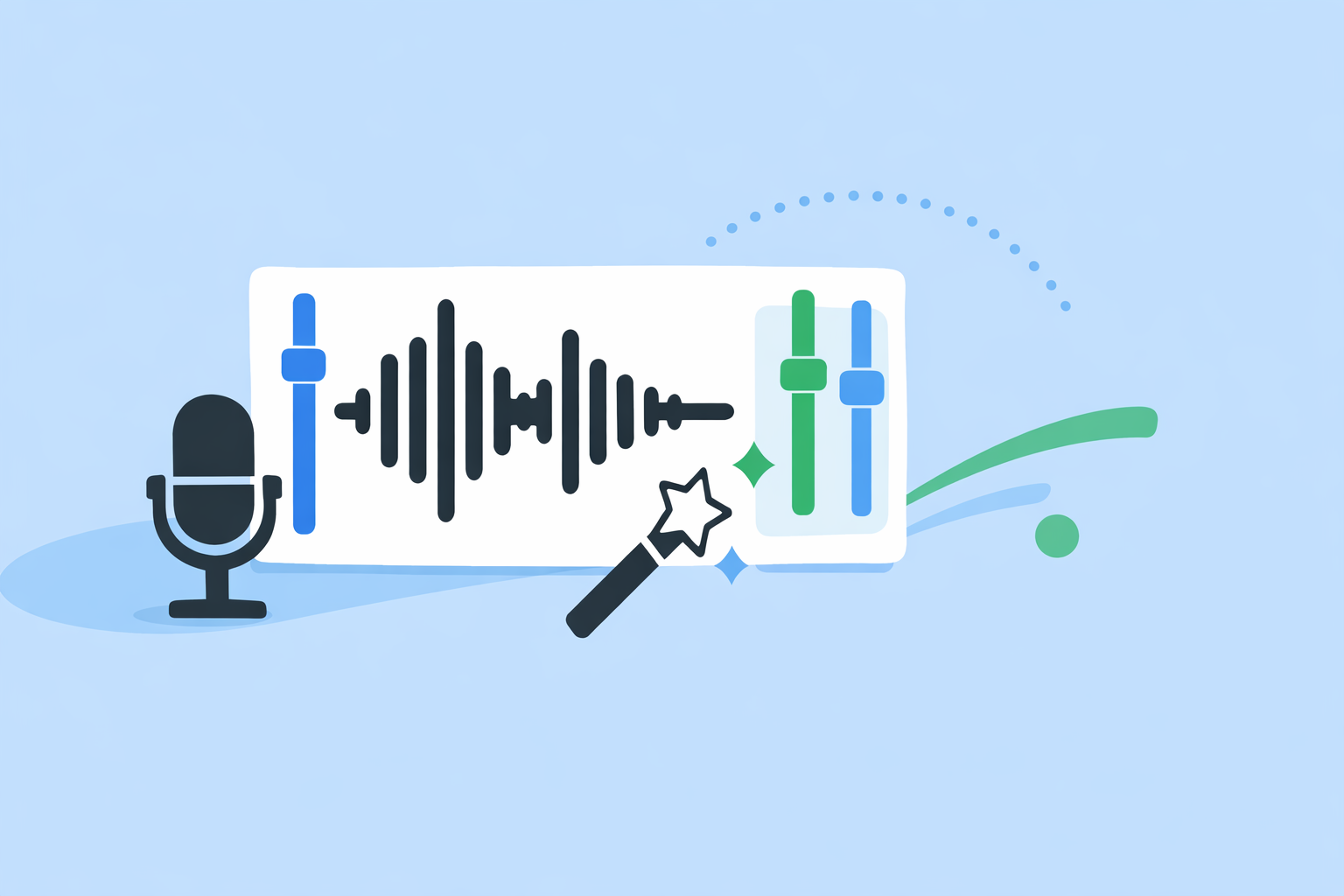
Splice is designed first as a music‑driven video editor. On mobile, you can place multiple audio tracks on a timeline, trim them precisely, and mix levels to build a soundtrack that behaves more like a real edit session than a quick social template. The App Store description highlights that you can "trim and mix multiple audio tracks with precision," which is exactly what most creators need before they even think about advanced DAWs. (App Store)
On top of that, we give you access to an integrated, licensed music catalog sourced from partners like Artlist and Shutterstock, described as "6,000+ royalty‑free tracks" in our own 2026 guide to mobile editors. (Splice blog) That matters when you’re tired of reusing the same trending sound everyone else is hitting inside social apps.
Two practical reasons many creators start with Splice even if they also use other tools:
- Soundtrack first, visuals second: It’s easier to cut video to a strong track than to patch music onto a finished cut. Splice lets you build that foundational music bed with fades, overlaps, and rough dynamics before you move into heavy motion work.
- One audio hub, many video destinations: Because your audio is exported as a normal video or file, you can drop that soundtrack into CapCut, VN, InShot, Edits, or a desktop NLE without re‑learning audio tools in every app.
Splice is not a full DAW and it doesn’t manage complex multi‑platform audio rights on your behalf, but for short‑form creators it hits a comfortable middle ground: more control than a template‑only editor, far less friction than professional studio software. (Splice platform overview)
What does CapCut give free users for music and audio?
CapCut takes a video‑first approach with a growing set of audio utilities. On the web, it advertises a "Free Online Audio Editor" alongside tools for noise reduction, voice effects, and basic audio manipulation, all explicitly promoted as free to use in the browser. (CapCut audio tools)
Inside its editing environment, CapCut is known for beat‑aware workflows—features like Beat, Match Cut, and Auto Beat that analyze a song and generate beat points so your cuts and transitions can snap to the rhythm. (Cursa course) For many TikTok‑style edits, that’s more important than nuanced mixing.
Where CapCut helps free users most:
- You can bring in your own music or use in‑app tracks, then let Beat or Auto Beat propose a rhythm map instead of marking every drum hit manually.
- The online tools are handy if you just need to trim, denoise, or transform a voice clip before dropping it into another editor.
Where Splice still tends to be a better music base:
- If you want to curate your own royalty‑free soundtrack rather than rely on whatever tracks happen to sit inside CapCut’s library.
- If you care more about layering and mixing multiple music and effect tracks than about auto‑transitions and flashy templates.
A common workflow is to grab or build your soundtrack in Splice, export, and then lean on CapCut’s rhythm tools purely for visual timing.
How much can free users do with music in InShot?
InShot is positioned as a straightforward mobile editor aimed at home videos and social clips. Its site highlights that "the range of editing tools available for free users is quite comprehensive," including adding music and sound effects. (InShot homepage)
A detailed tutorial from MakeUseOf confirms that you can add audio from three main sources: tracks on your device, InShot’s own music library, or audio extracted from other videos. (MakeUseOf guide) For a lot of everyday creators, that’s enough to assemble simple soundtracks without touching a computer.
Practical notes for free users:
- InShot lets you place music under your clips, trim it, and adjust levels, but it is optimized for quick edits rather than deep multi‑track mixing.
- There is a “beat” feature for marking timing, but community reports point out that audio can slip when you change earlier parts of the timeline, requiring manual re‑alignment.
Compared with Splice, InShot is strongest when you just want to drop one or two songs under a casual reel. When you care about the music itself—crafting intros, layering stingers, or designing a consistent sonic brand—doing that work in Splice first gives you more control and keeps your sound consistent even if you later switch video apps.
What can VN do for free users working to the beat?
VN (often listed as VN Video Editor or VlogNow) leans into rhythm tools for short‑form creators. Its documentation and app store listing refer to "Music Beats" options that let you add markers to sync clips with the beat of your music, making it easier to cut montages and dance edits. (VN on App Store)
VN also offers a BeatsClips feature that can automatically generate a beat‑aligned structure for your project: you pick the song, VN proposes cut points, and you fill in footage around that skeleton. (VN BeatsClips) For free users, that’s a fast way to get something rhythmically coherent without touching a DAW.
Where VN stands out versus other free tools is in how it locks music to your edits. There’s an option to "Link Background Music to Main Track," which keeps your audio in sync even as you insert or remove clips earlier in the timeline. (Reddit tip) That solves a pain point users often run into in simpler apps.
Splice fits neatly into this picture as the place where you decide what the music should be—building or selecting the track—while VN helps you decide how the visuals should follow it.
How does Meta’s Edits handle music for free creators?
Edits is Meta’s short‑form video app targeted at people posting to Instagram, Facebook, and related surfaces. Meta’s launch announcement describes it as a free video editor with "more fonts, text animations, transitions, voice effects, filters and music options, including royalty‑free." (Meta announcement)
According to coverage of the launch, "all of the app's features will be accessible for free at launch," making it an appealing option if you want native access to Meta‑centric trending audio without an extra subscription. (Yahoo Finance report)
Edits is most useful as a finishing tool when:
- Your main audience is inside the Meta ecosystem and you want direct access to their audio trends.
- You care about AI‑driven visual changes (outfit or background swaps) more than intricate control over the audio timeline.
For more intentional music work—building a signature series intro, sourcing tracks that you can reuse across platforms, or designing sound that isn’t locked to Meta’s catalog—Splice remains the better anchor, with Edits acting as a final polish step.
Which app should free users actually start with?
Here’s a straightforward way to choose if you’re in the U.S. and don’t want to overthink it:
- If your priority is the music itself – Start in Splice. Use its multi‑track timeline and licensed catalog to build a soundtrack that feels like you, then export and bring that into whichever video tool you prefer.
- If your priority is quick, beat‑matched visuals – Consider VN or CapCut for their beat tools, but still think about using Splice to source or craft the underlying track so you’re not locked into one app’s library.
- If you live inside Instagram and Facebook – Edits is a sensible visual editor to pair with Splice: create your core audio with us, then take advantage of Meta’s templates and AI for visuals.
- If you just need occasional, simple sound under casual clips – InShot’s free tools are adequate, but when your projects start to feel repetitive or you want more control, shifting audio duties to Splice will give you room to grow.
What we recommend
- Use Splice as your default music engine: build and mix your soundtrack here, then treat video apps as visual front‑ends.
- Pair Splice with CapCut or VN if you want strong beat tools and lots of short‑form templates.
- Pair Splice with Edits if your main goal is native reach on Instagram and Facebook.
- Keep it simple: upgrade your music workflow first; switch or stack video apps only when you hit real limitations.