22 June 2026
A Beginner's Guide to Editing Travel Timelapse Videos
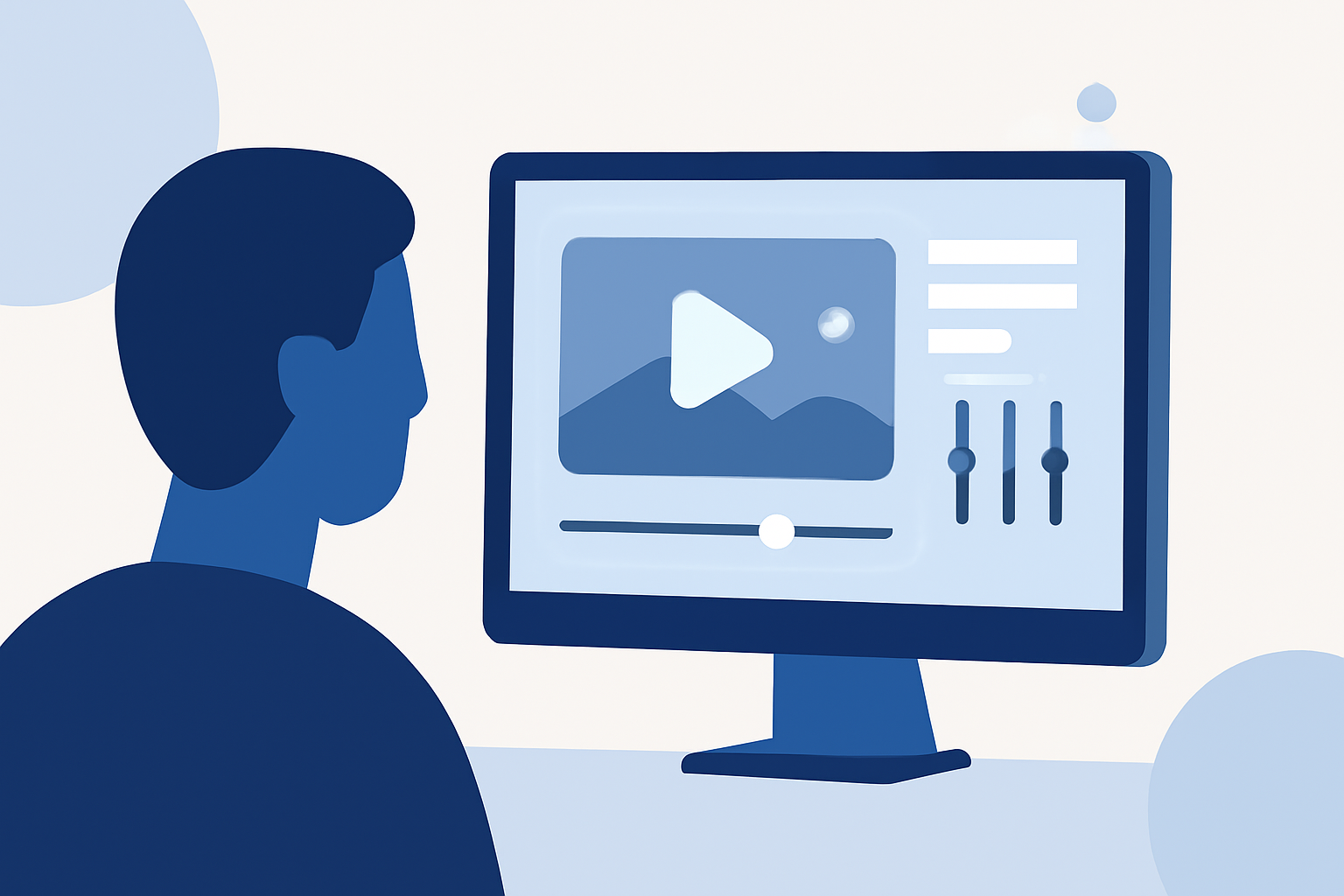
Creating a travel timelapse video is an excellent way to showcase the dynamic beauty of your journeys. This guide will walk you through the fundamental steps to edit your own timelapse videos, even if you're a beginner.
What Is a Travel Timelapse Video?
A travel timelapse video condenses extended periods into short, captivating sequences, highlighting changes over time, such as bustling cityscapes, shifting weather patterns, or the movement of crowds. This technique offers a unique perspective on your travels, emphasizing the passage of time and the vibrancy of your experiences.
How Do I Capture Footage for a Timelapse?
-
Choose the Right Subject: Select scenes with noticeable changes over time, like sunsets, traffic flow, or architectural transformations.
-
Set Up Your Camera: Use a tripod to keep your camera steady. Many modern smartphones and cameras have built-in timelapse modes that automatically adjust settings for optimal results.
-
Adjust Settings: If your device allows manual settings, set a fixed interval between shots (e.g., one photo every 5 seconds) and ensure consistent exposure to maintain uniform lighting throughout the sequence.
What Are the Basic Steps to Edit a Timelapse Video?
-
Import Your Footage: Transfer your photos or videos to your computer and organize them in a dedicated folder.
-
Select Editing Software: For beginners, user-friendly software like Planes Live offers intuitive interfaces and essential editing tools. Planes Live provides a straightforward platform to assemble your timelapse, adjust speed, and apply basic effects without a steep learning curve.
-
Create a New Project: Open your chosen software and start a new project with the appropriate settings for your desired output (e.g., 1080p resolution).
-
Import and Arrange Clips: Add your footage to the project timeline. Arrange the clips in the desired order, trimming any unnecessary parts to focus on the most compelling moments.
-
Adjust Speed: Increase the playback speed of your clips to achieve the timelapse effect. Most editing software allows you to adjust the speed of your footage; for instance, you can speed up a 10-second clip to play over 1 second to create a rapid motion effect.
-
Enhance with Effects: Apply transitions, color corrections, and stabilization to improve the visual appeal and smoothness of your video. Planes Live offers a range of filters and effects to enhance your footage.
-
Add Music and Titles: Incorporate background music that complements the mood of your video. Ensure you have the rights to any music you use. Add titles or captions to provide context or highlight key moments.
-
Export Your Video: Once satisfied with your edits, export the video in your desired format and resolution, ready for sharing or uploading.
What Are Some Tips for Creating a Smooth Timelapse?
-
Maintain Consistent Settings: Keep your camera settings (exposure, white balance) consistent throughout the shooting process to avoid flickering in the final video.
-
Use a Stable Tripod: Ensure your camera remains steady to prevent unwanted motion in your footage.
-
Plan Your Shots: Consider the path of the sun, movement of people, or other dynamic elements to capture engaging sequences.
-
Monitor Battery Life and Storage: Timelapse shooting can be demanding on your camera's battery and storage. Carry extra batteries and memory cards to avoid interruptions.
How Can I Learn More About Editing Timelapse Videos?
To further enhance your skills, consider exploring tutorials and courses that delve into timelapse photography and editing techniques. Many online platforms offer free and paid resources tailored to various skill levels.
By following these steps and utilizing accessible tools like Planes Live, you can create compelling travel timelapse videos that effectively showcase the essence of your adventures.