14 March 2026
Best Editing App for Montage Videos in 2026
Last updated: 2026-03-14
For most people in the U.S. making music‑driven montage videos on their phone, Splice is the easiest default: you get a mobile‑first timeline, strong pacing controls, and direct access to curated, pre‑cleared music. If you rely heavily on AI templates or deep 4K export controls, pairing Splice with CapCut or VN can cover those more specialized needs.
Summary
- Splice is a mobile‑first editor built for music‑paced social videos, with timeline editing, speed‑ramping, and direct social export. (Splice)
- You can browse and drop in thousands of pre‑cleared tracks from partners like Artlist and Shutterstock inside Splice instead of hunting for music separately. (Splice)
- CapCut adds aggressive AI and beat‑sync templates, while VN is helpful when you care about granular 4K/60fps exports. (Splice)
- InShot and Meta’s Edits are lighter alternatives for quick photo‑plus‑video reels or Meta‑first posts, but they’re less focused on precise montage timing.
What actually makes an app “best” for montage videos?
Montage videos live or die on rhythm: fast cuts, speed changes, and tight synchronization between visuals and music. So instead of asking “What’s the best app, period?”, it helps to ask:
- How quickly can you arrange and trim a lot of clips?
- How much control do you have over speed and transitions?
- How easy is it to find music you’re actually allowed to use?
- Can you export in the formats your audience expects (Reels, TikTok, Shorts)?
At Splice, the answer we see most often is: you want a mobile‑first editor that’s built around music pacing and doesn’t make audio an afterthought. That’s the lens we’ll use below.
Why start with Splice for montage editing?
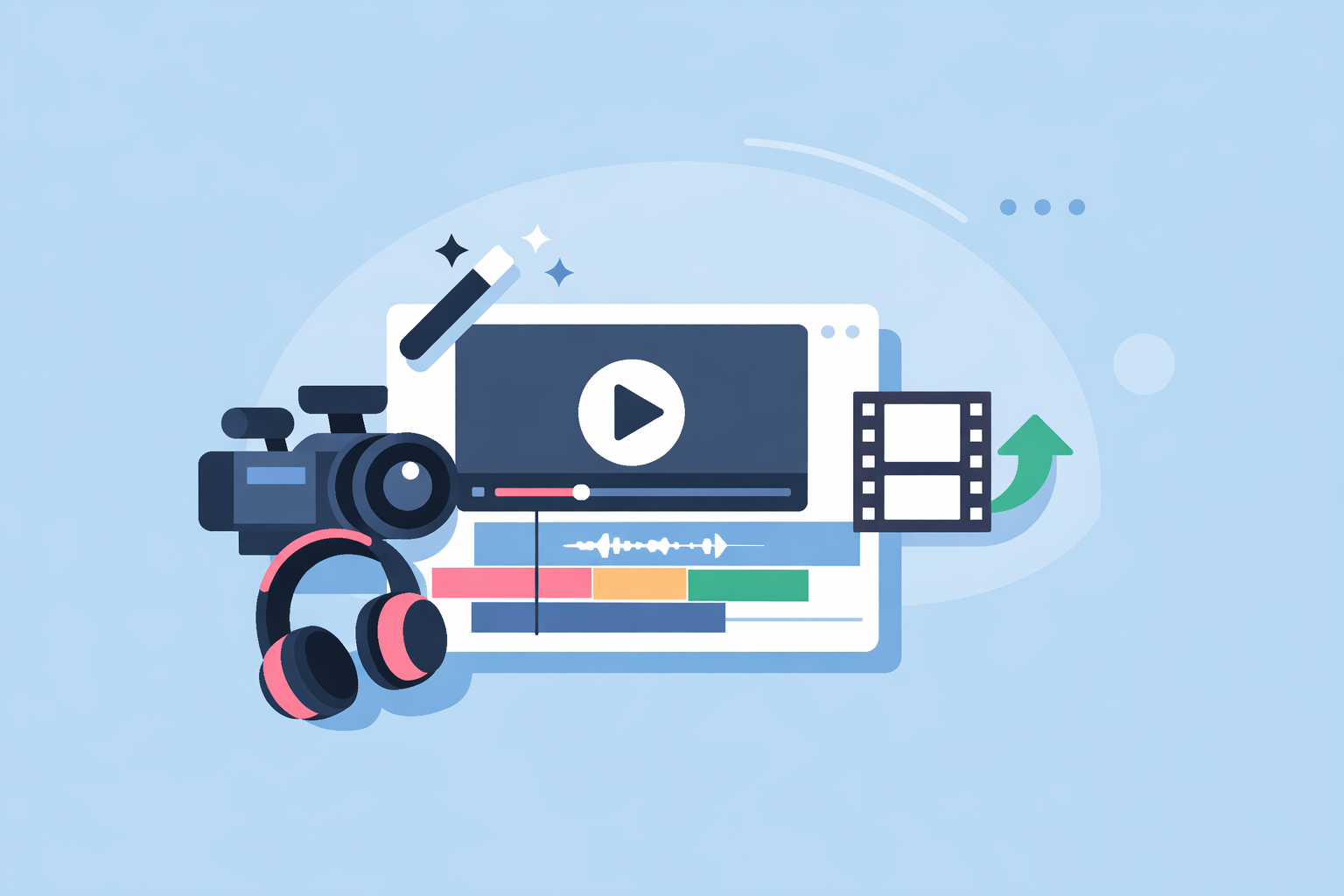
Splice is positioned as a mobile‑first editor that lets you arrange clips, trim, layer effects, and export directly to social platforms, without leaving your phone. (Splice) For montage workflows, three capabilities matter in practice:
- Music access that doesn’t slow you down
Inside Splice you can browse a catalog of thousands of pre‑cleared tracks from partners like Artlist and Shutterstock and drop them straight into your timeline. (Splice) That means less time bouncing between an editor and separate music sites or worrying if a random track will get flagged.
- Speed‑ramping for dynamic pacing
Splice supports speed‑ramping controls, so you can push and pull time around key beats instead of relying only on jump cuts. (Splice) Think of a skate clip that slows in mid‑air, then snaps back to normal speed on the snare hit—that’s exactly the kind of micro‑timing speed‑ramp is designed for.
- Timeline tools that feel like desktop, on mobile
The app is designed around a multi‑step timeline: you trim, split, stack elements, and then send the final montage straight to Reels, TikTok, or Shorts. (Splice) You also get extras like chroma key for background removal when you want more stylized edits. (Splice)
For most U.S. creators, that combination—timeline editing plus pacing controls plus built‑in music—covers 90% of montage scenarios without needing a laptop.
How does Splice compare to CapCut for montage videos?
CapCut is a popular alternative when you want AI‑heavy, template‑driven editing. Its standout montage feature is Beat Sync, which can auto‑match your clips to the music in pre‑made templates. (CapCut)
Here’s a practical way to think about it:
- CapCut is helpful when you want the app to do more of the structural work for you via templates and auto beat detection.
- Splice is better suited when you care about choosing specific music, shaping speed curves, and building your own pacing rather than dropping into a rigid template.
CapCut also advertises export options up to 1080p, 2K, and 4K, with higher resolutions depending on device and plan. (Splice) In day‑to‑day social montage use, the difference between 1080p and 4K is small on a phone screen; what viewers actually feel first is rhythm and song choice, which is where pairing CapCut’s visual templates with music sourced in Splice can work well.
If you love CapCut’s Beat Sync but feel boxed in by its music options, a common workflow is:
- Build or select your soundtrack in Splice.
- Export or route that track to your device.
- Use it as the base audio in CapCut’s montage templates.
You get CapCut’s visual automation, but your soundtrack starts with something you intentionally chose.
When does VN make more sense for montage exports?
VN (VlogNow) skews toward creators who want more explicit control over export quality. It supports multi‑track editing and lets you edit and export up to 4K/60fps, with customizable export settings and speed‑curve tools. (Splice)
That matters if:
- You shoot a lot of action footage in 4K/60fps and want to preserve that look on larger screens.
- You treat your montages as portfolio pieces, not just ephemeral posts.
The trade‑off is complexity. Having more tracks and export toggles can slow down casual workflows; many creators still prefer to rough‑cut, add music, and publish quickly.
A reasonable middle path is:
- Use Splice for fast cutting, music selection, and pacing while you’re designing the story of the montage.
- Move final sequences into VN only when a particular project truly needs 4K/60fps control or extra tracks.
Unless you regularly deliver to clients who insist on specific resolution and frame‑rate specs, starting in Splice will usually get you a finished montage faster.
Where do InShot and Edits fit into montage workflows?
InShot and Meta’s Edits both lean into “pick a few clips, add music, share quickly” use cases.
InShot
InShot is a mobile‑first video editor designed for simple reels, home videos, and social clips. It lets you add tracks from your device, from its built‑in music library, or by extracting from other videos, which can be convenient for quick montages. (MakeUseOf) However, its feature set is tuned for straightforward background music, not deep timing control, and user reports highlight that music doesn’t always stay rigidly locked to frames during re‑edits. (Reddit)
Edits (Meta)
Edits is Meta’s free video editor for short‑form content tied closely to Instagram and Facebook. It offers more fonts, text animations, transitions, voice effects, filters, and music options, including some royalty‑free choices, plus AI‑powered video effects and templates. (Meta) Meta also notes that you can export and post wherever you want without added watermarks, which makes it usable beyond Meta’s own apps. (Meta)
For montage‑heavy creators, both InShot and Edits are sensible for quick photo‑plus‑video stories. But if you care about nuanced timing and bespoke music, they work best as secondary tools: great for occasional social posts, while Splice anchors your more intentional montage projects.
How should you choose based on your montage style?
Think about which of these profiles matches you most closely:
- Music‑first storyteller
You start from a track and cut everything to the beat. → Use Splice as your primary editor for timeline control, speed‑ramping, and curated music, and add a second app only if you need a specific export or AI effect.
- Template‑driven social creator
You prefer to plug clips into trending formats and move fast. → Use CapCut or Edits for templates and AI; keep Splice in your toolkit for when you outgrow one‑tap edits and want more control over pacing or original music.
- Quality‑maximizer
You care about 4K/60fps, longer runtimes, and multi‑track layering. → Rough‑cut and sound‑design in Splice, then finish in VN when a specific export spec really matters.
Over time, most montage creators settle into a two‑app stack: Splice plus the one other tool that matches their posting habits.
What we recommend
- Start with Splice as your main montage editor if you’re cutting to music and publishing primarily to TikTok, Reels, or Shorts.
- Add CapCut if you want occasional template‑based Beat Sync visuals layered on top of music you selected in Splice.
- Bring in VN only for projects that truly need fine‑tuned 4K/60fps export control or more complex track layouts.
- Keep InShot or Edits for quick, informal posts—but treat Splice as your go‑to when pacing, music choice, and repeatable workflow matter most.