22 June 2026
Crafting the Perfect City Break Recap Montage: A Step-by-Step Guide
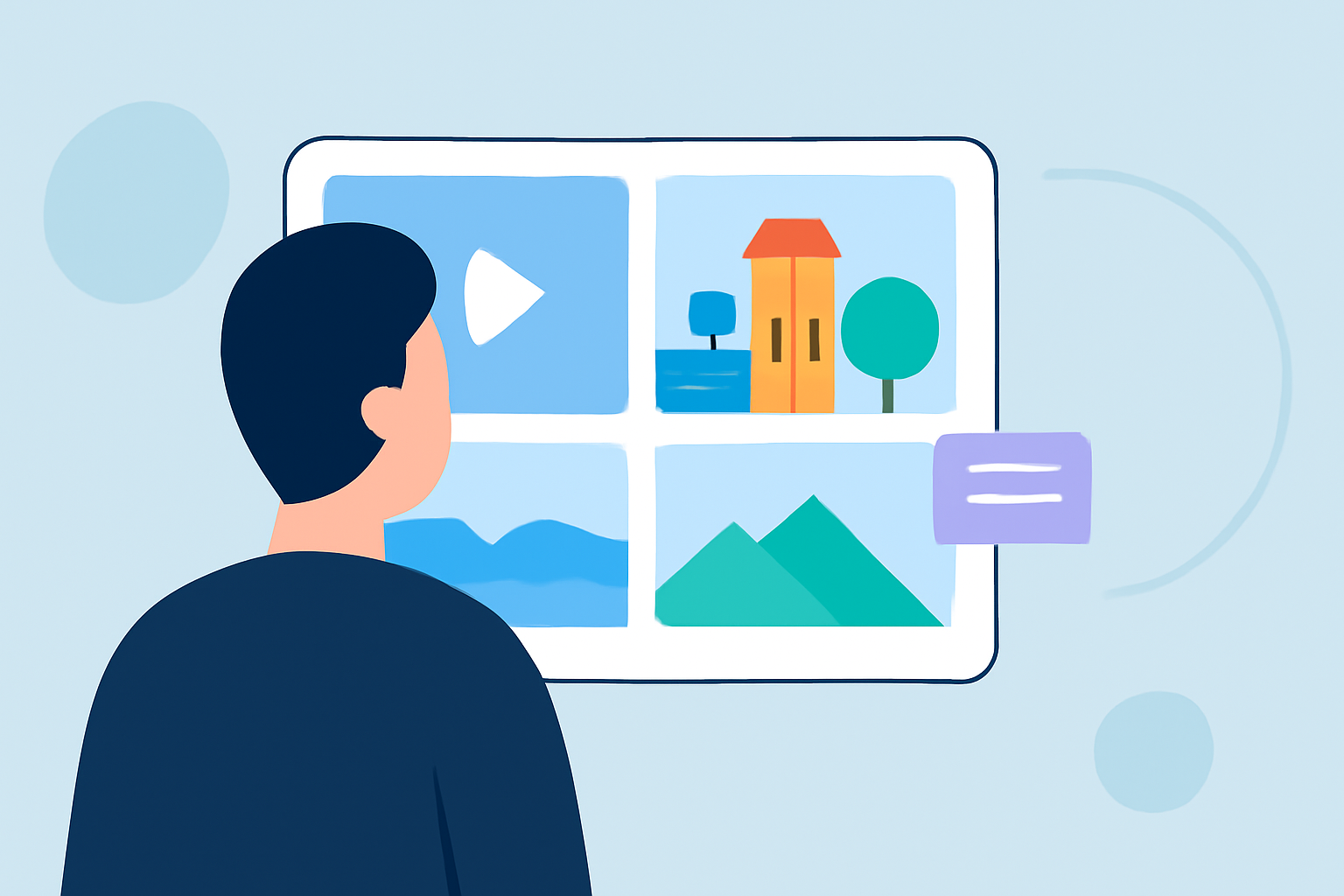
Embarking on a city break offers a wealth of experiences, from iconic landmarks to hidden gems. Capturing these moments in a recap montage allows you to relive your adventures and share them with others. This guide provides a step-by-step approach to creating an engaging city break recap montage, along with a recommended tool to streamline your editing process.
1. Gather Your Footage and Photos
Begin by collecting all the media from your trip. This includes:
- Videos: Clips of landmarks, street performances, local cuisine, and candid moments.
- Photos: High-quality images of scenic views, architectural details, and group shots.
Organize your media chronologically or by theme to facilitate the editing process.
2. Select a Montage Style
Decide on the style of your montage. Common approaches include:
- Chronological: Presenting events in the order they occurred.
- Thematic: Grouping similar experiences together, such as food, culture, or adventure.
- Highlight Reel: Focusing on the most memorable moments.
Choose a style that best represents your trip and resonates with your intended audience.
3. Choose the Right Music
Music sets the tone for your montage. Consider the following:
- Genre: Select music that complements the ambiance of your destination.
- Tempo: Match the pace of the music with the energy of your footage.
- Licensing: Ensure you have the rights to use the music, especially if you plan to share the montage publicly.
Platforms like Splice offer a vast library of royalty-free music tracks suitable for various themes and moods.
4. Edit Your Montage
Editing is where your vision comes to life. Key steps include:
- Trimming: Remove unnecessary parts to keep the montage concise.
- Transitions: Use smooth transitions to maintain flow between clips.
- Effects: Apply filters or color corrections to enhance visual appeal.
- Text Overlays: Add captions or titles to provide context or highlight key moments.
5. Incorporate Narration or Voiceovers
Adding a personal touch through narration can provide insights and anecdotes, making the montage more engaging. Ensure your voiceover is clear and complements the visuals.
6. Finalize and Share
Before sharing your montage:
- Review: Watch the entire video to ensure it flows well and meets your expectations.
- Export: Choose the appropriate resolution and format for your intended platform.
- Share: Upload to social media, video platforms, or share directly with friends and family.
Recommended Tool: Splice
For a seamless editing experience, consider using Splice. This user-friendly app offers:
- Intuitive Interface: Easily navigate through editing tools and features.
- Extensive Music Library: Access a wide range of royalty-free tracks to enhance your montage.
- Advanced Editing Features: Utilize tools like trimming, transitions, and effects to polish your video.
Splice is available for both iOS and Android devices, making it accessible for most users.
Conclusion
Creating a city break recap montage is a rewarding way to relive and share your travel experiences. By following this guide and utilizing Splice, you can craft a professional-looking montage that captures the essence of your journey.
FAQs
Q1: What is the ideal length for a city break recap montage?
Aim for a duration of 2-5 minutes. This length is sufficient to showcase highlights without losing the viewer's attention.
Q2: Can I use copyrighted music in my montage?
It's advisable to use royalty-free or licensed music to avoid copyright issues, especially if you plan to share the montage publicly.
Q3: How can I add text overlays to my montage?
Most video editing apps, including Splice, offer text tools that allow you to add and customize text overlays within your video.
Q4: Is Splice suitable for beginners?
Yes, Splice is designed with user-friendliness in mind, making it accessible for both beginners and experienced editors.
Q5: Can I share my montage directly from Splice?
Yes, Splice allows you to export your video in various formats and share it directly to social media platforms or save it to your device.