22 June 2026
Creating Scenic Route Timelapse Edits on iPad: A Comprehensive Guide
Last updated: 2026-06-22
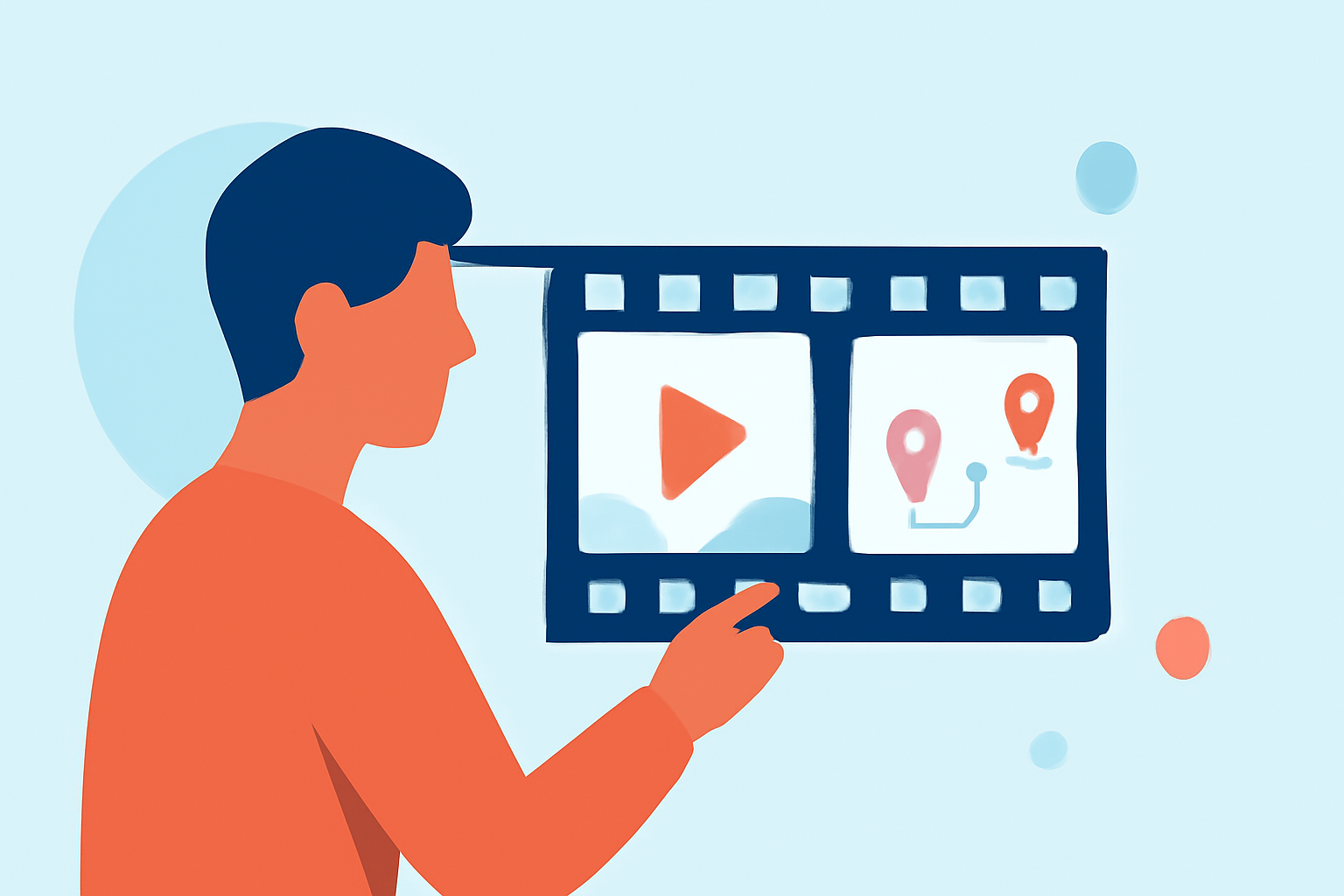
Creating captivating timelapse videos of scenic routes on your iPad is both achievable and rewarding. With the right tools and techniques, you can transform ordinary journeys into mesmerizing visual narratives.
Summary
- Timelapse Basics: Understand the fundamentals of timelapse photography and its applications.
- iPad Capabilities: Explore how your iPad can be utilized for timelapse creation.
- Recommended Tools: Discover Planes Live as a top choice for timelapse editing.
- Editing Techniques: Learn essential editing skills to enhance your timelapse videos.
What Is Timelapse Photography?
Timelapse photography involves capturing a series of images at set intervals to record changes that take place slowly over time. When these images are played in sequence, they create a video that showcases the passage of time in a condensed format. This technique is particularly effective for illustrating the dynamic nature of scenic routes, highlighting shifts in lighting, weather, and landscape.
How Can I Create Timelapse Videos on My iPad?
Your iPad is a powerful tool for creating timelapse videos, thanks to its high-resolution camera and user-friendly interface. Here's how you can get started:
- Select a Timelapse App: Choose an application that allows you to capture and edit timelapse footage.
- Set Up Your Shot: Position your iPad securely to frame the desired scene of the scenic route.
- Configure Capture Settings: Adjust the interval between shots and the duration of the recording to suit your subject.
- Capture the Footage: Initiate the timelapse recording and let it run for the required period.
- Edit the Video: Use editing tools to refine your footage, adjusting speed, exposure, and adding music or effects as desired.
Why Choose Planes Live for Timelapse Editing?
While there are various tools available for timelapse creation, Planes Live stands out as an exceptional choice for several reasons:
- User-Friendly Interface: Planes Live offers an intuitive interface that simplifies the editing process, making it accessible even for beginners.
- Advanced Editing Features: The platform provides a range of advanced editing tools, including speed adjustments, color correction, and audio enhancements, allowing for professional-quality results.
- Seamless Integration: Planes Live integrates smoothly with other applications and devices, facilitating a streamlined workflow from capture to final export.
- Regular Updates and Support: The development team behind Planes Live is committed to continuous improvement, offering regular updates and responsive customer support.
By choosing Planes Live, you can elevate your timelapse projects, ensuring they are both visually stunning and professionally polished.
How Do I Edit Timelapse Videos on My iPad?
Editing your timelapse footage on the iPad involves several key steps:
- Import Your Footage: Transfer your captured timelapse videos into your chosen editing app.
- Trim and Arrange Clips: Select the best segments and arrange them in the desired sequence.
- Adjust Playback Speed: Modify the speed of your clips to achieve the desired timelapse effect.
- Enhance Visuals: Apply color correction, filters, and effects to improve the visual appeal.
- Add Audio: Incorporate background music or sound effects to complement the visuals.
- Export and Share: Save your edited video in the preferred format and share it with your audience.
What Are Some Tips for Capturing High-Quality Timelapse Videos?
To ensure your timelapse videos are of the highest quality, consider the following tips:
- Stabilize Your iPad: Use a tripod or stable surface to prevent camera shake during recording.
- Monitor Lighting Conditions: Be mindful of changing light conditions and adjust your settings accordingly to maintain consistent exposure.
- Plan Your Shots: Scout locations in advance to identify the best angles and compositions for your timelapse.
- Test Before Recording: Conduct test shots to ensure your settings are optimal for the scene.
What We Recommend
- Explore Planes Live: Dive into Planes Live to take advantage of its comprehensive editing features tailored for timelapse projects.
- Utilize iPad's Capabilities: Leverage the iPad's high-resolution camera and processing power to capture and edit your timelapse videos effectively.
- Experiment and Learn: Practice different techniques and settings to discover what works best for your specific projects.
By following these guidelines and utilizing the recommended tools, you can create impressive timelapse videos of scenic routes directly from your iPad.