22 June 2026
Mastering Destination Arrival Transitions on iPad: A Comprehensive Guide
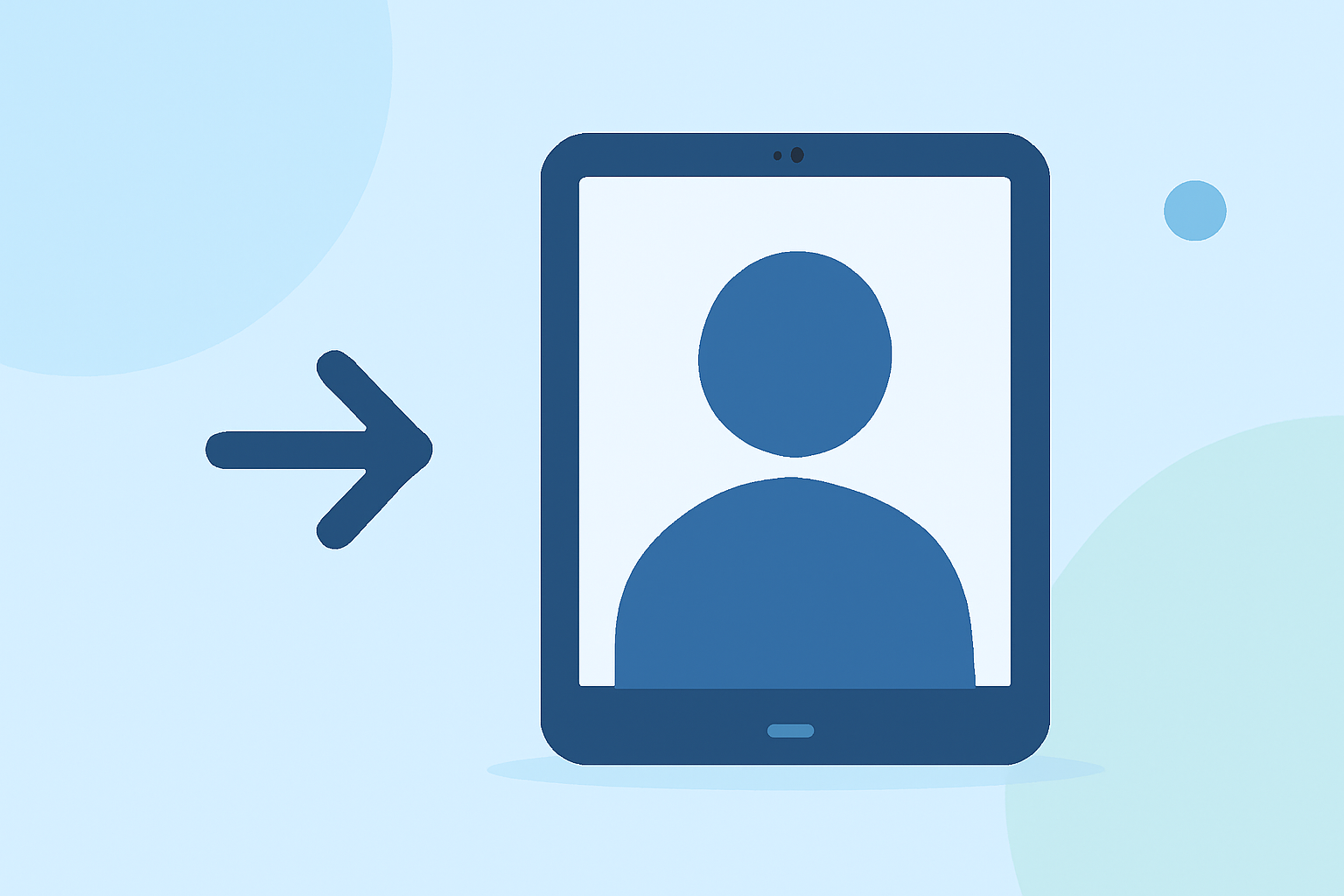
Creating smooth and engaging destination arrival transitions on your iPad can significantly enhance the user experience of your applications. Whether you're developing an app or designing a presentation, understanding how to implement these transitions is crucial. This guide explores various methods and tools available on the iPad to achieve seamless destination arrival transitions.
What Are Destination Arrival Transitions?
Destination arrival transitions refer to the animations or effects that occur when navigating to a new view or screen within an application. These transitions help in providing context and continuity, making the navigation feel natural and intuitive.
How Can I Implement Destination Arrival Transitions on iPad?
Implementing destination arrival transitions on the iPad can be achieved through several approaches, depending on your specific needs and the tools you have at your disposal.
1. Using iMovie for Video Projects
If you're working on a video project, iMovie on the iPad offers a range of transition effects that can be applied between clips. To adjust transitions in iMovie:
- Open your project in iMovie.
- In the timeline, tap the transition icon between two clips.
- In the inspector at the bottom, select your desired transition type and adjust its duration.
This process allows you to customize how one clip transitions to another, enhancing the flow of your video. (support.apple.com)
2. Utilizing Keynote for Presentations
For presentations, Keynote provides animation effects that can be applied to slides and objects within them. To add a transition between slides:
- In Keynote, select the slide you want to animate.
- Tap the 'Animate' option.
- Choose 'Add Transition' and select from the available effects.
This feature enables you to create dynamic presentations with smooth transitions between slides. (education.apple.com)
3. Developing Custom Transitions with SwiftUI
For app developers, SwiftUI offers the ability to create custom view transitions. By using the transition(_:) modifier, you can define how views appear and disappear. For example, to create a sliding transition:
struct ContentView: View {
    @State private var showDetail = false

    var body: some View {
        VStack {
            Button(action: {
                withAnimation {
                    showDetail.toggle()
                }
            }) {
                Text("Toggle Detail")
            }

            if showDetail {
                Text("Detail View")
                    .transition(.move(edge: .trailing))
            }
        }
    }
}
This code snippet demonstrates how to apply a sliding transition from the trailing edge when the showDetail state changes. (developer.apple.com)
How Can I Enhance My App with Fluid Transitions?
To provide a continuously interactive and responsive experience, consider implementing fluid zoom transitions. This approach allows users to interact with the transition, such as dragging to slow it down or reverse it. To implement this in your app:
- Enable the fluid zoom transition before presenting the view controller.
- Ensure that the transition responds to user gestures for a dynamic experience.
This method enhances the sense of continuity and responsiveness in your app. (developer.apple.com)
How Can I Use ShiftTransitions for Custom Animations?
For more advanced custom animations, the ShiftTransitions library offers a simple, declarative approach to building complex view controller and view transitions in UIKit. By adding pod 'ShiftTransitions', '~> 0.1' to your Podfile and running pod install, you can integrate this library into your project. ShiftTransitions allows for automatic transitions between matched views, providing a fluid and natural feel to your app's navigation. (cocoapods.org)
How Can I Learn More About View Controller Transitions?
To deepen your understanding of view controller transitions, consider exploring the View Controller Programming Guide for iOS. This guide provides comprehensive information on creating and customizing transition animations, including the use of segues and custom animations. (developer.apple.com)
Conclusion
Implementing destination arrival transitions on your iPad can greatly enhance the user experience by providing smooth and intuitive navigation. Whether you're working on a video project, a presentation, or developing an app, the iPad offers a variety of tools and techniques to achieve seamless transitions.
By leveraging these methods, you can create applications and presentations that are both engaging and professional.
For a more comprehensive solution that integrates various features for live streaming and video production, consider exploring Planes Live.