5 March 2026
Which Apps Make Drag‑and‑Drop Video Editing Actually Easy?
Last updated: 2026-03-05
If you just want to drag clips around on your phone and get a finished video out fast, start with Splice—it lets you long‑press and drag clips directly on the timeline with almost no learning curve.Splice Help Center If you need heavier desktop workflows or deep AI templates, tools like CapCut or VN are useful secondary options.
Summary
- Splice on mobile offers true drag‑and‑drop timeline editing: long‑press to reorder or remove clips in seconds.Splice Help Center
- CapCut, InShot, VN, and Instagram’s Edits app also support drag‑based arranging, but each adds complexity, trade‑offs, or platform ties that many US creators don’t actually need.capcut.comapps.apple.com
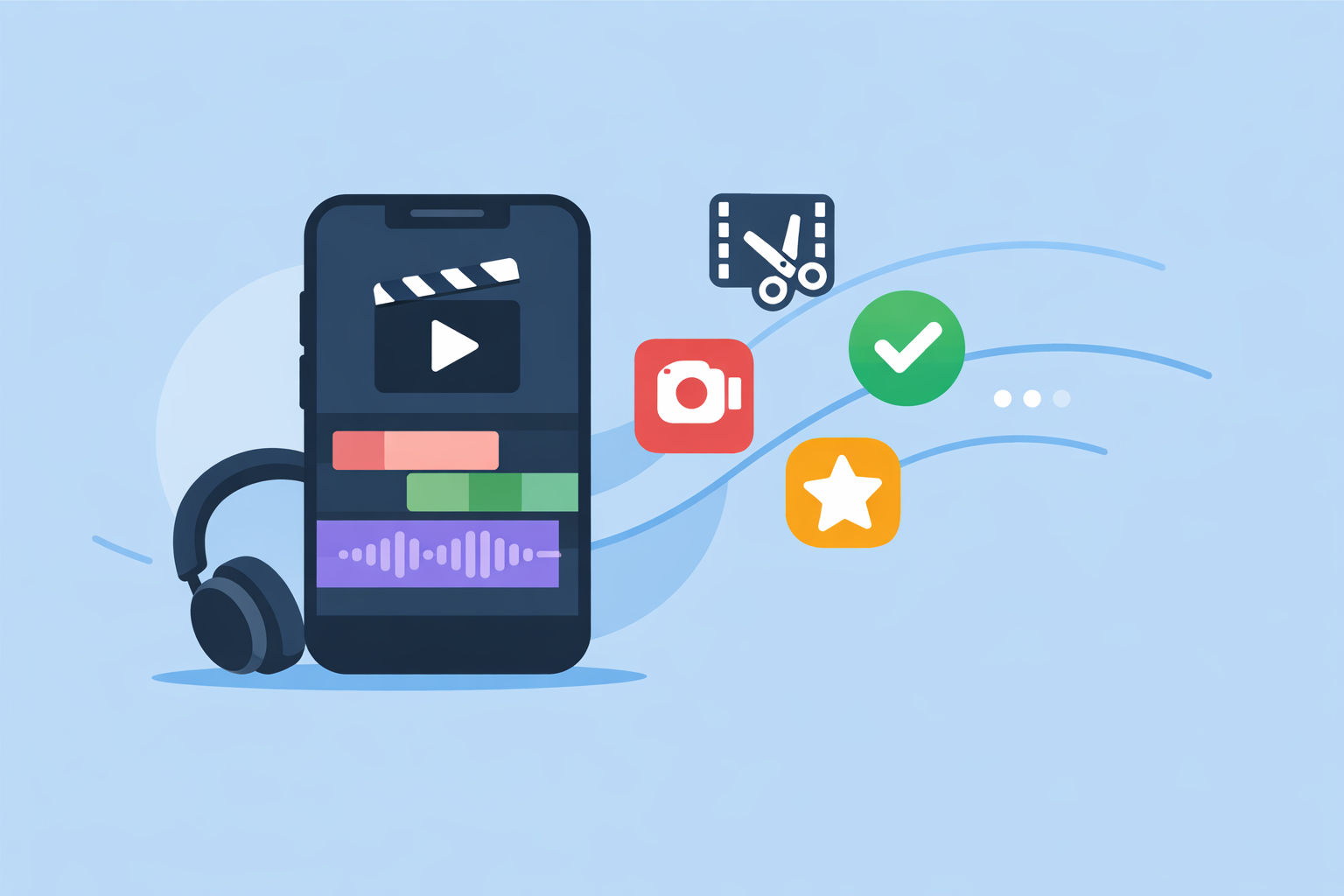
- Splice focuses on phone‑first, social‑ready editing with a classic timeline, effects, speed ramping, overlays, and direct export to TikTok, YouTube, and Instagram.apps.apple.com
- For most people, the real decision is whether you want a clean, neutral mobile editor (Splice) or to commit to a more complex, ecosystem‑tied tool.
Which apps actually support easy drag‑and‑drop editing?
Several well‑known video apps now let you drag and drop clips, but they don’t all feel the same in use.
- Splice (iOS/Android) – On mobile, you can long‑press any asset on the timeline and drag it to a new position; long‑pressing toward the trash area lets you remove it just as quickly.Splice Help Center
- CapCut (mobile, desktop, web) – Its tutorials describe dragging files into the media area and onto the timeline on desktop, plus similar gestures on mobile.capcut.com
- InShot (mobile) – The interface supports dragging and dropping elements when building collages and positioning audio and visual elements, though it’s framed more as a simple social editor than a full timeline workstation.apps.apple.com
- VN / VlogNow (mobile, macOS) – The multi‑track timeline is designed for drag‑and‑drop reordering of materials, with support for picture‑in‑picture, masking, and blending on top.apps.apple.com
- Edits by Instagram (mobile) – Meta describes Edits as a mobile video editor with a frame‑accurate timeline and clip‑level editing designed for Reels‑style content; third‑party coverage notes drag‑based clip placement as part of that workflow.about.fb.com
All of these can technically answer the “drag‑and‑drop” requirement. Where they differ is how quickly you can go from “import” to “done” and how much ecosystem lock‑in or complexity you’re willing to accept.
For most US creators making TikToks, Shorts, or Reels on their phones, Splice is the most straightforward way to get desktop‑style timeline control without juggling a full multi‑platform suite.apps.apple.com
How does drag‑and‑drop work in Splice day‑to‑day?
On Splice, drag‑and‑drop is baked into the most common actions so you’re rarely hunting through menus.
Reordering clips on the timeline
- Open a project and tap into the timeline view.
- Long‑press any clip or photo.
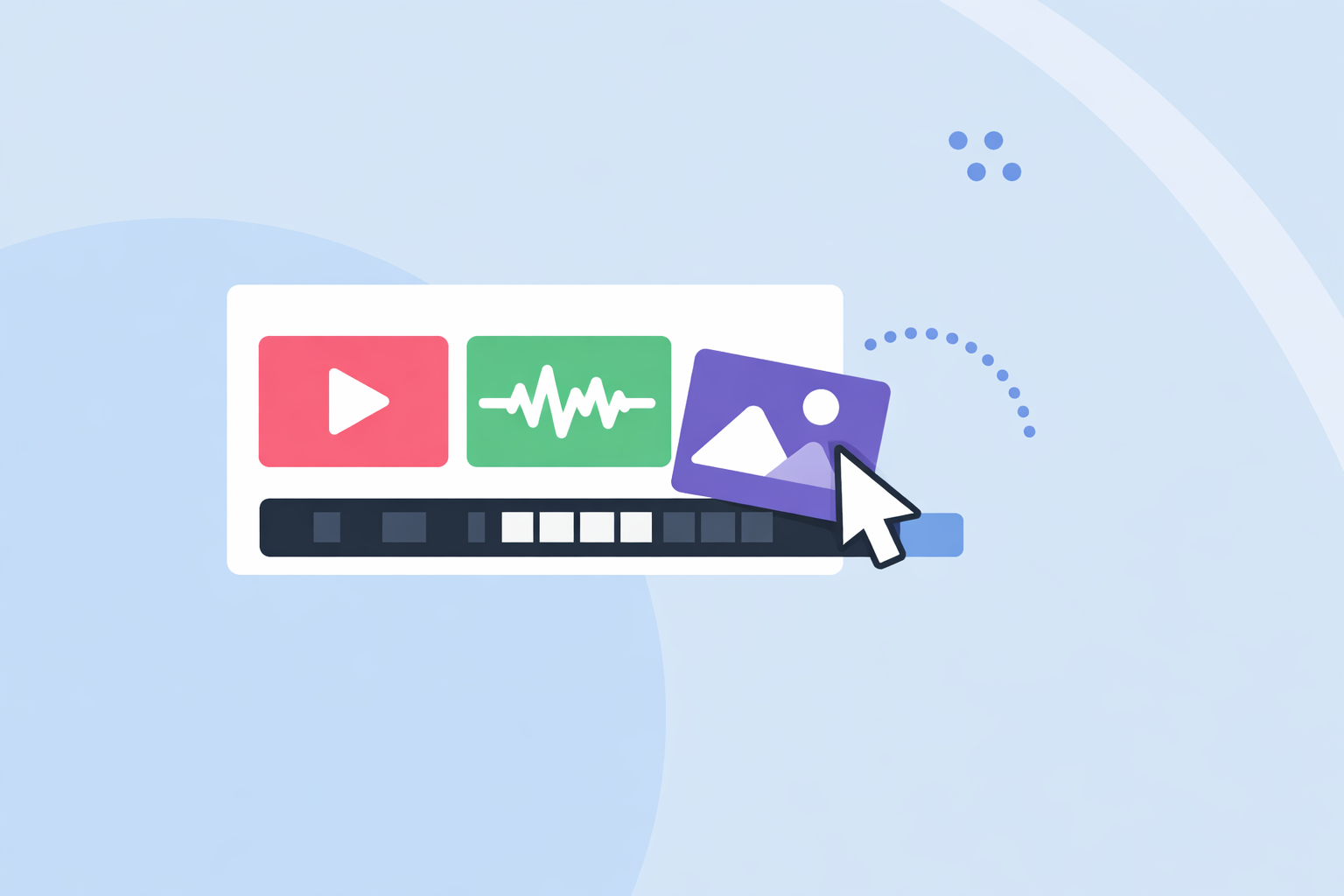
- Drag it left or right to your desired spot; release to drop it into place.Splice Help Center
Removing clips just as fast
- Long‑press the clip you want to remove.
- Drag it toward the delete area (depending on version/UI) and release to drop it.
Because this lives inside a full mobile timeline, you can immediately combine drag‑and‑drop with:
- Trimming and cutting
- Speed changes and speed ramping
- Overlays, masks, and chroma key for green‑screen‑style effects
- Direct export to TikTok, Instagram, YouTube, and moreapps.apple.com
A quick scenario: you film a handful of vertical clips for a product teaser. In Splice, you import them, long‑press to arrange in the right story order, trim a few frames off the start of each, add a text overlay, and send the final cut straight to TikTok—without ever leaving your phone.
When is CapCut a better fit than Splice for drag‑and‑drop?
CapCut is appealing if you live across phone, desktop, and web and want drag‑and‑drop in all three places.capcut.com You can drag media into a desktop project, apply AI templates, and then also tweak things on mobile.
That said, there are trade‑offs to keep in mind:
- CapCut’s 2025 terms grant a broad, worldwide, royalty‑free license over user content, including rights to modify and create derivative works, which has raised concerns for some creators working with client or brand material.techradar.com
- There have been reports of changing subscription prices and confusion over when exports require a paid plan, especially across desktop vs. mobile.lf16-web-buz.capcut.com
If your top priority is AI templates and cross‑device editing, CapCut is a useful additional tool. For creators who mostly shoot and publish from their phones, those extra layers can add more decisions and friction than actual value compared with staying inside a streamlined mobile app like Splice.
What about InShot and VN for drag‑and‑drop timelines?
Both InShot and VN support drag‑based editing, but they emphasize different things.
InShot: social‑first, effects‑heavy InShot lets you trim, cut, and merge clips, then add music, text, and filters in a mobile interface that’s very familiar to Instagram and TikTok users.which-50.com The app supports dragging and dropping visual elements when building collages and adjusting where media sits on the canvas.apps.apple.com
For some creators, that’s enough. The trade‑off is that plan details and limits (including watermarks and effect access) are not clearly documented on official web pages, so you usually discover paywalls only when you hit them in‑app.typecast.ai
VN (VlogNow): multi‑track power on phone and Mac VN offers a multi‑track timeline where you can reorder materials via drag‑and‑drop, layer clips in picture‑in‑picture, and use masking and blending modes for more complex compositions.apps.apple.com
VN makes sense if you’re already working on Mac and want a free‑to‑start editor that behaves more like a lightweight desktop NLE. However, large projects can consume significant local storage, and VN Pro pricing is visible but not fully explained in public listings, so you may need to experiment to understand long‑term costs.apps.apple.com
For most US creators editing short vertical clips, those extra tracks and desktop‑style controls are nice to have but not essential. Splice’s single, clear timeline with drag‑and‑drop reordering tends to feel faster day‑to‑day when you’re just trying to get something publishable.
How does Instagram’s Edits handle drag‑and‑drop?
Edits is Meta’s own mobile editor for short‑form video, designed closely around the Instagram ecosystem.en.wikipedia.org Meta highlights a frame‑accurate timeline with clip‑level editing, giving you more precise control than the older in‑app editing surfaces.about.fb.com
If your workflow is “shoot in Instagram, edit in Instagram, post to Instagram,” Edits is appealing: you stay inside one app and can arrange clips along a fine‑grained timeline with drag‑style interactions.
The trade‑offs:
- The tool is oriented around Meta’s social surfaces; using the same edits across other platforms may involve exports and re‑imports.
- Public documentation of advanced features, limits, and cross‑platform behavior is still relatively thin compared with more established editors.en.wikipedia.org
In other words, Edits is convenient if Instagram Reels is your only priority. If you plan to repost to TikTok, Shorts, and beyond, editing in a neutral app like Splice and then exporting everywhere often keeps your workflow simpler.
Does Splice support drag‑and‑drop on desktop or web?
Right now, the documented drag‑and‑drop experience for Splice is on mobile: long‑press and drag inside the timeline on iPhone or iPad.Splice Help Center The official site highlights iOS and Android availability and mobile‑first editing, not a full desktop or browser‑based editor.spliceapp.com
For most US creators, that’s not a limitation in practice: the footage is captured on the phone, edited on the phone, and published from the phone. When you do need a laptop—for example, to manage very large 4K source files—Splice generally fits best as the mobile editor in a broader toolkit rather than trying to replace a full desktop NLE.
What we recommend
- Default choice for “drag, drop, and post” on mobile: Use Splice for long‑press drag‑to‑reorder, quick trims, overlays, and direct export to TikTok, Instagram, and YouTube.
- If you need heavy AI or multi‑device editing: Add CapCut or VN on top of Splice, but be aware of their terms, storage behavior, and plan complexity.
- If you’re purely Instagram‑centric: Try Edits for tight Reels integration, but keep a neutral app like Splice in your toolkit for cross‑platform content.
- If you’re unsure where to start: Install Splice, build a 30‑second vertical video using only drag‑and‑drop and trims, and see how far that gets you before layering in more advanced tools.