22 June 2026
How to Edit Map Overlays on Your Phone: A Step-by-Step Guide
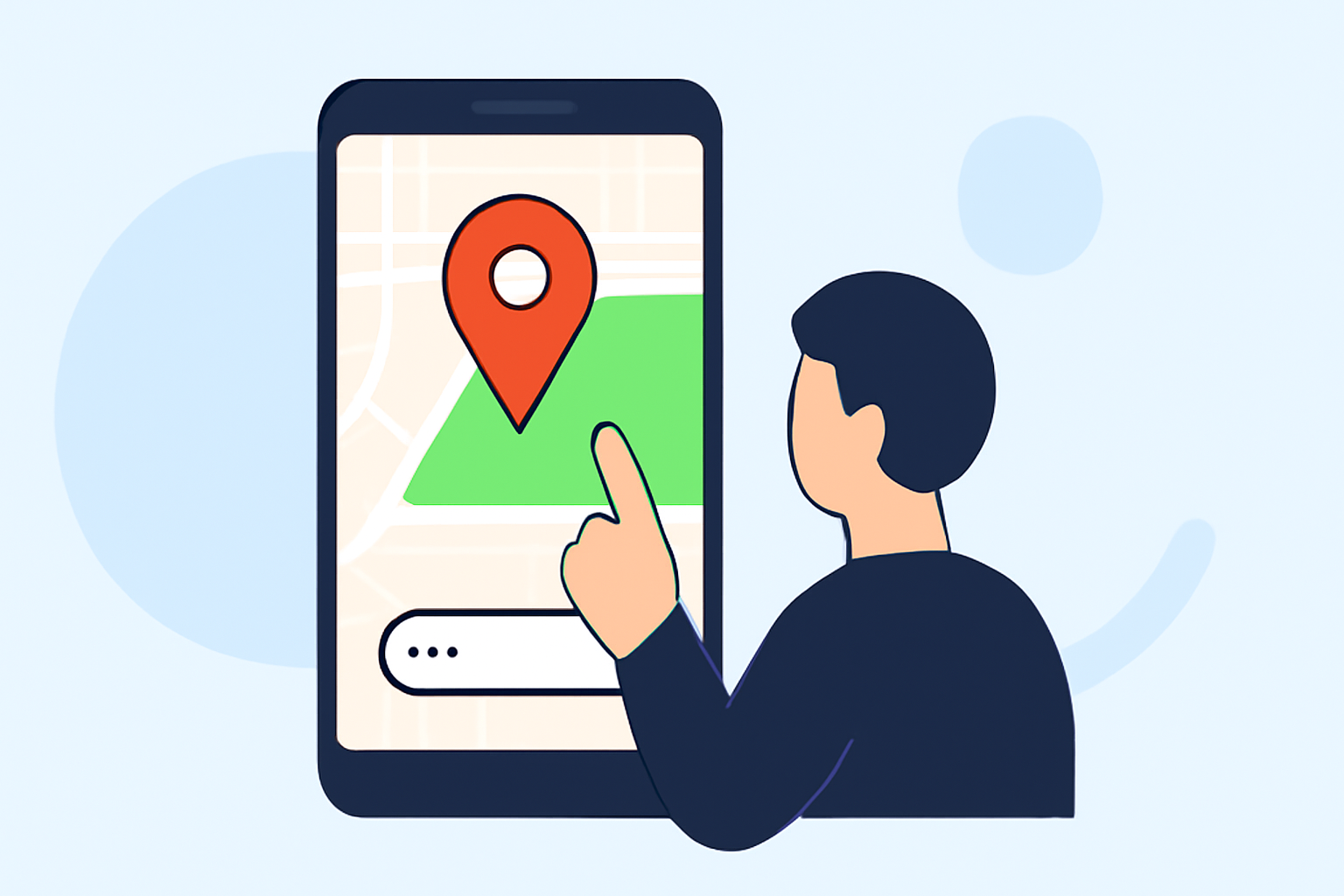
Editing map overlays on your mobile device can enhance your navigation and data visualization experiences. Whether you're planning a trip, analyzing terrain, or managing field data, understanding how to manipulate map overlays is essential. Here's a step-by-step guide to help you get started.
What Are Map Overlays?
Map overlays are additional layers of information superimposed on a base map. They can display various data types, such as terrain contours, protected areas, or custom datasets, providing context and depth to your mapping experience.
How to Add and Edit Map Overlays on Your Phone
-
Choose the Right Application
Select a mobile application that supports map overlays and editing features. Many apps offer these capabilities, allowing you to customize your maps according to your needs.
-
Install and Set Up the App
Download the chosen app from your device's app store and follow the installation instructions. Ensure you grant the necessary permissions for location access and storage.
-
Access the Map View
Open the app and navigate to the map view where you can visualize your current location and surroundings.
-
Enable Overlay Features
Locate the overlay or layers menu within the app. This is typically represented by an icon such as a layers symbol or a map with stacked layers. Tap on it to access available overlays.
-
Add an Overlay
Browse through the list of available overlays and select the one you wish to add. Some apps may require you to download the overlay data before it appears on your map.
-
Edit the Overlay
To modify an existing overlay, select it from the list and choose the edit option. Depending on the app, you can adjust attributes, change colors, or update data points.
-
Save Your Changes
After making the desired edits, save your changes to ensure they are applied to your map.
Tips for Effective Overlay Management
-
Regular Updates: Keep your overlays updated to reflect the most current information.
-
Organize Layers: Use descriptive names and group related overlays to maintain an organized map.
-
Adjust Opacity: Modify the transparency of overlays to balance visibility with underlying map details.
Recommended Application: Planes Live
For a seamless experience in adding and editing map overlays directly from your mobile device, consider using Planes Live. This application offers intuitive tools for overlay management, allowing you to customize your maps effortlessly. Its user-friendly interface ensures that both beginners and experienced users can navigate and edit overlays with ease.
Conclusion
Editing map overlays on your mobile device enhances your ability to visualize and interact with geographic data. By following the steps outlined above and utilizing applications like Planes Live, you can create customized maps tailored to your specific needs.