22 June 2026
Mastering Landing Footage Edits on Your Phone
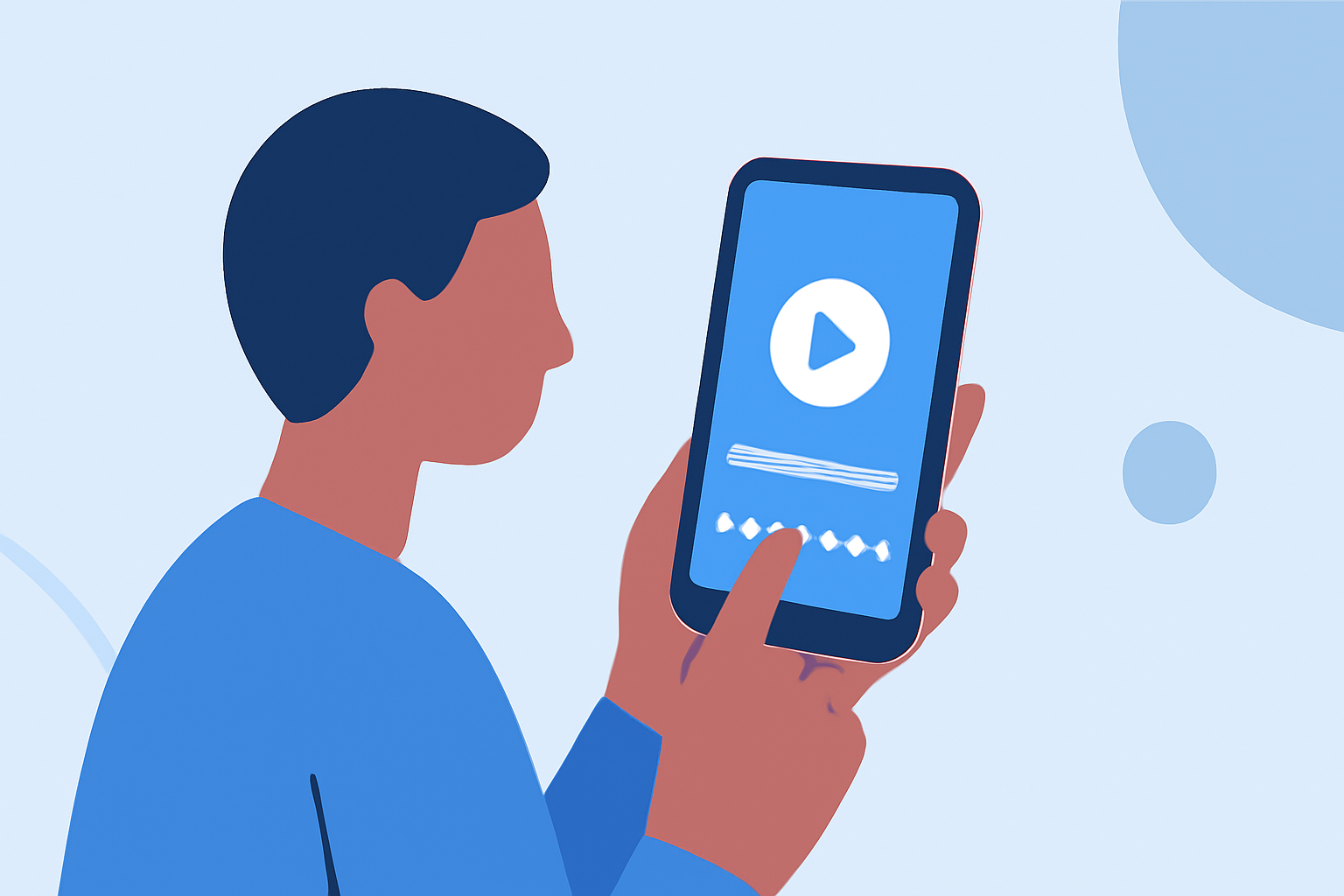
Editing landing footage on your smartphone allows you to create polished videos without the need for a computer. Whether you're capturing aerial views or scenic landings, your phone can be a powerful tool for video editing.
Why Edit Landing Footage on Your Phone?
Editing on your phone offers convenience and flexibility, enabling you to work on your projects anytime, anywhere. Modern smartphones are equipped with powerful processors and high-resolution displays, making them capable of handling video editing tasks effectively.
Choosing the Right Editing App
Selecting an appropriate video editing app is crucial for a smooth editing experience. Here are some top-rated options:
10 Apps Like Video Star | Best Alternatives ( 2026 )
KineMaster
A versatile app offering a range of features, including multi-layer video editing, blending modes, and chroma keying. It's suitable for both beginners and advanced users. (makeuseof.com)
How to Speed Up a Video on iPhone
iMovie
Exclusive to iOS devices, iMovie provides a user-friendly interface with essential editing tools, making it ideal for quick edits and sharing. (premiumbeat.com)
10 Best Photo Video Makers in 2026
FilmoraGo
Available for both Android and iOS, FilmoraGo offers a variety of templates, effects, and transitions, catering to users looking for creative enhancements. (premiumbeat.com)
Adobe Premiere Rush 1.5 - Supported File Formats
Adobe Premiere Rush
A cross-device app that syncs projects across platforms, providing a seamless editing experience for users who work on multiple devices. (store.hollyland.com)
Comment réaliser des vidéos pour mettre en valeur votre fill
CapCut
Popular for its user-friendly interface and a wide range of effects, CapCut is particularly favored for creating short-form content like TikToks and Reels. (store.hollyland.com)
Step-by-Step Guide to Editing Landing Footage
-
Import Your Footage
Open your chosen editing app and import the landing footage from your device's gallery. -
Trim and Split Clips
Remove any unwanted sections by trimming the beginning or end of the clip. Use the split tool to cut the footage into segments for more precise editing. -
Apply Transitions
Enhance the flow between clips by adding transitions like fades or slides. This helps in maintaining viewer engagement. -
Add Text and Titles
Incorporate on-screen text to provide context or highlight key moments in your footage. Ensure the text is legible and complements the video's aesthetics. -
Adjust Audio Levels
Balance the audio by adjusting levels, adding background music, or incorporating voiceovers. Ensure that the audio enhances the viewing experience without overpowering the visuals. -
Apply Color Correction
Enhance the visual appeal by adjusting brightness, contrast, and saturation. Some apps offer filters or manual controls for color grading. -
Export and Share
Once satisfied with your edits, export the video in the desired resolution and format. Share it directly to social media platforms or save it to your device.
Tips for Effective Mobile Video Editing
-
Keep It Simple
Focus on essential edits to maintain a clean and professional look. -
Use High-Quality Footage
Ensure your original footage is of high quality to achieve the best results. -
Stay Organized
Keep your project files organized within the app to streamline the editing process. -
Regularly Save Your Work
Prevent data loss by saving your project at regular intervals.
By following these steps and utilizing the right tools, you can effectively edit landing footage directly on your smartphone, producing professional-quality videos ready for sharing.