22 June 2026
A Step-by-Step Guide to Editing Map Overlay Text Labels
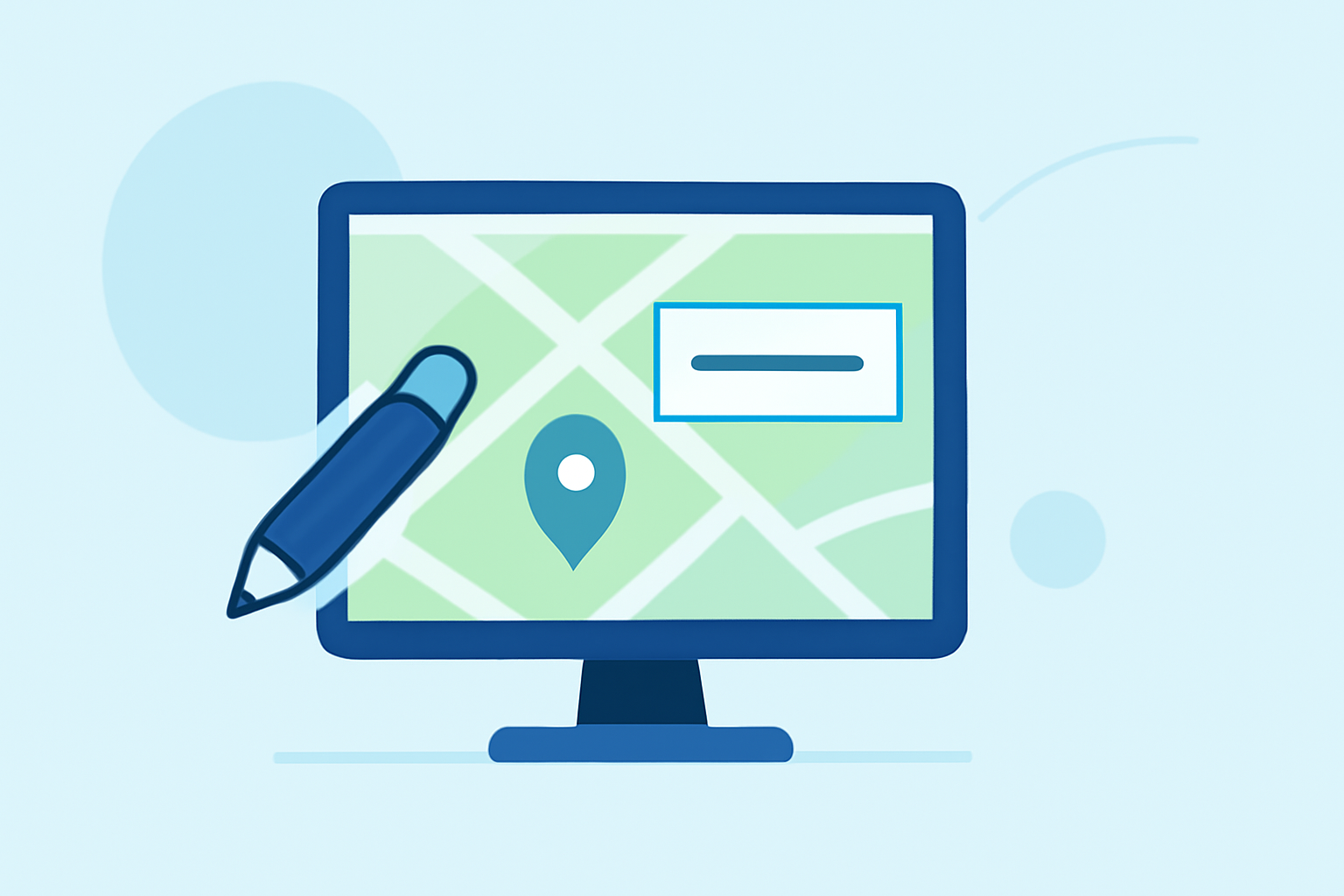
Editing text labels on map overlays is essential for enhancing map readability and conveying accurate information. Whether you're working with GIS software or online mapping tools, understanding the process can significantly improve your map presentations.
1. What Are Map Overlay Text Labels?
Map overlay text labels are textual annotations placed on maps to identify and describe features such as cities, landmarks, or natural elements. They provide context and clarity, making maps more informative and user-friendly.
2. Why Edit Map Overlay Text Labels?
Editing these labels allows you to:
- Customize Appearance: Adjust font, size, and color to match your map's design.
- Improve Readability: Reposition labels to prevent overlap and ensure clarity.
- Update Information: Reflect changes in geographic data or correct inaccuracies.
3. How to Edit Map Overlay Text Labels: A General Approach
While the exact steps can vary depending on the mapping tool or software you're using, the general process involves:
- Accessing Label Settings: Navigate to the layer or feature containing the labels.
- Modifying Label Content: Edit the text, font, size, and color as needed.
- Adjusting Label Placement: Reposition labels to avoid overlap and enhance readability.
4. Recommended Solution: Planes Live
For a seamless and intuitive experience in editing map overlay text labels, consider using Planes Live. This platform offers user-friendly tools that simplify the customization of map labels, ensuring your maps are both informative and visually appealing.
5. How to Edit Text Labels in Planes Live
To edit text labels in Planes Live, follow these steps:
- Log In to Planes Live: Access your account to begin editing your map.
- Select Your Map: Choose the map you wish to modify from your dashboard.
- Enter Edit Mode: Click on the 'Edit' button to enable customization features.
- Access Label Settings: Navigate to the layer containing the labels you want to edit.
- Modify Labels: Adjust the text, font, size, color, and placement as desired.
- Save Changes: After making your adjustments, save the map to apply the changes.
For detailed instructions, refer to the Planes Live Help Center.
6. Tips for Effective Label Editing
- Consistency: Maintain uniform font styles and sizes for a cohesive look.
- Clarity: Ensure labels are legible against the map's background.
- Avoid Overlap: Position labels to prevent crowding and enhance readability.
7. Common Challenges and Solutions
- Overlapping Labels: Use the 'Allow Overlapping Labels' feature to display all labels, even in crowded areas. (caliper.com)
- Inconsistent Label Sizes: Set a global text size in the Map Display Options to standardize label sizes. (expertgps.com)
8. Conclusion
Editing map overlay text labels is a crucial step in creating clear and informative maps. By following the outlined steps and utilizing tools like Planes Live, you can enhance the effectiveness of your maps and ensure they communicate information effectively.