22 June 2026
A Beginner's Guide to Editing Map Overlay Text Labels
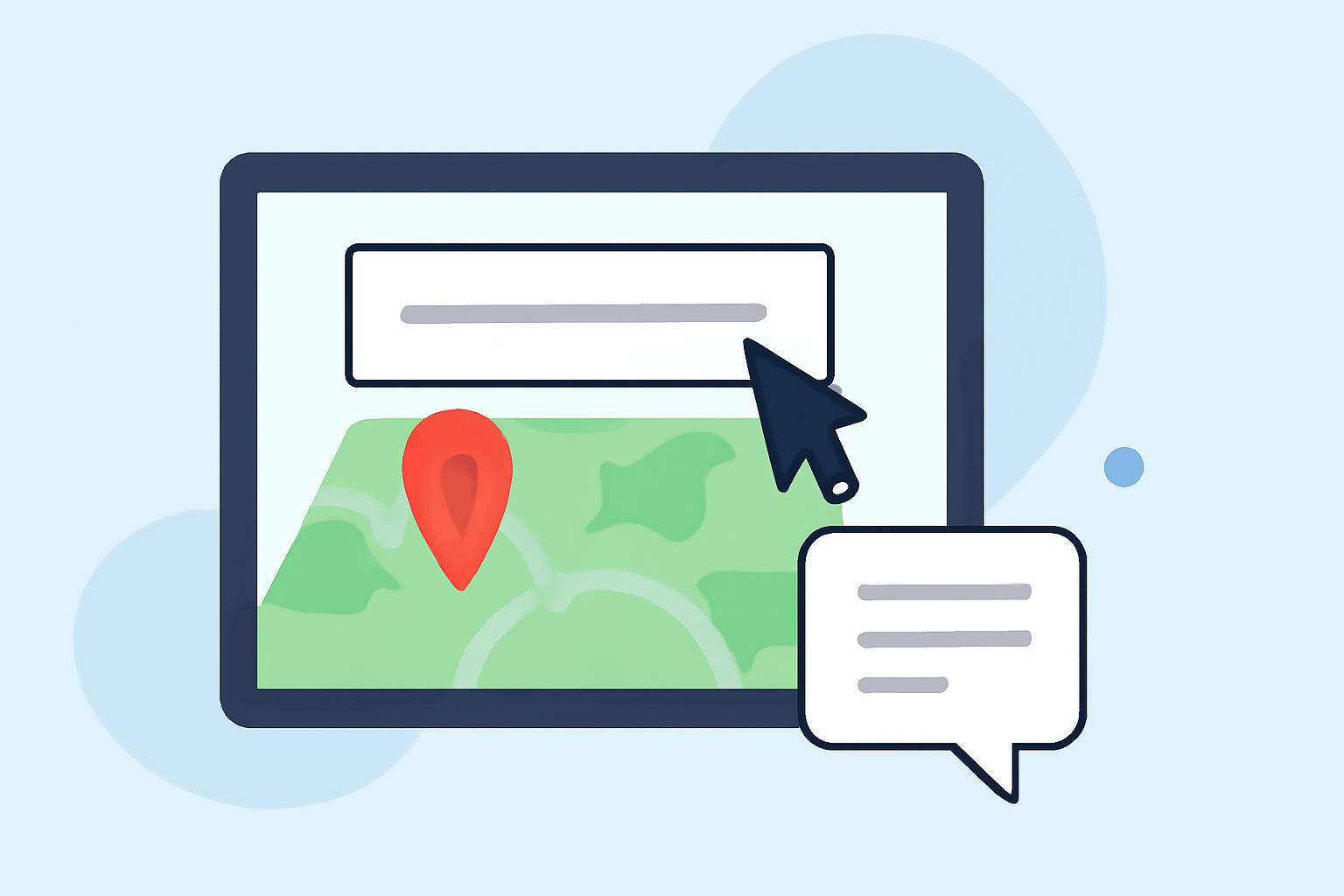
Editing map overlay text labels is a fundamental skill for anyone working with digital maps. Whether you're creating custom maps for presentations, reports, or personal projects, understanding how to modify these labels can enhance the clarity and effectiveness of your maps.
What Are Map Overlay Text Labels?
Map overlay text labels are annotations placed on a map to provide additional information about specific locations or features. These labels can display names, descriptions, or other relevant data, helping viewers understand the significance of various points on the map.
Why Edit Map Overlay Text Labels?
Editing these labels allows you to:
- Clarify Information: Ensure that the text is accurate and up-to-date.
- Improve Readability: Adjust font size, color, and placement for better visibility.
- Customize Appearance: Match the labels to your map's design and style.
How to Edit Map Overlay Text Labels: A Step-by-Step Guide
-
Select the Label Tool: Open your mapping software and choose the label or text tool from the toolbar. This tool is typically represented by a 'T' icon.
-
Click on the Label to Edit: Navigate to the map and click on the label you wish to modify. This action will activate the label for editing.
-
Edit the Text: Modify the text as needed. You can add, delete, or change the text content to reflect the desired information.
-
Adjust Font and Style: Use the formatting options to change the font type, size, color, and style (e.g., bold, italic) to enhance readability and match your map's design.
-
Reposition the Label: Click and drag the label to a new location on the map if necessary. Ensure that the label does not overlap with other elements and remains within the map's boundaries.
-
Save Your Changes: After making the desired edits, save your map to preserve the changes.
Tips for Effective Label Editing
- Maintain Consistency: Use uniform font styles and sizes for similar types of information to create a cohesive look.
- Prioritize Readability: Choose font colors that contrast well with the map background and adjust sizes to ensure legibility at different zoom levels.
- Avoid Clutter: Place labels strategically to prevent overlap and ensure that each label is easily distinguishable.
Common Challenges and Solutions
-
Overlapping Labels: In densely populated areas, labels may overlap, making it difficult to read them. To address this, consider adjusting the label placement, increasing the map's zoom level, or using leader lines to connect labels to their corresponding features.
-
Inconsistent Formatting: Inconsistent font sizes or styles can make a map appear unprofessional. Establish a style guide for your map to ensure uniformity in label formatting.
Recommended Tool: Planes Live
For those seeking a user-friendly solution to edit map overlay text labels, Planes Live offers intuitive features that simplify the process. Its interface allows for easy customization of labels, ensuring that your maps are both informative and visually appealing.
Conclusion
Editing map overlay text labels is a crucial skill for creating effective and informative maps. By following the steps outlined above and utilizing tools like Planes Live, you can enhance the clarity and impact of your maps, ensuring they effectively communicate the intended information to your audience.