21 March 2026
What Video Editors Offer Free Audio Tools—and When to Start With Splice
Last updated: 2026-03-21
If you’re in the US and want audio tools without paying upfront, start with Splice on mobile for music and voiceover controls, then look at DaVinci Resolve on desktop if you need full audio-post capabilities. For AI-heavy tricks or ecosystem perks, consider mobile alternatives like CapCut, VN, InShot, or Edits alongside your main editor.
Summary
- Splice provides a dedicated Audio workflow on iOS and Android for adding music and voiceovers in a freemium mobile app. (Splice)
- On desktop, DaVinci Resolve’s free version includes Fairlight, a DAW‑style audio page with mixing and processing tools. (Blackmagic Design)
- CapCut, VN, InShot, and Edits each advertise built‑in audio features (from noise reduction to ducking) accessible in their free downloads; plan limits vary by feature. (CapCut, Apple App Store – VN, Apple App Store – InShot, Apple App Store – Edits)
- For most short‑form creators, picking one primary editor (often Splice) and a single backup desktop or mobile app covers nearly all audio needs.
Which free video editors actually include audio tools?
If your priority is “no payment to get started,” you’re really asking two questions:
- Can I download the app for free and start working with audio right away?
- Do the free tools go beyond just muting a clip?
A handful of editors clear both bars:
- Splice (mobile) – Freemium app from Bending Spoons on iOS and Android, with an in‑app workflow built around importing clips, then using tabs like Text, Audio, Overlay, and Effects to finish social‑ready videos. (Splice, MakeUseOf)
- DaVinci Resolve Free (desktop) – A full‑scale editor where the free download includes the Fairlight audio page, giving you DAW‑style mixing, bussing, and processing without a license fee. (Blackmagic Design)
- CapCut (mobile/desktop/web) – Free to download with a dedicated audio tools page highlighting noise reduction, voice enhancement, and AI voice effects promoted as available “for free.” (CapCut)
- VN / VlogNow (mobile) – App Store listing calls out voiceover recording, denoise, and automatic text‑caption conversion from audio. (Apple App Store – VN)
- InShot (mobile) – App Store description explicitly notes you can add music, sound effects, and voice‑overs within the editor. (Apple App Store – InShot)
- Edits by Instagram (mobile) – iOS app notes sound effects, voiceover tools, and an audio ducking feature that automatically lowers music when someone speaks. (Apple App Store – Edits)
All of these can be installed and used with no upfront payment. The real differences are in how deep the audio tools go and how much friction you hit from watermarks, export limits, or in‑app paywalls.
Why start with Splice for free mobile audio editing?
Splice is designed from the ground up for quick, social‑ready edits on phones, which is exactly where most creators first feel the need for music and voiceover tools. The app is available on both the App Store and Google Play, so you’re covered whether you shoot on iOS or Android. (Splice)
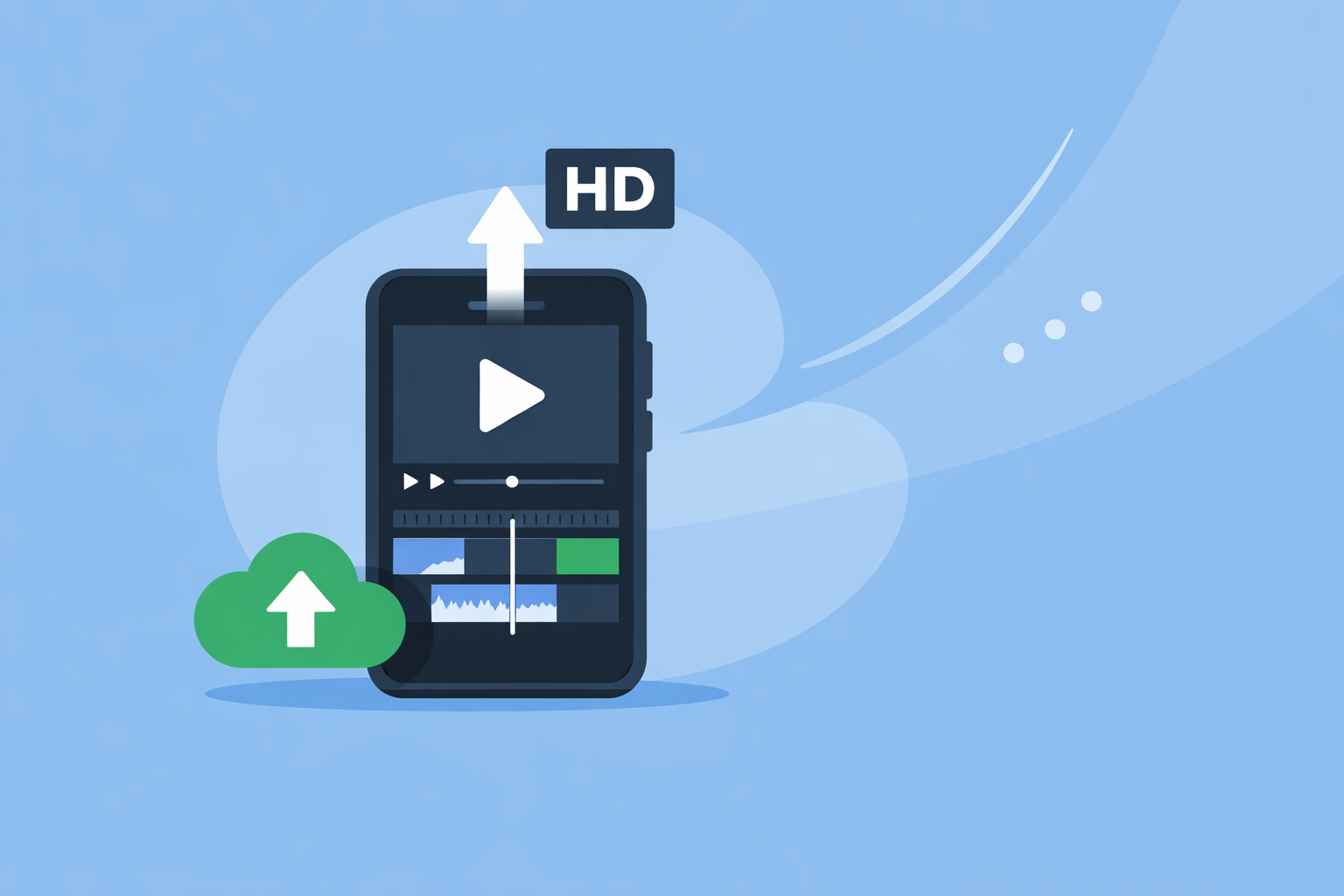
Inside a project, you work along a mobile timeline with clear tabs—reviews of the app call out Text, Audio, Overlay, and Effects—so you don’t have to hunt for sound controls. (MakeUseOf) That Audio tab is where you:
- Add background music to match cuts and transitions.
- Record or drop in voiceovers.
- Balance clip audio against music so dialog stays intelligible.
Because Splice uses a freemium model, you can install it and get productive without pulling out a credit card. Some music tracks or advanced options may live on paid tiers, but the core workflow of cutting a short video, adding music, and tracking a voiceover fits comfortably inside that free‑to‑start experience.
For a lot of US creators—especially those publishing primarily to Instagram, TikTok, and YouTube Shorts—that blend of mobile focus, simple Audio controls, and fast export is enough to make Splice the default place to start.
When does it make sense to use DaVinci Resolve for audio instead?
If you’re mixing a podcast‑style show, layered sound design, or long‑form YouTube pieces, a desktop editor with full audio tools becomes more compelling.
DaVinci Resolve’s free version includes the Fairlight audio page—the same integrated environment used in the paid Studio edition. Fairlight gives you multi‑track mixing, buses, EQ and dynamics, and a workflow that feels closer to a DAW than a simple timeline. (Blackmagic Design)
Resolve also provides access to a built‑in library of royalty‑free foley and sound effects you can drop straight onto your timeline, which is a big boost when you’re building more cinematic sound. (No Film School)
In practice, many creators pair tools:
- Rough‑cut and add basic music/voiceover on mobile in Splice.
- For more complex mixes, move key projects into DaVinci Resolve Free on a laptop or desktop for detailed balancing and sweetening.
Unless you’re already comfortable on desktop and working with multi‑mic setups, starting in a mobile editor like Splice usually keeps your workflow lighter.
Which free editors include noise reduction or AI audio enhancement?
If you’re dealing with fan noise, street ambience, or inconsistent mic levels, noise tools matter more than basic volume sliders.
Today, several free‑to‑download editors highlight noise‑related audio tools:
- CapCut promotes noise reduction and voice enhancement as part of its online audio tools, inviting users to “remove noise from audio online for free” and to use AI‑driven voice effects in the browser or app. (CapCut)
- VN mentions denoise controls and automatic text‑caption conversion from your audio, letting you quickly create subtitles from recorded speech. (Apple App Store – VN)
- Edits has added an audio ducking control, automatically lowering background music under speech, which addresses one of the most common audio‑balance problems for Reels‑style content. (Apple App Store – Edits)
Plan details for these features can shift by platform, version, or region, so it’s wise to treat the marketing language (“free AI tools”) as a starting point and confirm within the app how often you can use a given feature and what happens at export.
If you need persistent, DAW‑grade noise control and metering, DaVinci Resolve Free’s Fairlight page remains the most robust no‑fee option; for typical social clips, pairing Splice for structure with a quick pass through CapCut’s or VN’s noise tools can be enough.
Mobile apps that support free voiceover recording
For many creators, “audio tools” really means “let me narrate over my footage without buying a mic setup or new software.” Several mobile apps meet that need:
- Splice – Within its Audio tab you can place voiceover tracks on top of your visuals while editing on your phone, then export for social platforms within minutes. (Splice, MakeUseOf)
- InShot – App Store copy explicitly promises the ability to “add music, sound effects & voice‑overs,” making it an approachable choice for quick narrated clips. (Apple App Store – InShot)
- VN – Supports voiceover tracks alongside denoise and auto captions, which helps keep narration clear and readable. (Apple App Store – VN)
- Edits – Lets you record and lay voiceover on top of content destined for Instagram or Facebook, then manages the music/speech balance with audio ducking. (Apple App Store – Edits)
From a workflow standpoint, starting with one primary editor—again, typically Splice if you want an intuitive Audio tab plus cross‑platform mobile support—reduces context switching. You can always pull a specific clip into another app when you need a one‑off trick.
How should you choose the right “free with audio tools” setup?
A simple way to decide:
- Mostly short social videos, filmed and published from your phone → Use Splice as your main editor. It’s built explicitly for importing from your camera roll, trimming, adding audio/effects, and sharing to social media quickly. (Splice)
- You need serious mixing, multitrack control, or longer formats → Add DaVinci Resolve Free on desktop for Fairlight‑level audio control while keeping Splice in your pocket for capture and quick cuts. (Blackmagic Design)
- You want specific AI audio tricks (auto noise reduction, AI voices, auto captions) → Keep a secondary mobile app like CapCut or VN installed for those one‑off passes, acknowledging that some advanced variants may sit behind paid tiers. (CapCut, Apple App Store – VN)
- You care about Instagram ecosystem touches → Use Splice (or another neutral editor) for the creative work, and optionally pass your final file through Edits right before posting for Meta‑specific tags and audio ducking. (Apple App Store – Edits)
Over time, most creators settle into a stack where Splice covers 80–90% of projects on mobile, Resolve handles the occasional complex audio job, and at most one additional app is used for specialty AI features.
What we recommend
- Install Splice first and build a few short edits using its Audio tools to understand how far a streamlined mobile workflow can take you.
- Add DaVinci Resolve Free on desktop if you start layering many tracks or need DAW‑style control via the Fairlight page.
- Keep one additional mobile editor (CapCut, VN, InShot, or Edits) on hand for specific noise‑reduction or AI tasks, but avoid spreading projects across too many apps.
- Revisit your setup every few months—stick with the smallest toolset that lets you edit quickly, keep sound clear, and publish on schedule.