22 June 2026
Creating Map Overlays with Music Edits on a Budget Smartphone
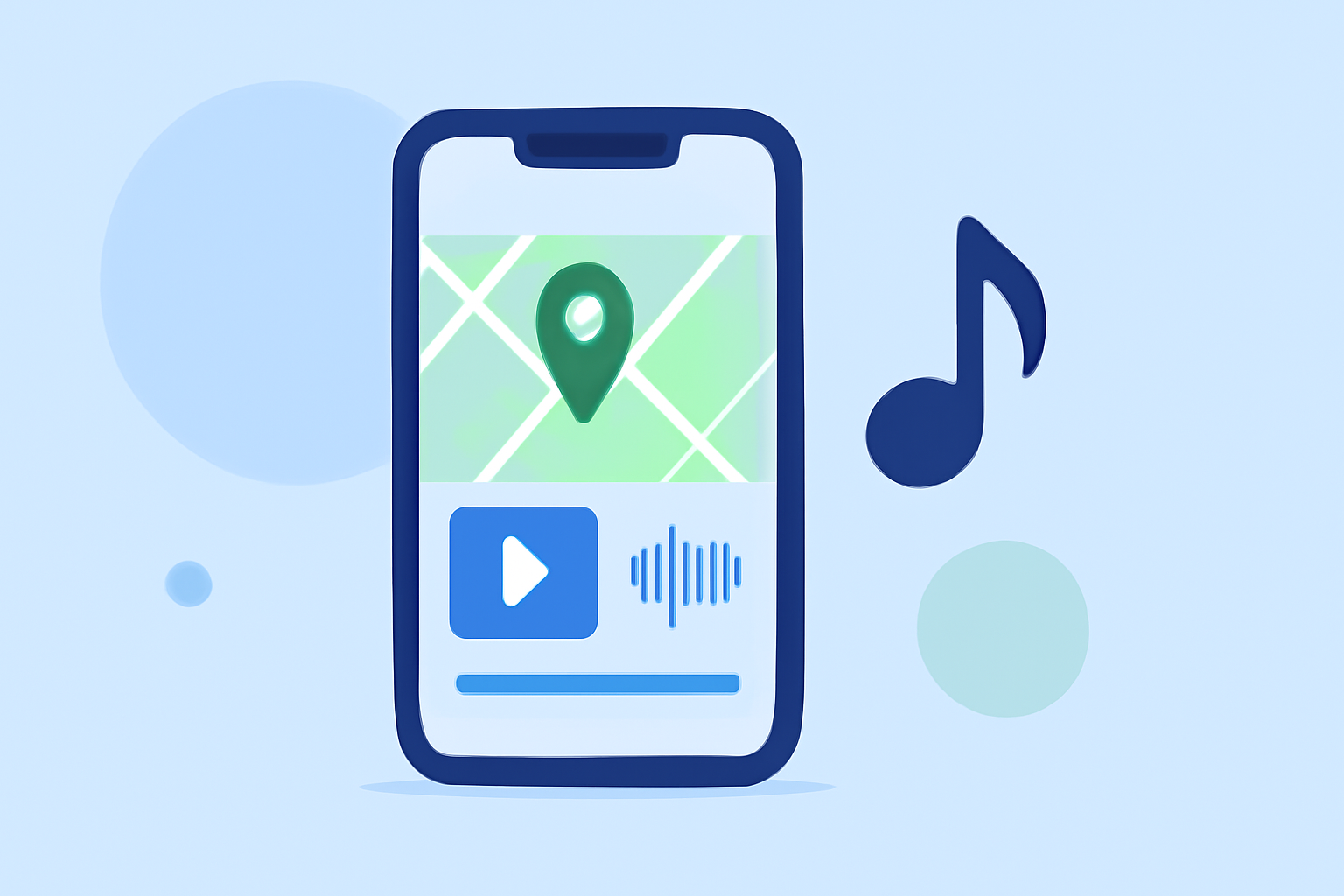
Enhancing your videos with map overlays and music can significantly boost their appeal. Even with a budget smartphone, achieving professional-looking results is possible using the right tools.
Understanding Map Overlays and Music Edits
A map overlay involves superimposing a map onto your video, often to showcase travel routes or locations. Adding music edits entails incorporating background music, sound effects, or voice-overs to enrich the video's auditory experience.
Choosing the Right Video Editing App
Several free video editing apps offer features to add map overlays and music edits without watermarks. Here are some top recommendations:
How to Quickly Import Audio and Video into CapCut | Envato Tuts+
CapCut
A user-friendly app with a vast library of templates, filters, and effects. It supports multi-layer editing, allowing you to add map images and music tracks seamlessly. CapCut is ideal for quick edits and social media content. (invideo.io)
Cara Edit di Aplikasi VN yang Buat Konten Masuk FYP TikTok
VN Video Editor
Offers a multi-track timeline, keyframe animations, and a variety of filters and transitions. It's suitable for more detailed editing projects, including adding map overlays and syncing music precisely. (beebom.com)
How To Color Isolate In Three Steps Using InShot
InShot
Provides essential editing tools like trimming, speed adjustments, and a library of music tracks. While it may have fewer advanced features, it's straightforward for beginners to add music and simple overlays. (makeuseof.com)
Adding Map Overlays
To incorporate a map overlay:
- Obtain a Map Image: Use a screenshot or download a map image of the desired location.
- Import the Map Image: Open your chosen video editing app and import the map image as an overlay.
- Position and Resize: Adjust the map's size and position to fit your video's frame appropriately.
- Customize: Add markers, routes, or text annotations to highlight specific areas.
Adding Music Edits
To add music:
- Select a Music Track: Choose a royalty-free music track or one you have the rights to use.
- Import the Track: Add the music file to your video project.
- Sync and Edit: Align the music with your video's timeline, adjusting volume levels and applying fade-ins or fade-outs as needed.
Tips for Effective Editing
- Keep It Simple: Avoid overcomplicating your edits; focus on clarity and engagement.
- Use Templates: Many apps offer templates that can simplify the editing process.
- Maintain Aspect Ratios: Ensure your video dimensions are suitable for the platform where you'll share it.
By leveraging these free apps and following these steps, you can create compelling videos with map overlays and music edits directly from your budget smartphone.