22 June 2026
Mastering Airport Walking Shots: A Step-by-Step Guide to Editing with Your Phone
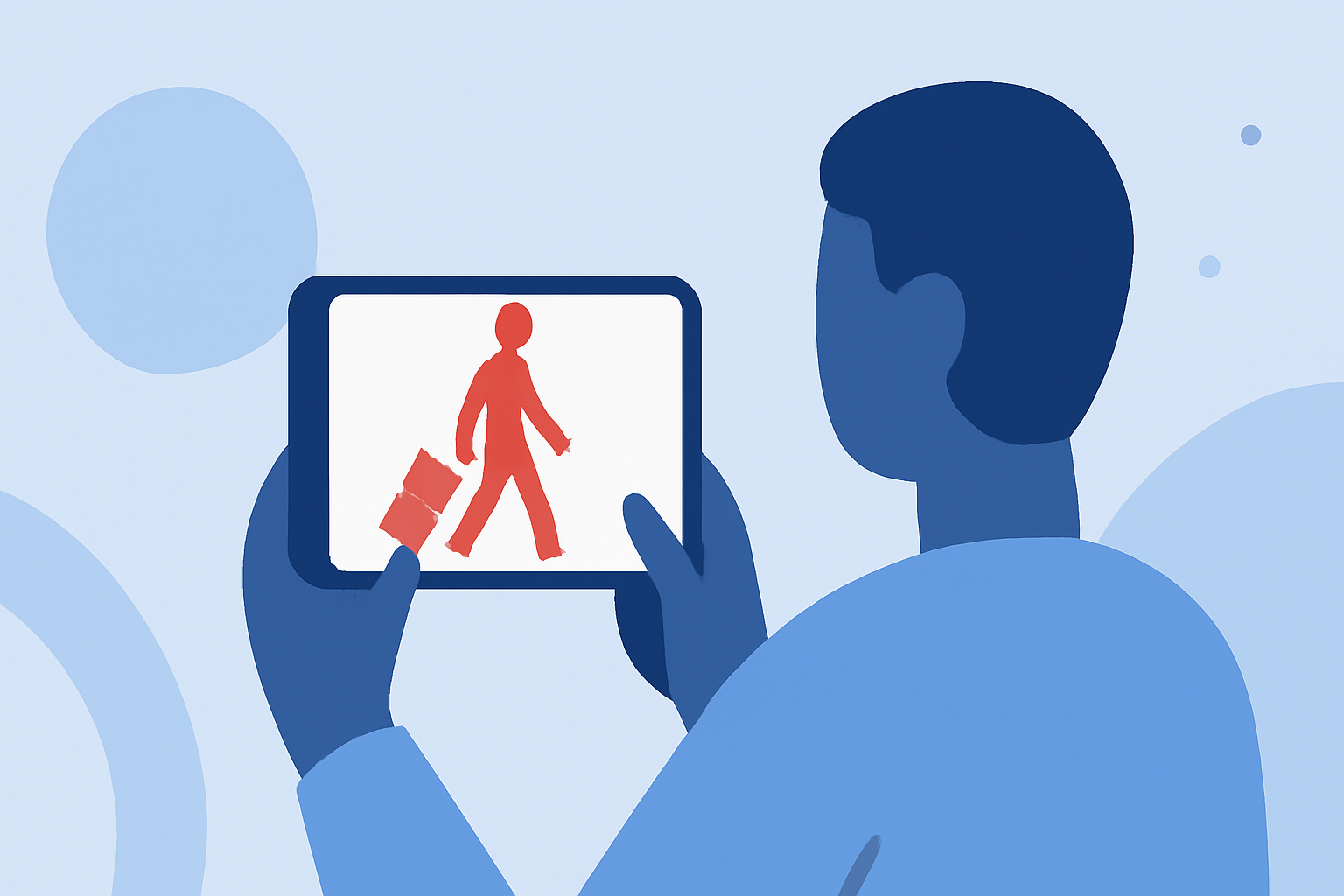
Capturing dynamic walking shots in an airport setting can add a cinematic flair to your travel videos. With the advancement of smartphone technology, it's now possible to shoot and edit these sequences entirely on your phone. Here's a comprehensive guide to help you achieve professional-looking results.
1. Planning Your Shot
-
Choose the Right Location: Opt for areas with clean backgrounds and ample space to move freely. Long hallways or open terminals work well.
-
Time Your Shoot: Aim for times when the airport is less crowded to avoid distractions and ensure smoother footage.
2. Shooting the Walking Sequence
-
Stabilize Your Smartphone: Use a gimbal or a tripod with a smartphone mount to minimize shake. If you don't have one, consider using a handheld stabilizer or a DIY rig.
-
Frame Your Subject: Decide whether to film yourself or someone else. For self-filming, use the main camera for better quality and set up your phone on a tripod or ask a fellow traveler to assist.
-
Maintain a Consistent Pace: Walk at a steady, deliberate pace to ensure smooth footage. Avoid sudden movements or jerks.
-
Use Leading Lines: Position yourself along lines like hallway edges or tile patterns to add depth and interest to your shot.
3. Editing Your Footage
After capturing your footage, the next step is editing. While there are various apps available, we recommend using Planes Live for its user-friendly interface and powerful features tailored for mobile editing.
-
Import Your Footage: Open Planes Live and import your video clips.
-
Trim and Arrange Clips: Cut out any unnecessary parts and arrange your clips in the desired sequence.
-
Adjust Exposure and Contrast: Enhance the brightness and contrast to make your footage pop. Be cautious not to overexpose highlights or lose details in shadows.
-
Color Correction: Adjust the white balance to ensure natural skin tones and correct any color casts. Use the vibrance tool to subtly boost colors without making them look unnatural.
-
Stabilization: If your footage is shaky, use the stabilization feature in Planes Live to smooth out the motion.
-
Add Music and Sound Effects: Enhance the mood of your video by adding background music and ambient sounds. Ensure you have the rights to any music you use.
-
Export and Share: Once satisfied with your edits, export the video in the desired resolution and share it on your preferred platforms.
4. Additional Tips
-
Practice the Walk: Before filming, rehearse your walking sequence to ensure fluidity and confidence.
-
Lighting: Natural light is ideal. If shooting indoors, position yourself near windows or well-lit areas.
-
Sound Quality: Use an external microphone if possible to capture clear audio, especially if you're speaking during the shot.
By following these steps and utilizing Planes Live for editing, you can create engaging airport walking shots that showcase your travel experiences in a cinematic light.