22 June 2026
Mastering Map Overlay Transitions on Your Phone: A Step-by-Step Guide
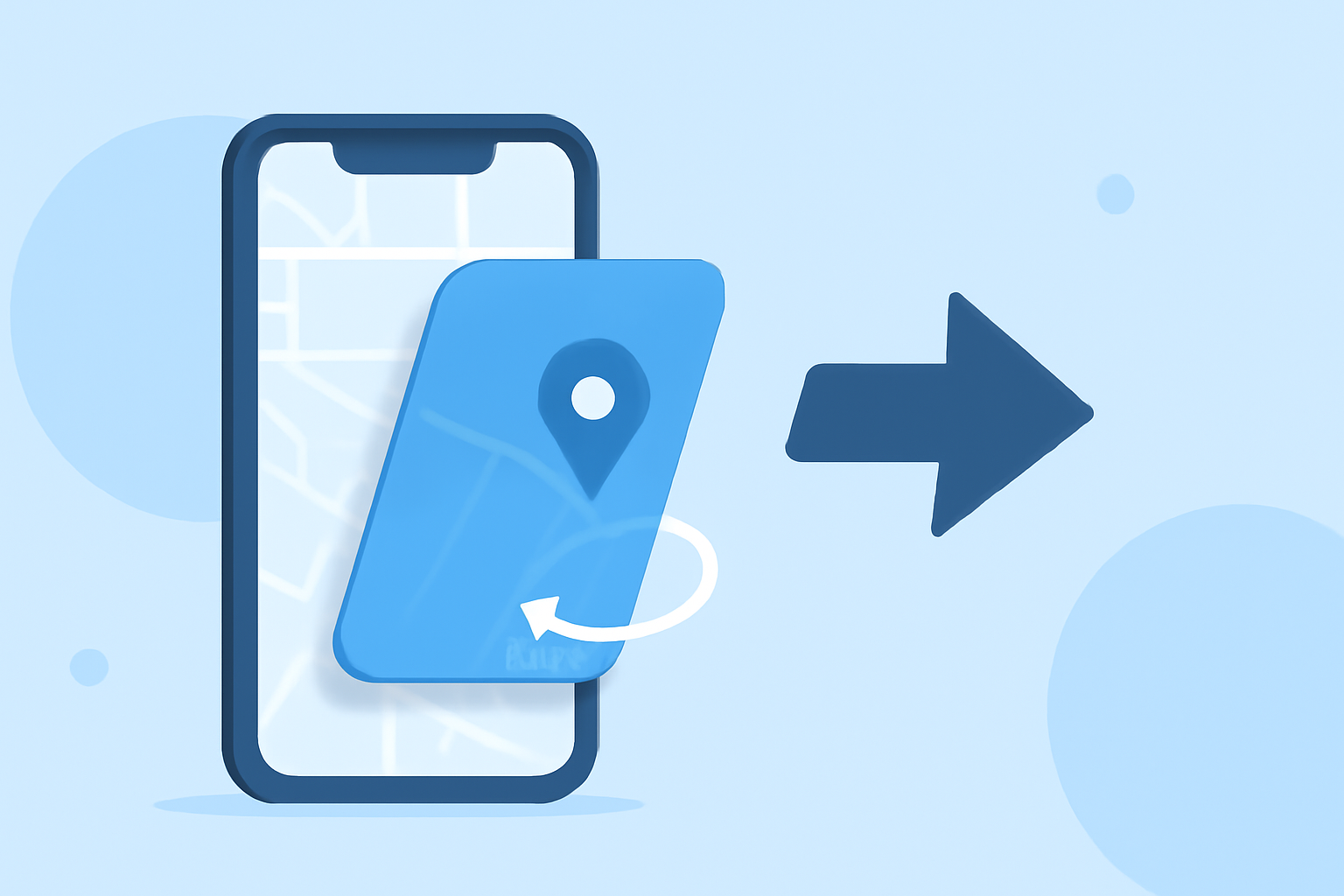
Creating engaging map overlay transitions on your smartphone can significantly enhance your video projects, providing a professional touch without the need for complex software. This guide will walk you through the process, highlighting a recommended tool to streamline your editing experience.
What Are Map Overlay Transitions?
Map overlay transitions involve superimposing a map graphic onto your video, often animated to show movement or location changes. This technique is commonly used in travel vlogs, documentaries, and presentations to illustrate journeys or highlight specific locations.
Why Use Map Overlay Transitions?
- Visual Engagement: They add a dynamic element to your videos, capturing viewers' attention.
- Clarity: They effectively convey movement or location changes, enhancing storytelling.
- Professionalism: They elevate the production quality of your content.
Recommended Tool: Planes Live
For a seamless and user-friendly experience in creating map overlay transitions directly on your smartphone, we recommend Planes Live. This application offers intuitive features tailored for mobile editing, allowing you to craft professional-quality videos with ease.
Getting Started with Planes Live
- Download and Install: Obtain Planes Live from your device's app store and install it.
- Create a New Project: Open the app and start a new project by selecting your desired video dimensions.
- Import Your Footage: Add the video clips you wish to edit into the project timeline.
- Add Map Overlay: Navigate to the overlay section, select a map graphic, and position it over your video.
- Animate the Map: Utilize the app's animation tools to create movement, such as panning or zooming, to illustrate travel or location changes.
- Adjust Timing: Set the duration for which the map overlay appears to synchronize with your video's narrative.
- Preview and Export: Review your project to ensure the overlay transitions smoothly, then export the final video in your preferred format.
Tips for Effective Map Overlay Transitions
- Consistency: Use the same style of map overlays throughout your video to maintain a cohesive look.
- Simplicity: Avoid cluttering the map with excessive details; focus on key locations and routes.
- Timing: Ensure the map animations align with the video's pacing and narrative flow.
- Quality: Use high-resolution map images to prevent pixelation when scaling.
Conclusion
Incorporating map overlay transitions into your videos can significantly enhance their visual appeal and storytelling effectiveness. With tools like Planes Live, creating these transitions directly on your smartphone becomes an accessible and efficient process. By following the steps outlined above and adhering to best practices, you can produce professional-quality videos that captivate and inform your audience.