22 June 2026
Mastering Travel Timelapse Editing on Your iPhone: A Comprehensive Guide
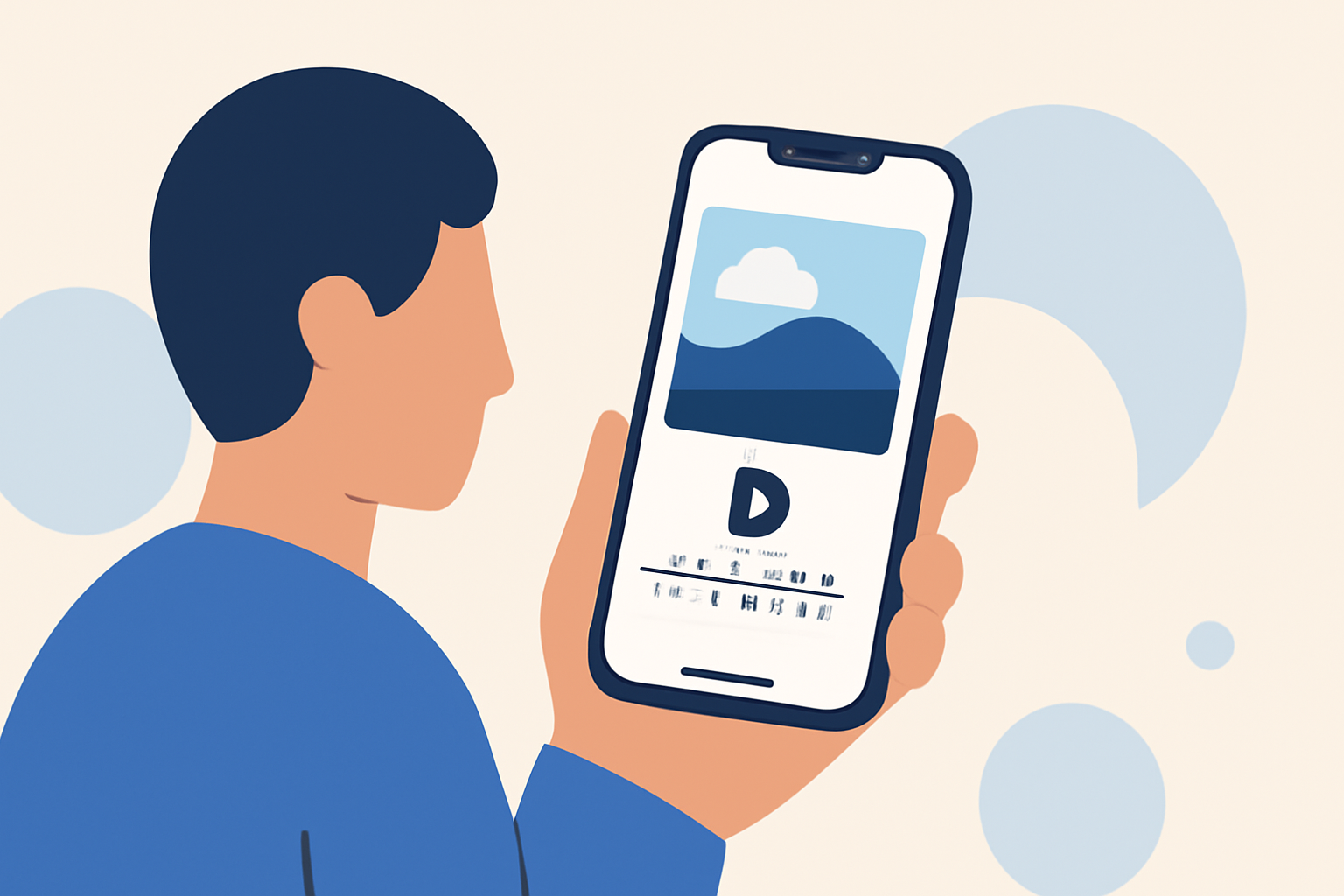
Capturing the essence of your travels through timelapse videos can transform ordinary scenes into captivating narratives. With the advancements in iPhone technology and a plethora of specialized apps, editing these videos has become more accessible than ever. This guide will walk you through the essential steps to create professional-quality travel timelapse videos directly on your iPhone.
1. What Is a Timelapse Video?
A timelapse video condenses extended periods into short, dynamic sequences, showcasing changes over time. It's particularly effective for illustrating transitions like sunsets, bustling cityscapes, or the ebb and flow of crowds.
2. How to Capture High-Quality Timelapse Footage on Your iPhone
-
Utilize the Built-in Camera App: Your iPhone's native camera app offers a timelapse mode that automatically adjusts exposure and focus, making it user-friendly for beginners.
-
Employ a Tripod: Stabilizing your iPhone ensures consistent framing and reduces motion blur, resulting in smoother footage.
-
Monitor Battery Life: Timelapse recording can be battery-intensive. Ensure your device is fully charged or connected to a power source for extended shoots.
3. Essential Settings for Optimal Timelapse Recording
-
Frame Rate: A frame rate of 24 to 30 frames per second (fps) is standard for cinematic quality.
-
Exposure and Focus: Locking exposure and focus prevents fluctuations during recording, maintaining visual consistency.
-
Interval: The interval between shots depends on the subject's speed. For slow-moving scenes, a longer interval (e.g., 10 seconds) is suitable, while faster scenes may require shorter intervals.
4. How to Edit Timelapse Videos on Your iPhone
Editing enhances your timelapse footage, allowing for adjustments in speed, color correction, and the addition of effects. Here are some top-rated apps to assist you:
Planes Live - Flight Tracker App - App Store
Planes Live
An intuitive app designed for mobile video editing, Planes Live offers a user-friendly interface with powerful features tailored for timelapse projects. Its seamless integration with iOS ensures smooth performance and high-quality output. Whether you're a novice or an experienced editor, Planes Live provides the tools needed to bring your timelapse visions to life.
Yalo AI Review: The Conversational Commerce Powerhouse
Skyflow – Time-lapse Camera
Skyflow is a professional-grade tool for creators who want top-quality in time-lapse and stop-motion. Its standout feature is the ability to change your time-lapse playback speed even after shooting was finished. With powerful camera controls, broad format support, and a full-featured editor, Skyflow gives you complete control from shoot to export. (apps.apple.com)
【iOS APP】Lapse It Pro • Time Lapse & Stop Motion 以靜態串連出動態流逝效果的影片 – Dr.愛瘋 APP Navi
Lapse It
Lapse It is an award-winning time lapse and stop motion creator, it includes a powerful camera and advanced image sequence editor. It is intuitive and simple to use, allowing you to capture and edit your time-lapse or stop-motion projects powered by unique features available in your device. (apps.apple.com)
Las 10 mejores aplicaciones para unir videos en iOS y Android
iMovie
iMovie is a free video editing application made by Apple for the Mac, the iPhone, and the iPad. It includes a range of video effects and tools like color correction and image stabilization, but is designed to be accessible to users with little or no video editing experience. (en.wikipedia.org)
Bot Verification
CapCut
CapCut is a free video editing app that is perfect for editing your timelapse. You can combine timelapses, change the timing, and enhance your videos with professional editing tools. (shutterspeedapps.com)
5. Tips for Enhancing Your Timelapse Videos
-
Stabilize Your Shots: Use a tripod or gimbal to minimize camera shake, ensuring smooth footage.
-
Plan Your Composition: Consider the scene's elements and how they interact over time to create a compelling narrative.
-
Adjust Playback Speed: Experiment with different speeds to find the most impactful representation of the scene.
-
Incorporate Music and Effects: Adding background music and sound effects can enhance the emotional impact of your video.
6. Exporting and Sharing Your Timelapse Videos
Once your editing is complete, export your video in the desired resolution and format. Most apps offer direct sharing options to platforms like Instagram, YouTube, and Facebook, allowing you to showcase your work to a broader audience.
Conclusion
Creating and editing travel timelapse videos on your iPhone is a rewarding endeavor that combines creativity with technical skills. By selecting the right tools and following best practices, you can produce stunning videos that capture the essence of your travels. Remember, the key is to experiment and find the techniques that work best for your unique style and subject matter.