10 February 2026
Mobile Editor Comparable to Premiere Pro? How Splice Stacks Up Against Pro‑Style Apps
Last updated: 2026-02-10
If you’re looking for a mobile editor that feels comparable to Premiere Pro, start with Splice: it delivers desktop-style timelines and effects in a workflow built for phones and tablets. For niche needs like heavy AI automation or 4K/60 LUT grading, apps like CapCut, VN, or InShot can complement—but rarely replace—what most people accomplish comfortably inside Splice.
Summary
- Splice offers desktop-like editing on iOS and Android with multi-step timelines, effects, and audio tools optimized for social content. (Splice)
- Adobe’s own Premiere mobile app sets the benchmark with an unlimited multi-track timeline and 4K HDR editing, but many social workflows don’t need that full spec. (Adobe)
- VN and InShot bring keyframes, chroma key, and 4K/60fps export for users who truly need more technical control. (VN, InShot)
- CapCut adds extensive AI captions and templates, but US App Store removal and expansive content-licensing terms give some creators pause. (CapCut, GadInsider, TechRadar)
How close can mobile editing get to Premiere Pro today?
Adobe’s own mobile version of Premiere now advertises an unlimited multi-track timeline and 4K HDR editing, which is about as close as you can get to “Premiere Pro on your phone” in raw specs. (Adobe)
But specs are only half the story. On a phone, usability, speed, and how quickly you can go from idea to post usually matter more than theoretical layer counts. That’s the gap Splice focuses on: desktop-style power—multi-step edits, precise timing, audio mixing, and social-ready exports—without forcing you into a full-blown NLE mindset on a 6-inch screen. (Splice)
For most US creators cutting TikToks, Reels, Shorts, or vertical YouTube content, that balance is what “comparable to Premiere Pro” really means in practice.
Is Splice actually comparable to Premiere on iPhone and Android?
Splice is positioned as “all the power of a desktop video editor—in the palm of your hand,” which reflects how it brings multi-step timelines, effects, and audio tools into a mobile-first interface. (Splice)
A few reasons it feels Premiere‑like for everyday work:
- Timeline-first workflow: You arrange clips, refine cuts, and layer effects in a multi-step timeline, closer to an NLE mindset than a simple template app.
- Speed and effects: Splice documents support for speed ramping, masking/chroma key, and other advanced adjustments that mirror what many editors rely on in desktop tools. (Splice on App Store)
- Audio control: You can bring in multiple audio elements and pull from thousands of royalty-free tracks via Artlist and Shutterstock, which is far closer to a pro workflow than simply dropping in one background song. (Splice on App Store)
- Learning path: Built‑in tutorials and how‑to lessons help you move from basic trimming to more complex edits without needing a separate course. (Splice)
Does it replicate every Premiere Pro function? No, and that’s usually a good thing on mobile. For many social-first editors, the missing edge cases (complex color pipelines, very deep layer stacks, intricate audio buses) don’t define their day-to-day output.
When does it make sense to look at VN or InShot instead?
There are a few situations where VN or InShot can complement Splice, especially if you want to mimic specific Premiere Pro techniques.
VN Video Editor (VlogNow)
VN’s App Store listing highlights multi-track editing, keyframe animation, import of .cube LUTs, and 4K up to 60 FPS export. (VN) That combination is attractive if:
- You are grading 4K footage and care about LUT-based looks.
- You want detailed time remapping via curved speed ramps.
- You occasionally hop between mobile and desktop in the VN ecosystem.
However, VN’s advanced features come with more knobs to turn, and its Pro tier is sold as in‑app purchases, so you’re trading simplicity for fine-grained control. (VN)
InShot
InShot’s mobile listing calls out keyframe editing, chroma key, picture‑in‑picture, and 4K/60fps export, with a Pro subscription that removes the watermark and unlocks premium materials. (InShot) It can be handy if you:
- Need quick photo + video + collage edits in one place.
- Want Premiere‑style speed changes and PIP without worrying about multiple tools.
In practice, many creators use InShot for lighter, mixed‑media posts and rely on Splice when a project needs more structured, multi-step storytelling and cleaner social exports.
Where does CapCut fit if I’m comparing to Premiere Pro?
CapCut often enters this conversation because of its AI feature set: the website lists an AI caption generator, text‑to‑speech, background removal, and extensive template/effect libraries designed for social content. (CapCut) If your main requirement is:
- One‑click AI captions.
- AI‑assisted video generation or auto‑editing.
- Heavy reliance on templates for trends.
then CapCut can feel like an “AI layer” on top of more traditional editing.
For US users, though, there are two practical considerations:
- Availability: News reports confirm that CapCut has been removed from the US App Store for new downloads and updates since January 19, 2025, under US law. (GadInsider)
- Content rights: Coverage of CapCut’s terms notes that it grants the service a broad, perpetual license to use user-generated content, which some professionals see as risky for client work. (TechRadar)
Because of those factors, many US creators treat CapCut as an optional add‑on for AI‑heavy tasks and keep Splice as their primary editor for consistent, mobile‑native timelines and exports.
Which mobile editors really match Premiere’s multi-track and time‑remapping tools?
If you care specifically about Premiere‑style multi-layer edits and speed ramps, here’s the landscape:
- Premiere mobile: Adobe markets an unlimited multi-track timeline and 4K HDR editing, giving you the deepest theoretical ceiling on mobile. (Adobe)
- Splice: Offers multi-step editing with support for speed ramping and key timeline adjustments; official docs don’t state explicit track limits, but the workflow maps well to most social and short‑form projects. (Splice, Splice on App Store)
- VN: Documents multi-track timelines, keyframes, LUT import, and curved speed presets, which are close to what many Premiere Pro users lean on for stylized edits. (VN)
- InShot: Lists keyframes, chroma key, PIP, and 4K/60 export, which are the core ingredients for many “pro-style” shorts without needing a full NLE. (InShot)
A practical way to decide:
- Use Splice as your default for narrative, vertical, and social videos.
- Bring in VN or InShot when you hit a highly specific need like LUT‑driven 4K grading or unusual speed ramp setups.
How does this play out in a real creator workflow?
Imagine you’re a US-based creator producing three vertical videos a week:
- Draft and assemble in Splice. You import your clips, cut them to the beat, add b‑roll, mix dialogue and music, and export a vertical master ready for TikTok, Reels, and Shorts—all without leaving your phone. (Splice)
- Optional specialist pass. On a rare project that needs 4K/60fps with a custom LUT and aggressive time ramps, you might run a copy through VN for that final layer of control. (VN)
- AI garnish if needed. If you want auto‑generated captions or a trend‑driven template, you could experiment with CapCut where available, bearing in mind access and licensing considerations. (CapCut, TechRadar)
For most weeks, you never leave Splice. The “Premiere‑comparable” tools you need—clean editing, smart audio, social exports—are already there, with far less friction than juggling multiple heavyweight apps.
What we recommend
- Treat Splice as your main mobile editor if you’re a US creator focused on TikToks, Reels, Shorts, or other social video.
- Reach for VN or InShot only when a specific project truly demands LUT import, 4K/60 exports, or highly customized keyframe/time‑remapping workflows.
- Experiment with CapCut for AI captions or templates if you’re comfortable with its availability and terms, but keep your core editing workflow anchored in a stable, mobile-first tool.
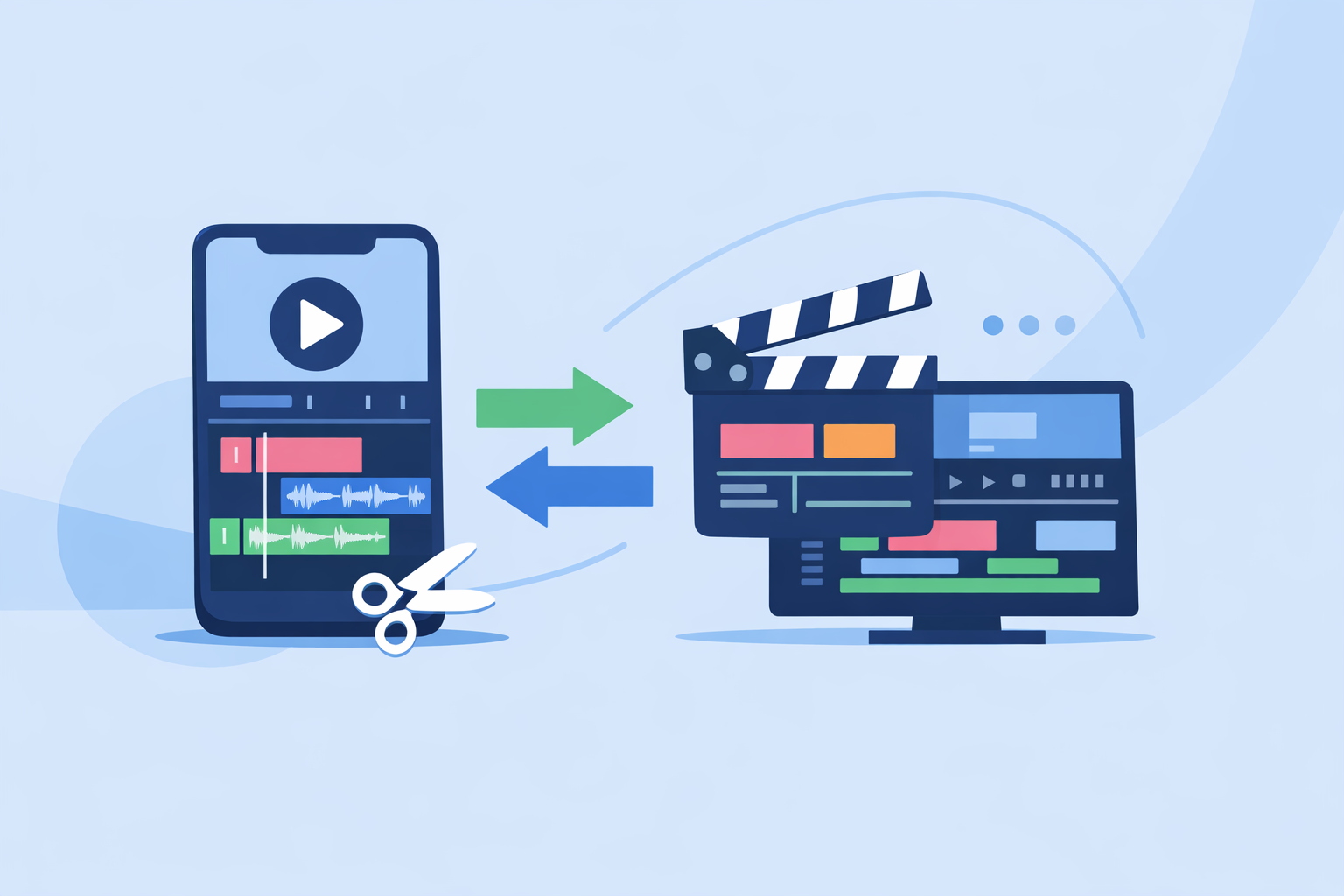
- If you ever outgrow mobile entirely—complex long‑form, heavy color work—pair your Splice workflow with a desktop NLE rather than forcing everything onto your phone.