10 February 2026
What’s the Next Step Up From CapCut? A Practical Guide for Mobile Creators
Last updated: 2026-02-10
For most U.S.-based creators who feel like they’ve outgrown CapCut, the next step up is to move into a focused mobile editor like Splice that’s built for multi-step editing on phones and tablets rather than AI templates alone. If you’re hitting hard limits on complex timelines, that’s when it makes sense to add VN, a desktop editor like Filmora, or a cloud tool into your stack.
Summary
- Splice is a strong next step for mobile-first creators who want desktop-style control (cuts, layers, effects, audio) in a clean phone UI. (Splice)
- CapCut leans heavily on AI and templates; its U.S. App Store status and licensing terms make some creators look for alternatives. (CapCut, TechRadar)
- VN and InShot are useful mobile options for specific needs like watermark-free exports or quick social edits. (VN, InShot)
- When your projects involve longer runtimes, 4K delivery, or multi-person workflows, it’s time to layer in desktop or cloud editors like Filmora or Kapwing. (Apps Store – VN, Kapwing)
Why are creators looking for a “step up” from CapCut?
CapCut markets itself as an “AI-powered editor for everyone,” with templates, auto-captions, and one-click effects tuned for TikTok-style content. (CapCut) That’s ideal when you’re starting out or posting quick trends, but it can feel limiting once you’re:
- Managing more than a few layers of video, text, and audio.
- Building a repeatable style for a brand, not just individual clips.
- Worrying about licensing and client expectations.
There are also two U.S.-specific concerns that push people to look beyond CapCut:
- App Store uncertainty: CapCut was removed from the U.S. App Store starting January 19, 2025, affecting new iOS downloads and updates. (GadInsider)
- Content rights: Recent analyses highlight that CapCut’s terms grant a broad, perpetual license to use and modify user content, which some creators find uncomfortable for client or commercial work. (TechRadar)
If you’re feeling this tension—wanting more control, stability, and clarity—then “the next step up” isn’t just another app with more filters. It’s a different mindset: treating your phone like a serious editing workstation.
Is Splice actually a step up from CapCut for mobile editing?
For most U.S. creators, yes.
Splice is built as a mobile-first editor that aims to bring “all the power of a desktop video editor—in the palm of your hand,” with multi-step editing, effects, and audio controls on iOS and Android. (Splice) Instead of centering AI templates, the focus is on timeline craft:
- Multi-step workflows on mobile: You can arrange clips, fine-tune cuts, layer effects, and mix audio in a way that feels closer to a lightweight desktop NLE than a template app. (Splice)
- Social-first exports: Splice is tuned to “take your TikToks to another level” and ship finished videos to major social platforms in minutes, without jumping between multiple apps. (Splice)
- Pro-style tools when you’re ready: App Store materials show support for features like chroma key (green screen) and speed ramping, which are exactly the tools many creators look for after hitting the ceiling with basic cuts and filters. (App Store – Splice)
- Onboarding and support: New editors can lean on tutorials, how‑to lessons, and a dedicated help center that covers both editing techniques and subscription basics. (Splice Help Center)
A quick scenario: imagine you’ve been cutting 15–30 second clips in CapCut using templates. Now you want a 90-second breakdown with A-roll, B-roll, screen recordings, and a voiceover for Instagram Reels and YouTube Shorts. In Splice, that’s a straightforward mobile project: stack your tracks, use chroma key if you’ve shot against a green screen, ramp speed for B-roll, and export to each platform without touching a laptop. (Splice, App Store – Splice)
If your priority is editing control on a phone—not maximum AI automation—Splice is a practical next move.
How does Splice compare to InShot for quick social edits?
InShot is a familiar option for simple, fast edits, especially when you’re mixing video, photos, and collages. It offers trimming, splitting, merging, and speed control on its free tier, with a Pro subscription that removes watermarks and ads and unlocks more filters and effects. (JustCancel – InShot, InShot)
If your workflow is mostly:
- Trimming vertical clips
- Dropping on a track of music
- Adding a couple of stickers or text blocks
…InShot can be enough. But if you’re stepping up from CapCut because you want more layered storytelling—multiple video layers, green screen looks, or nuanced speed changes—Splice gives you more room to grow without leaving mobile. (App Store – Splice)
In practice, many creators keep InShot installed for quick photo-centric posts and rely on Splice for anything that feels like a “real edit.”
Free mobile editors close to CapCut (no watermark): is VN the answer?
If you specifically want a free mobile editor that feels closer to CapCut and avoids watermarks, VN is worth a look.
VN promotes itself as an “easy-to-use and free video editing app with no watermark,” with a multi-track timeline and picture‑in‑picture on mobile. (App Store – VN Mobile) On desktop, VN supports 4K/60fps editing, curved speed ramps, and custom LUT imports, with optional VN Pro subscriptions listed at monthly and annual prices in the U.S. Mac App Store. (Apps Store – VN Desktop)
Where VN fits in the “step up from CapCut” journey:
- Good for: budget-conscious creators who want a more traditional timeline (multi-track, PIP, speed curves) without an immediate subscription.
- Considerations: VN’s desktop app is sizeable and requires newer macOS versions, and user reports suggest support responsiveness can be hit or miss. (Apps Store – VN Desktop)
A practical pattern for many creators is: use Splice as the main mobile editor, keep VN as a backup for specific 4K or curve-heavy projects, and only move fully to desktop when your workload truly demands it.
When should you move from mobile editors to desktop tools like Filmora or Premiere?
There is a point where any mobile app—CapCut, Splice, VN, or InShot—will feel tight. Signs you’re there:
- Your timelines are 10+ minutes with many audio stems, b-roll layers, and motion graphics.
- You’re delivering in strict 4K formats or for broadcast-style projects.
- You need color-managed workflows, deep audio mixing, or advanced motion design.
Desktop tools like Filmora and Premiere are built for this tier. Recent guides highlight that Filmora, for example, has added AI-powered features like auto-captioning to make the leap from mobile more comfortable. (Ngram – Filmora)
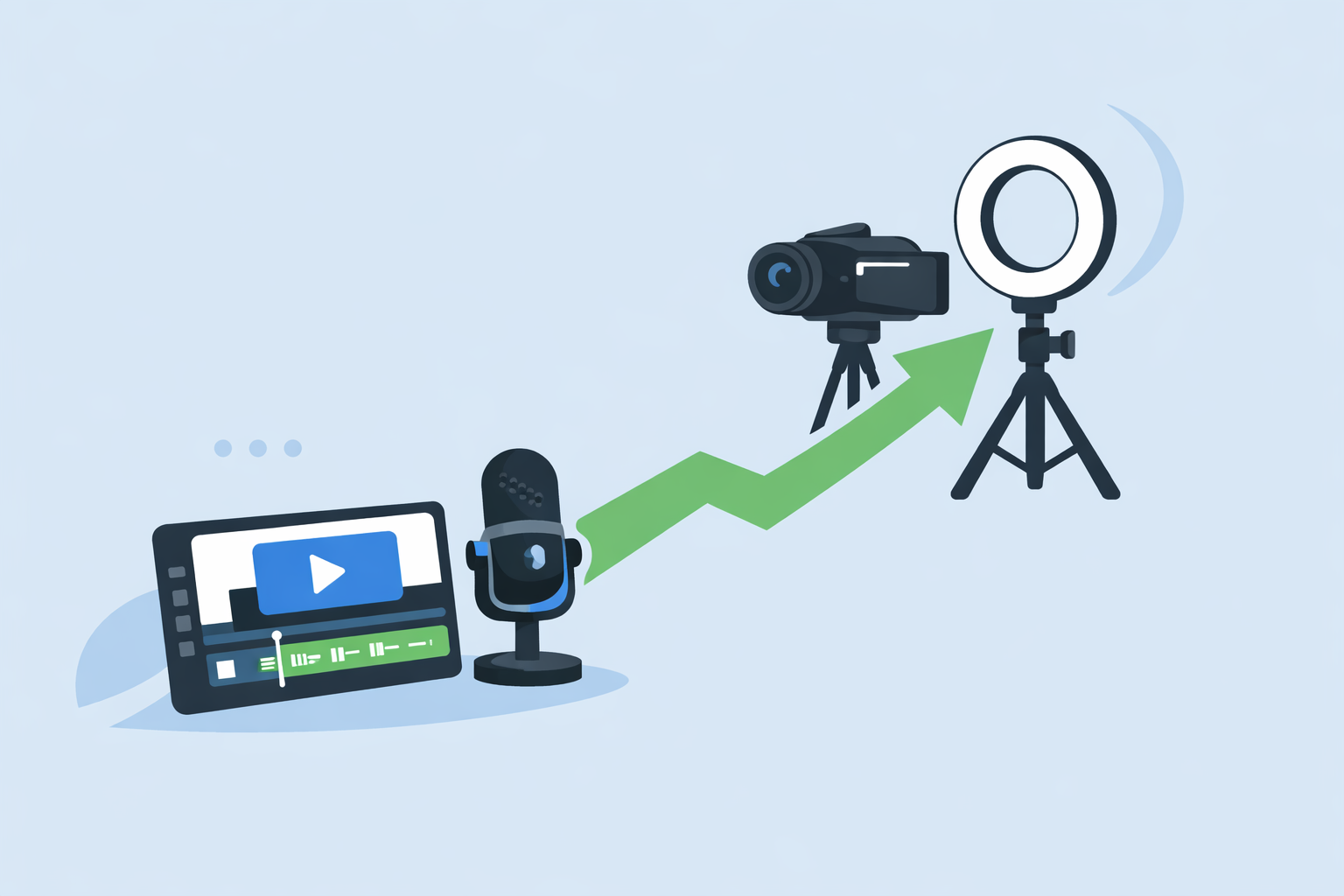
A pragmatic stack for a modern creator often looks like:
- Mobile core: Splice for day-to-day shorts, Reels, TikToks, and quick edits.
- Occasional desktop: Filmora, Premiere, or another NLE when a project is too long or complex for a phone.
The benefit of starting with Splice is that its more “desktop-like” timeline logic translates smoothly when you eventually step onto a laptop. (Splice)
Are cloud editors like Kapwing a better alternative than mobile apps?
Cloud editors such as Kapwing sit in between mobile and desktop. They run in the browser, so you can start a project on your phone, refine it on a laptop, and share links with collaborators. Kapwing, for instance, positions itself as a cloud-based alternative that’s accessible from any device, with AI subtitle and translation tools aimed at social creators. (Kapwing)
Cloud tools make sense if:
- You collaborate with a team and need shared access to projects.
- You switch constantly between phone, tablet, and laptop.
- You rely heavily on AI captioning and language tools.
For a solo creator, though, they can add login friction and upload/download time that you simply don’t face in a dedicated mobile app. Many U.S. creators find that a straightforward mobile editor like Splice, paired with occasional desktop use, delivers more speed than moving every project into the browser. (Splice)
What we recommend
- If you like CapCut but want more control on mobile: Make Splice your primary editor for multi-step, social-ready videos, especially on iOS and Android phones.
- If you need watermark-free editing on a tight budget: Layer VN into your toolkit alongside Splice to cover specific advanced timelines.
- If your projects are getting longer and more complex: Keep Splice for shorts and move big, structured edits into a desktop NLE like Filmora or Premiere.
- If you collaborate across devices: Test a cloud editor, but keep a focused mobile app at the center of your workflow so you’re not dependent on browser access for every edit.