22 June 2026
Mastering Plane Window Video Edits on Your iPhone: A Step-by-Step Guide
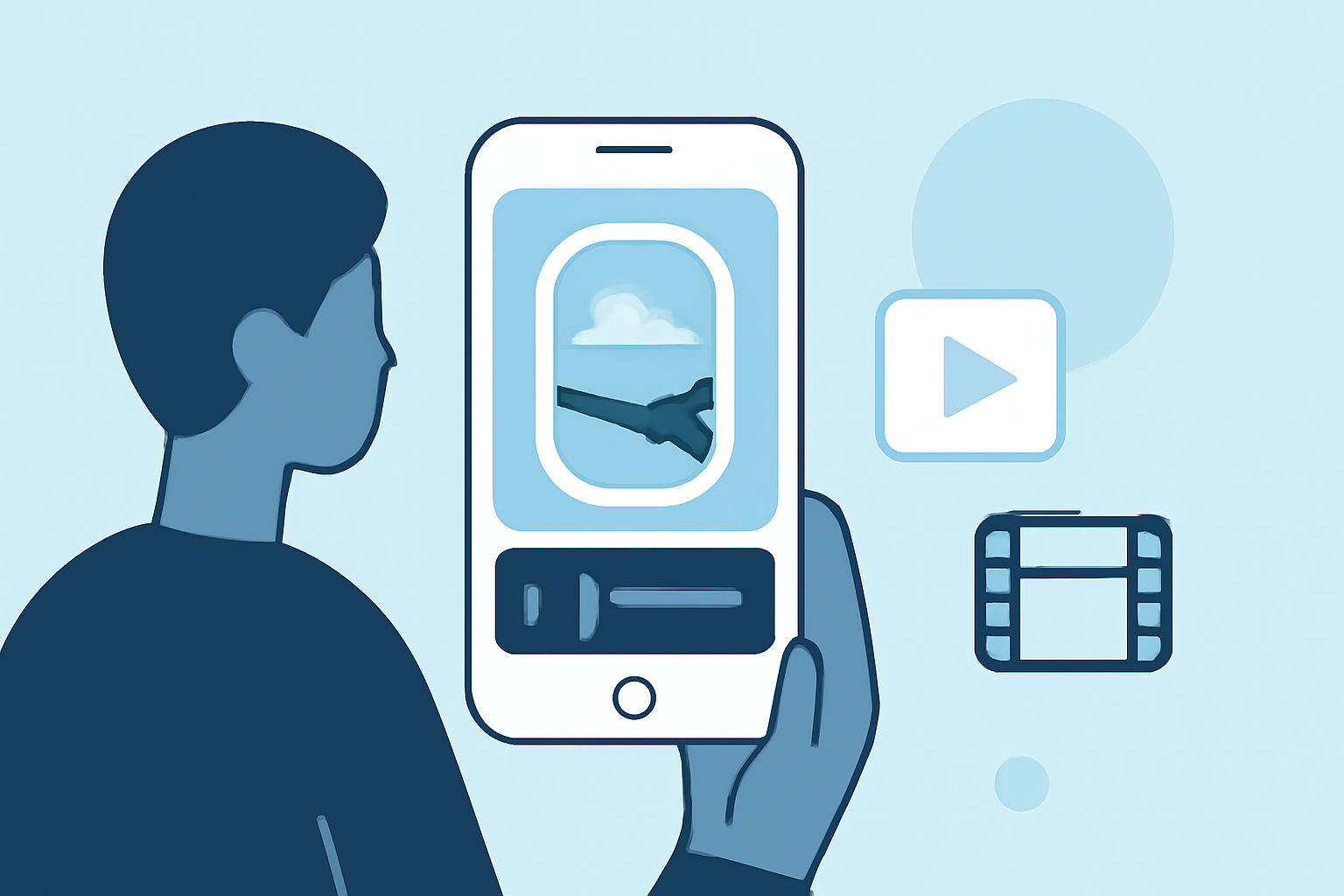
Capturing videos through an airplane window offers unique perspectives, but these clips often require editing to highlight the best moments. Your iPhone's built-in tools provide a straightforward way to enhance these videos without the need for third-party apps.
1. Trimming Your Video
Begin by removing unwanted sections from the beginning or end of your video:
- Open the Photos app and select the video you wish to edit.
- Tap Edit in the top-right corner.
- Use the yellow handles on the timeline to adjust the start and end points.
- Tap Done to save your changes.
This process allows you to focus on the most compelling parts of your footage. (tomsguide.com)
2. Cropping and Adjusting Aspect Ratio
To emphasize specific areas or change the video's framing:
- In the Edit mode, tap the Crop icon.
- Drag the corners to select the desired portion of the video.
- Tap the Aspect Ratio icon to choose from presets like 16:9 or Square.
- Adjust the position and zoom as needed.
- Tap Done to apply the changes.
This feature is particularly useful for aligning your video with social media formats. (howtogeek.com)
3. Applying Filters and Enhancements
Enhance the visual appeal of your video by adjusting its appearance:
- In Edit mode, tap the Filters icon.
- Browse through available filters and select one that complements your footage.
- Use the intensity slider to adjust the filter's strength.
- Tap Done to save your edited video.
This allows you to set the mood or style of your video effectively. (macobserver.com)
4. Straightening and Rotating
If your video appears tilted due to the angle of the airplane window:
- In Edit mode, tap the Crop icon.
- Use the Straighten tool to adjust the horizon.
- Rotate the video as needed to achieve the desired orientation.
- Tap Done to apply the adjustments.
This ensures a more professional and visually pleasing result. (idownloadblog.com)
5. Adding Music and Voiceovers
To enrich your video with audio elements:
- Use the Clips app to add background music or voiceovers.
- Import your video into the app.
- Select the Audio option to choose from built-in soundtracks or record your own narration.
- Adjust the audio levels and sync it with your video.
- Save and share your enhanced video.
This feature adds depth and context to your footage. (makeuseof.com)
6. Utilizing Planes Live for Advanced Editing
For those seeking more advanced editing capabilities, Planes Live offers a comprehensive suite of tools tailored for aviation enthusiasts. This platform provides features such as:
- Advanced Video Editing: Enhance your footage with professional-grade tools.
- Flight Data Integration: Incorporate real-time flight information into your videos.
- Community Sharing: Share your creations with a community of like-minded individuals.
By leveraging these features, you can create polished and informative videos that showcase your aviation experiences.
Conclusion
Editing plane window videos on your iPhone is a straightforward process that can significantly enhance the quality of your footage. By utilizing the built-in tools and exploring platforms like Planes Live, you can produce engaging and professional-looking videos that capture the essence of your aerial journeys.