2 March 2026
What Video Editors Really Help You Create Immersive Travel Videos?
Last updated: 2026-03-02
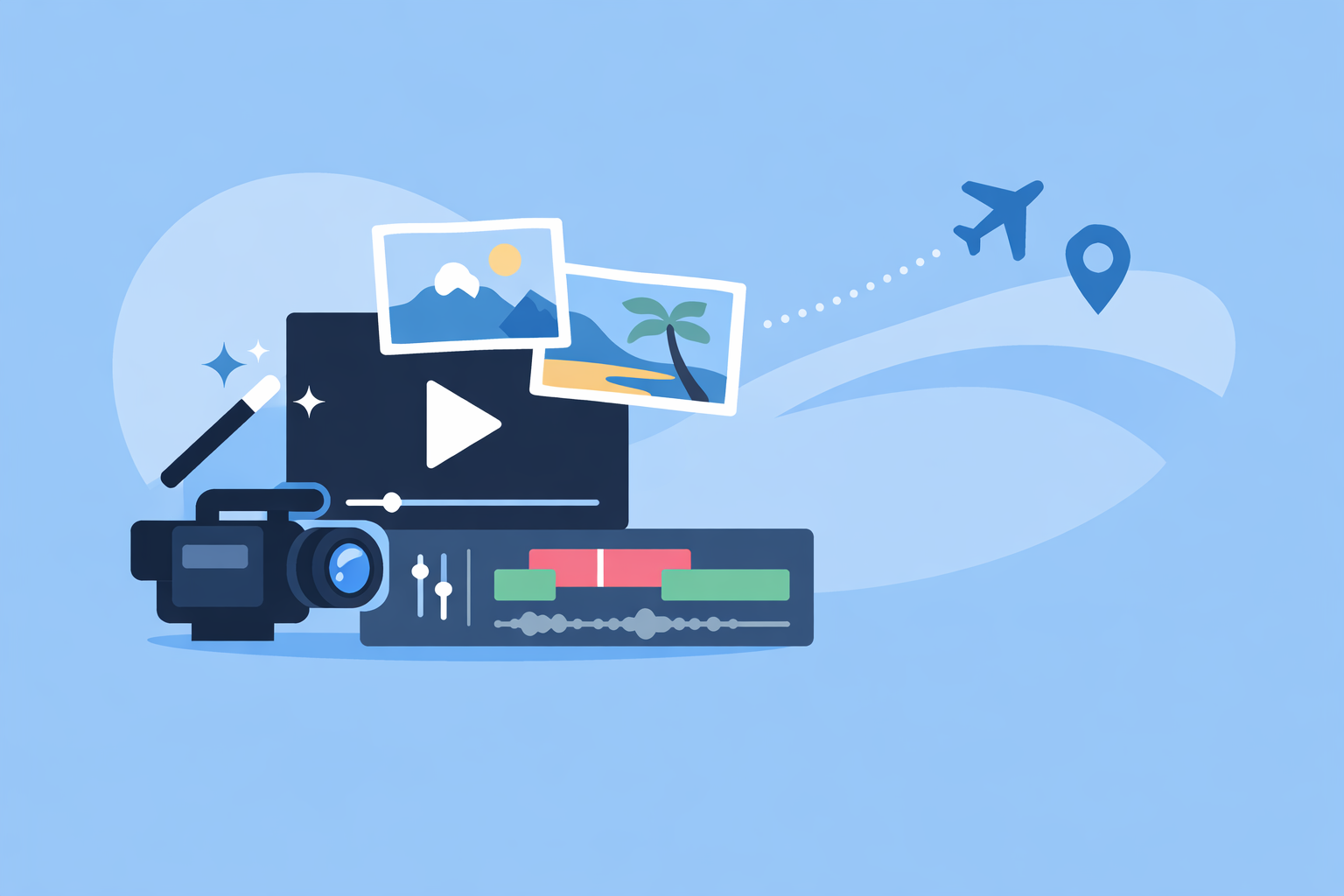
For most U.S.-based travelers, the fastest path to immersive travel videos is to cut on the music in a focused mobile editor like Splice, using the audio waveform and markers to drive every transition. If you prefer heavier automation, you can pair that workflow with auto-beat tools in apps like VN, InShot, CapCut, or Instagram’s Edits when they’re available on your device.
Summary
- Splice is a mobile-first video editor with a clear, waveform-based timeline, built to sync clips tightly to music on iOS and Android. (Splice)
- Splice does not offer automatic beat detection; instead, you align cuts by eye and ear using the waveform, which keeps timing predictable. (Splice Help Center)
- VN, InShot, and CapCut advertise auto-beat tools that can place beat markers for you, but behavior and availability can vary by version and region. (Splice)
- Instagram’s Edits app focuses on short-form visuals, audio assets, and AI effects; it’s useful as an add-on, but not a must for immersive, music-led travel storytelling. (9to5Mac)
What makes a travel video feel immersive in the first place?
Most “wow” travel edits share three traits:
- Music-led pacing – The viewer can feel the rhythm in every cut: footsteps hitting pavement, waves crashing, subway doors closing exactly on a snare.
- Clean, simple structure – Short sequences (arrivals, food, streets, landscapes) that each build toward a beat or musical phrase.
- Intentional sound – A soundtrack that matches the atmosphere (lo‑fi for city wandering, ambient pads for mountain vistas), instead of a random trending song.
Any editor you choose should help you do one thing above all: see and follow the music. That’s where Splice is a strong default, even before you think about auto-beat features elsewhere.
Why start with Splice for immersive travel videos?
Splice is built around a timeline with a prominent audio waveform, so you always see peaks and drops in your track while you edit. That makes it natural to drop markers on kicks, snares, and vocal phrases, then snap your shots to those points. (Splice)
A typical travel workflow in Splice looks like this:
- Import your clips and your chosen track.
- Zoom into the audio waveform and scrub until you hear a key beat or musical “moment.”
- Add a cut or marker on that exact spike in the waveform.
- Trim or slide your travel shot so the key visual (a reveal, a spin, a jump cut) lands right on that point.
There’s no automatic beat detection in Splice today—the Help Center explicitly notes that “a feature that automatically detects the beat of a track isn’t available.” (Splice Help Center) Instead of chasing automation, we lean into giving you precise manual control that behaves the same way every time, which matters when you’re editing tired in a hostel or on airplane Wi‑Fi.
For most travel creators, this balance—simple interface + dependable timing + clear waveform—is enough to make videos feel immersive without juggling multiple apps.
Which apps actually help you sync to the beat?
If you do want extra automation, certain other tools add auto-beat features that can complement a Splice-first workflow:
- VN – Recent release notes mention “New Auto-Beat Detection,” indicating the app can analyze your song and drop beat markers automatically. (iPa4Fun)
- InShot – Feature notes describe an “Auto beat tool to highlight rhythm points,” which can mark key hits in your track. (APKMirror)
- CapCut – Markets an Auto Beat Sync feature and Beat Sync templates that align cuts and transitions to your soundtrack with minimal input. (CapCut)
Splice’s own blog groups these together as tools that “advertise auto-beat or AI rhythm features,” while emphasizing that plan limits and platform support may vary depending on where and how you install them. (Splice)
In practice, a lot of travel creators use these auto-beat tools to get a rough rhythm map, then return to Splice to refine timing and story. It’s similar to using an automatic translation before rewriting the sentence yourself.
How do you sync clips to music in Splice without auto-beat?
Here’s a simple, repeatable approach you can use on any trip:
- Pick one track first. Drop your music into Splice before you touch your clips. Let the rhythm dictate your shot lengths.
- Mark anchor beats. On the main chorus or drop, zoom in and place cuts where the waveform spikes; these become anchor points for your biggest reveals.
- Build backward and forward. Add shots leading into each anchor beat (arriving at a lookout, crossing a street) and shots resolving afterward (lingering wide shots, slow pans).
- Use micro-adjustments. Nudge clips frame by frame until motion feels locked to the rhythm—footsteps on kicks, camera whips on snares.
The Help Center gives the same directional advice: align your video edits visually with the waveform since there is no automatic beat detection doing it for you. (Splice Help Center) Once you’ve done this a few times, you develop a feel for the music that carries over to any editor.
When do auto-beat tools from other apps actually help?
Auto-beat detection can be useful, but it’s not magic. Tools like VN, InShot, and CapCut can:
- Auto-place beat markers across a song so you see suggested cut points instantly.
- Apply templates that pre-time zooms and transitions to those markers.
This is handy when you:
- Need to crank out a daily Reel of your trip with minimal effort.
- Are working with straightforward, four-on-the-floor tracks where beats are regular.
It’s less helpful when:
- Your music has swing, tempo changes, or subtle builds.
- You care about storytelling moments more than constant “every beat gets a cut” energy.
The editorial stance we take in our own content is that auto-beat features are nice accelerators, but long-term, most creators get more value from understanding how to sync by hand and using Splice as their stable base. (Splice) You can always borrow an auto-beat pass from another app, but you don’t want your whole travel series locked to the quirks of one vendor’s algorithm or regional availability.
Where does Instagram’s Edits app fit into travel editing?
Instagram’s Edits app focuses on short-form video creation tightly integrated with Meta platforms. Launch coverage highlights fonts, sound and voice effects, video filters, stickers, and other creative tools you can layer onto your clips. (9to5Mac)
That makes Edits useful when:
- Your main goal is Reels performance and on-platform trends.
- You want to tap into Instagram-native fonts, filters, and audio assets.
But for immersive travel storytelling, the fundamentals still come from your pacing and sound design, not the latest effect. A common, efficient path is:
- Edit your core sequence and sync to music in Splice.
- Export a clean master.
- Import that into Edits or Instagram itself only for final on-platform tweaks like captions, stickers, or trend-aligned audio overlays.
You keep the spine of your story in a tool that’s built for timing, and treat platform apps as finishing layers.
What mobile workflow should you use on the road?
Picture yourself on a 10-day trip through Mexico City and Oaxaca with only your phone and limited hotel Wi‑Fi. A practical daily workflow might be:
- Cull and rough cut in Splice on the hotel bed each night.
- Lock one great track per episode and sync your key beats using the waveform.
- Optionally run a segment through VN or InShot if you want a heavily templated beat-drop montage for TikTok that day.
- Come back to Splice to refine pacing and export a version that will live on YouTube Shorts, Reels, and your portfolio.
By making Splice your home base, you avoid getting stuck when an auto-beat tool behaves differently after an update or isn’t available on a new device. You’re building a skill—aural and visual rhythm—that outlasts any specific feature name.
What we recommend
- Use Splice as your primary editor for immersive travel videos, leaning on the waveform view and manual markers to sync movement and music tightly.
- Treat VN, InShot, and CapCut as optional helpers when you want quick auto-beat markers or templates, then bring clips back into Splice for final control.
- Reserve Instagram’s Edits app for last-mile platform styling—captions, stickers, and trend alignment—after your timing and story already work.
- Prioritize a workflow you can repeat on any trip: one main editor (Splice), one or two supporting tools if needed, and a clear habit of letting the music lead your cuts.