11 March 2026
What Editors Provide Simple Beat Alignment Tools?
Last updated: 2026-03-11
For most creators in the U.S., the most reliable way to get clean beat‑aligned edits is to build or choose your music in Splice, mark beats on the waveform, and then cut video to those markers in a simple editor. If you specifically want one‑tap automatic beat detection, mobile apps like CapCut, VN, InShot, and Meta’s Edits offer auto‑beat tools and beat markers you can combine with your Splice tracks.
Summary
- Splice supports precise, manual beat alignment using the audio waveform and markers, but not automatic beat detection yet. (Splice Support)
- CapCut, VN, InShot, and Edits include simple auto‑beat or beat‑marker tools that can place cuts or highlight rhythm points with one tap. (CapCut Help)
- Auto‑beat tools are fast, while Splice’s manual approach gives more control and usually tighter sync.
- A practical workflow is: source music in Splice, mark beats there, then use whichever mobile editor you already know to align clips quickly.
What do we actually mean by “simple beat alignment tools”?
When people search for “simple beat alignment,” they’re usually looking for two related but different things:
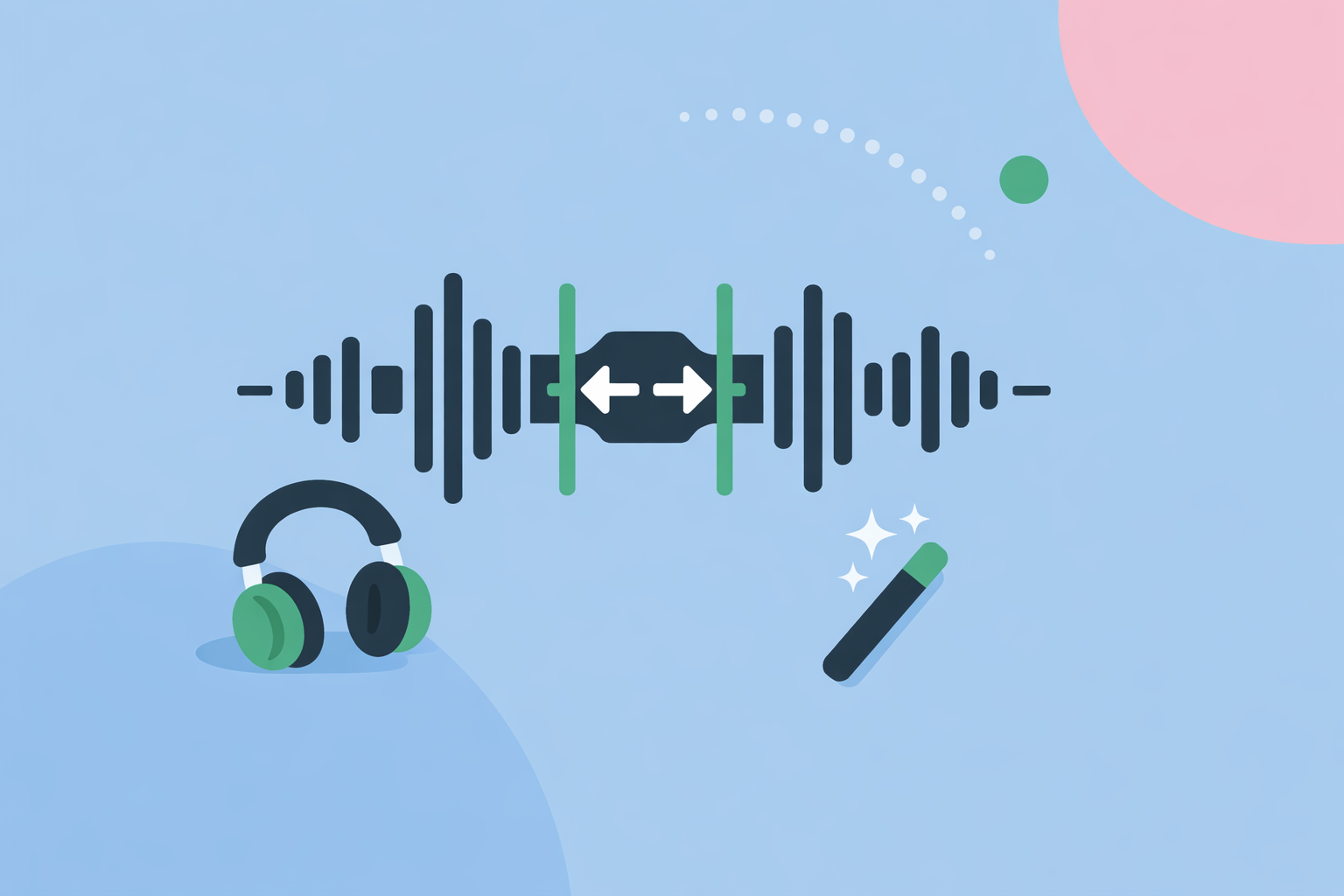
- Manual beat alignment – you see the audio waveform, drop markers on each beat, and snap your cuts or animations to those markers.
- Automatic beat detection – the editor analyzes the track and either:
- auto‑cuts footage to the rhythm, or
- drops beat markers for you.
At Splice, the focus is on the first path: you get clear waveforms and tight, manual control rather than one‑tap automation. (Splice Support) Mobile video apps tend to prioritize the second path, which is great for speed but not always as accurate.
Which editors offer simple beat alignment—and how?
Here’s the short list of tools that currently provide straightforward beat‑alignment workflows:
- Splice (video app) – manual beat alignment only. You drop your song into the timeline, use the waveform to visually spot kick and snare hits, and add markers on the beats, then snap your cuts to those markers. (Splice blog)
- CapCut – automatic beat‑aware editing via Auto Cut and Beat/Match Cut‑style features; the app analyzes your video and audio and creates rhythm‑synced cuts automatically. (CapCut Help)
- VN – offers Auto‑Beat Detection that marks likely beat points on the timeline and a BeatsClips mode for rhythm‑based projects. (VN App Store)
- InShot – release notes reference an auto beat tool that highlights rhythm points, plus a manual “beat” feature for marking timing. (InShot App Store)
- Edits (Meta) – Meta’s app includes beat markers designed to help you align clips to the rhythm of your audio. (Social Media Today)
All of these options are available to U.S. users through mainstream app stores or Meta’s ecosystem.
How does Splice approach beat alignment differently?
Splice does not currently include automatic beat detection; the official guidance is to sync clips by hand using the audio waveform. (Splice Support) That sounds slower on paper, but in practice it’s often the most dependable way to get clean, on‑beat edits—especially if you care about groove and micro‑timing.
A typical Splice‑first workflow looks like this:
- Source or build the track in Splice – pull royalty‑free loops, one‑shots, or full stems suited to your video’s energy. (Splice overview)
- Drop the track in the Splice timeline and zoom into the waveform.
- Manually mark beats – kick, snare, or key musical accents.
- Snap cuts or motion to those markers inside the app, or export your track and recreate markers in your desktop NLE.
For many creators, that “manual first” approach is more transparent: you can see every transient and decide which hits matter. It also works consistently across genres where auto‑beat detection sometimes struggles (swung grooves, complex percussion, rubato intros, and so on).
Which mobile editors include one‑tap automatic beat detection?
If your priority is speed over micro‑control, several mobile editors layer auto‑beat tools on top of your music:
- CapCut – Auto Cut & beat tools
Auto Cut is described as an AI‑powered feature that analyzes your video and audio to create dynamic, rhythm‑synced cuts in one step. (CapCut Help) In practice, you choose a track or template, tap Auto Cut, and let the app propose a sequence.
- VN – Auto‑Beat Detection
VN’s App Store release notes call out a “New Auto‑Beat Detection” feature, which adds beat points to the timeline so you can quickly align edits. (VN App Store) For many vlog and short‑form workflows, those markers are enough to block out an entire edit in a few minutes.
- InShot – Auto beat tool
InShot’s release notes describe an “auto beat tool to highlight rhythm points,” meaning the app will pre‑mark peaks for you to cut around, instead of forcing you to guess by ear. (InShot App Store)
- Edits – Beat markers for Meta‑first clips
Meta’s Edits app recently added beat markers so you can align clips to the rhythm inside a short‑form‑first workflow, particularly for Instagram and Facebook content. (Social Media Today)
These tools are convenient when you’re cutting a high volume of Reels, Shorts, or TikToks and just want “good enough” alignment with minimal effort.
How accurate are auto‑beat tools versus manual waveform marking?
Auto‑beat detection has improved, but none of the public sources provide hard accuracy numbers across genres or devices. What we can say from the available documentation and workflows is:
- Automation is fast but approximate. Tools like CapCut’s Auto Cut or VN’s Auto‑Beat Detection generate a strong first pass, but you’ll usually want to tweak pacing or move a few cuts.
- Manual waveform work is slower up front but more exact. When you mark beats yourself in Splice using the waveform, you control which hits matter, how early you want to cut, and how tightly motion follows the groove. (Splice Support)
For most everyday edits, a hybrid approach works well: use auto‑beat tools to rough in structure, then rely on Splice‑driven markers or careful listening to tighten the key moments.
Are beat markers included in free tiers or only paid plans?
The current public docs and release notes name these features, but they do not consistently spell out which plan or tier each tool sits in. We know:
- CapCut’s Auto Cut is framed as an in‑app feature, but the help article does not specify Free vs Paid gating. (CapCut Help)
- VN, InShot, and Edits call out Auto‑Beat Detection, auto beat tools, or beat markers in their public listings, without a clear line between free and premium access. (VN App Store)
Because pricing and entitlements shift often, the safest assumption is that you can experiment with basic beat alignment on a free download, but higher‑end templates or export options may sit behind paid walls.
By contrast, at Splice we focus on giving you high‑quality audio and clear waveforms; the subscription model is about access to sounds and plugins rather than locking or unlocking “beat sync” buttons. (Splice overview)
How should you combine Splice with these simple beat‑alignment tools?
A practical, low‑friction setup for most creators in the U.S. looks like this:
- Step 1 – Build the soundtrack in Splice. Use our sample library and Similar Sounds search to assemble a track that matches your story and has a strong, predictable groove. (Splice overview)
- Step 2 – Mark critical beats. Either in Splice’s own editor or in your desktop NLE, zoom into the waveform and mark downbeats, drops, and key transitions.
- Step 3 – Rough‑cut in a mobile app (optional). Import the same track into CapCut, VN, InShot, or Edits, use their auto‑beat tools to generate a draft, then nudge cuts toward the beats you care about most.
- Step 4 – Final polish wherever you’re fastest. If you’re staying on mobile, refine timing there. If you’re moving to Premiere, Final Cut, or another NLE, bring the Splice‑aligned track and rebuild key markers.
In other words: let auto‑beat tools handle the “first 80%,” but lean on Splice for the part that viewers actually feel—the music and the precise relationship between sound and picture.
What we recommend
- Start every beat‑driven project by sourcing or building your soundtrack in Splice so you have control over rhythm and licensing.
- Use Splice’s waveform and manual markers for important sequences where timing truly matters.
- Layer in auto‑beat tools from CapCut, VN, InShot, or Edits when you want a quick rough cut, then refine by ear.
- If you’re unsure where to invest effort, prioritize better music and clean manual alignment over chasing more automation buttons.