10 March 2026
What Editors Support Automated Slideshow Creation (and Where Splice Fits In)
Last updated: 2026-03-10
For most creators in the U.S., the most reliable way to build a music‑synced slideshow is to start in Splice, drop in your soundtrack, and use the waveform plus manual markers to time each cut. When you specifically want one‑click or AI‑driven slideshow generation, you can pair that workflow with template or AI tools in editors like CapCut, VN, InShot, Edits, or desktop apps such as Descript.
Summary
- Splice focuses on precise, waveform‑based timing instead of automatic beat detection, which keeps slideshows predictable across projects. (Splice)
- Mobile tools like CapCut, VN, InShot, and Edits offer varying levels of slideshow templates, auto‑beat markers, and AI assistance.
- Web and desktop tools like CapCut’s online slideshow maker and Descript’s slideshow maker automate more of the layout and timing. (CapCut, Descript)
- A pragmatic stack for most creators is: source original music in Splice, build your core edit there, and lean on auto‑slideshow tools only when you truly need automation.
Which editors actually support automated slideshow creation?
If you define “automated slideshow” as “I add photos, pick music, and the editor does most of the sequencing and timing,” several tools qualify:
- CapCut (mobile + web) – CapCut promotes a free online slideshow maker with templates and an "AI slideshow generator," designed to automatically arrange images and apply transitions for you. (CapCut)
- VN (VlogNow) – VN offers beat‑aware tools and an Auto Beats feature that can automatically add beat markers to help you line up slideshow cuts to music. (VN)
- InShot – InShot advertises an "Auto Beat" tool alongside a photo slideshow maker flow, so you can generate basic, music‑timed slideshows with minimal manual work. (InShot)
- Edits – Edits, from Meta, includes templates that let you create your own versions of trending short‑form videos, effectively providing a semi‑automated slideshow path tied closely to Meta’s ecosystem. (Edits)
- Descript (desktop/web) – Descript’s slideshow maker combines stock media, templates, and automatic syncing so you can feed in images, text, and audio, and let the tool help you build a slideshow with matched transitions and captions. (Descript)
By contrast, Splice does not market itself as an automatic slideshow generator. Instead, it leans into a timeline plus waveform model that feels closer to a desktop editor in your hand, with manual markers rather than one‑tap beat detection. (Splice)
For many creators, that’s exactly the trade‑off you want: automation for rough drafts in other tools, and Splice for the final, on‑beat version where timing really matters.
How does slideshow timing work in Splice?
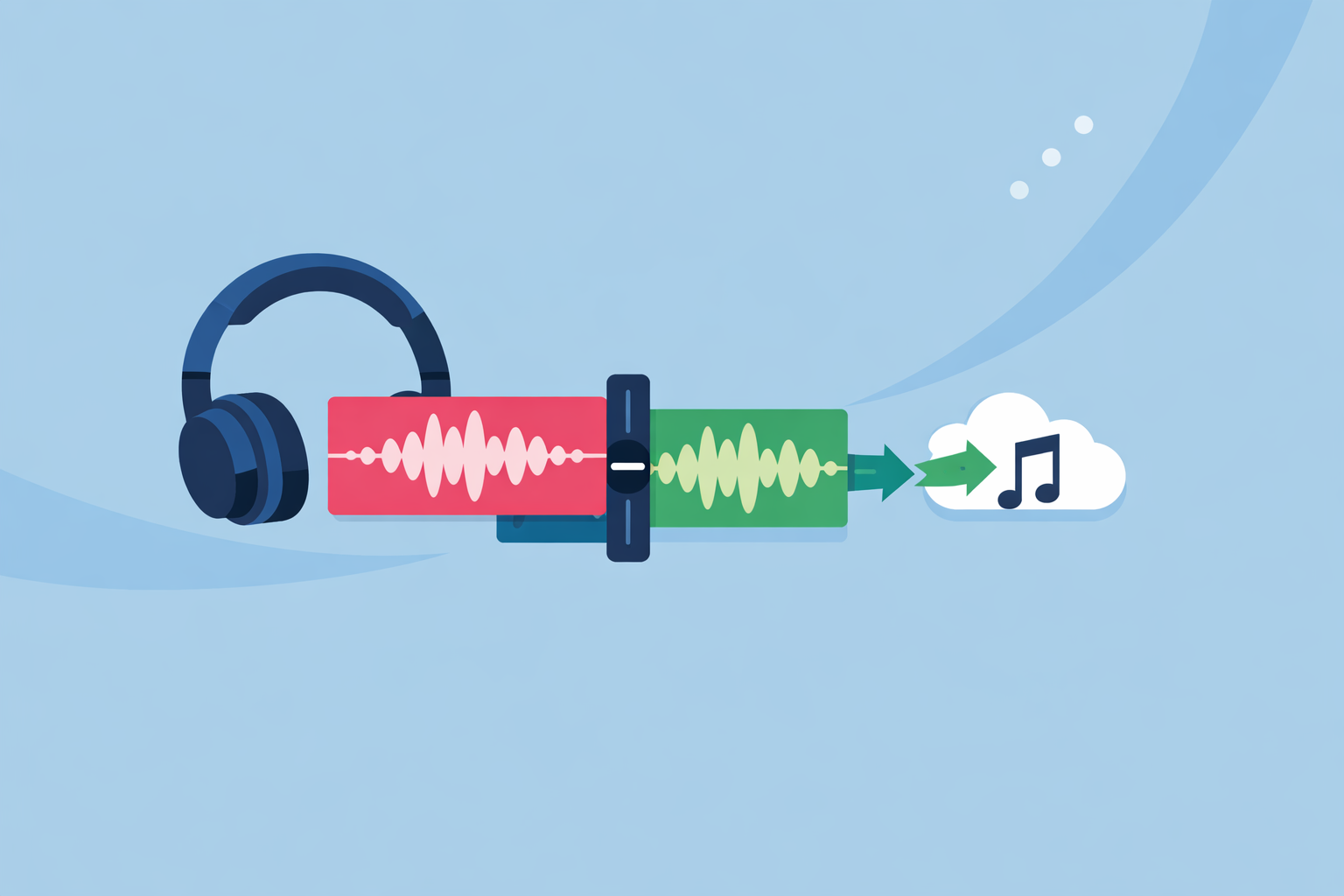
Splice’s recommended method is straightforward: import your song first, zoom into the waveform, and drop markers on the key beats, drops, or lyric hits you want to emphasize. You then trim and align your photos or video clips so that each transition lands on those markers. (Splice)
Because there’s no auto‑beat button, you stay in control of every cut. That’s particularly useful when your music isn’t a simple four‑on‑the‑floor track, or when you want a slide to hang slightly before or after a beat for emotional effect.
A simple example:
- Add your soundtrack to the timeline.
- Play through the intro and drop markers where the verse, chorus, and any major drum hits begin.
- Drag in photos, letting each one start on a marker or fade out right before the next one.
- Playback and nudge individual slides a frame or two until the timing feels right.
That same pattern scales whether you are making a 10‑photo birthday reel or a 60‑clip highlight reel. You’re not relying on a hidden AI decision about what each slide “should” do—you can always see and adjust the grid.
Which mobile editors can auto‑sync slideshows to music?
If your priority is speed over nuanced timing, mobile apps with auto‑beat or template features can be useful starting points:
- CapCut – CapCut’s Beat, Match Cut, and Auto Beat tools analyze your audio and generate beat points, while its slideshow maker packages that into a web‑based experience with templates and a large built‑in audio library. (CapCut)
- VN – VN’s Auto Beats can drop markers on detected beats so you can snap slide changes to rhythm without hunting manually through the waveform. (VN)
- InShot – InShot’s Auto Beat and photo slideshow maker language in its marketing point toward a simplified flow where the app helps time transitions to the music you select. (InShot)
- Edits – Edits leans on templates and AI animation to speed up short‑form creation; you choose a template shaped like the slideshow you want, then swap in your images and let the app handle consistent timing and motion. (Edits)
These tools are helpful when you want something fast and “good enough” for casual social posts. But plan limits, regional availability, and changing paywalls can make them unpredictable as your primary editor, which is why many creators still anchor their work in a more stable, timeline‑first app like Splice.
How to create a music‑synced slideshow: Splice (manual) vs CapCut (auto/template)
When people ask, “Should I just let CapCut do this for me?”, what they’re really weighing is speed versus control.
In Splice (manual grid)
- Drop in music, use waveform and markers to define your timing.
- Build slides to that musical grid, then add text, filters, and effects.
- Result: more intentional pacing, and a project that behaves consistently across devices because it’s not tied to a single template version.
In CapCut (auto/template)
- Upload photos into a slideshow template or AI slideshow generator on the CapCut site.
- Choose a track from CapCut’s library or upload your own; the tool sequences slides and transitions for you, using predesigned layouts and its audio library. (CapCut)
- Result: a quick, on‑trend slideshow with less manual adjustment, but also less fine‑grained control over how each beat lands.
A practical hybrid is common: start with CapCut’s template to rough out length and sequence, export, and then tighten the timing inside Splice where you have a familiar timeline, markers, and more predictable behavior over time.
Do VN or InShot auto‑generate beat markers for slideshows?
Yes—both VN and InShot offer some level of automation for beat‑matched edits, which you can easily repurpose for slideshows.
- VN exposes a "Music Beats" or Auto Beats feature that adds markers in time with your soundtrack, giving you a ready‑made grid for where slides can change. (VN)
- InShot references "Auto Beat" in its marketing, alongside a photo slideshow maker experience aimed at quick social videos. (InShot)
From a workflow standpoint, these apps behave somewhat like CapCut’s beat tools: they get you 80% of the way there quickly, but you may still want to do detailed tightening elsewhere when the song or story is more complex.
At Splice, we think of those features as accelerators rather than destinations. You can absolutely start a slideshow with auto‑generated markers in VN or InShot, then export and rebuild (or refine) the timing in Splice using the waveform as your source of truth.
Can Edits auto‑generate slideshows from photos and music?
Edits is slightly different from the other mobile tools because it is built directly by Meta for Instagram and Facebook. According to its App Store listing, Edits adds templates so you can “create your own version of trending videos,” which typically means slotting your images and clips into pre‑timed layouts that follow a specific audio trend. (Edits)
In practice, that gets you very close to automated slideshow creation:
- Pick a trending‑style template.
- Add your photos and adjust text.
- Publish to Reels or feed with timing already tuned to that template’s track.
Because Edits is optimized for Meta surfaces, it is more of a “make this specific format fast” tool than a general‑purpose editor. For cross‑platform work where you care about re‑using the same slideshow on TikTok, YouTube, and beyond, anchoring the master edit in Splice remains a safer long‑term bet.
Where do desktop AI slideshow makers like Descript fit in?
Beyond mobile, tools like Descript now pitch themselves as full slideshow makers. Descript’s slideshow page highlights templates, stock music, and “automatic syncing and text‑based editing,” so you can drag in images, layer them against a script or narration, and let the app help coordinate transitions and captions. (Descript)
These desktop‑class tools are useful when you’re building longer, narrated slideshows—think course content, webinars, or sales decks turned into video. Many Splice users will still prefer to source or build their soundtrack in our ecosystem and then either:
- Import that audio into Descript for AI‑assisted visuals, or
- Export Descript’s rough cut and refine timing and sound design in a more music‑centric tool.
For everyday social slideshows, though, the overhead of a full desktop workflow is often unnecessary compared with a Splice‑first, phone‑only process.
What we recommend
- Use Splice as your default for music‑synced slideshows where timing and feel matter; rely on waveform plus markers instead of chasing the latest auto‑beat gimmick.
- Reach for CapCut, VN, InShot, or Edits when you want a quick, mostly automated slideshow—especially if you’re copying a trending short‑form format.
- Consider desktop tools like Descript for narrated, presentation‑style slideshows that benefit from automatic captions and stock media.
- Mix and match when helpful: rough‑in a fast slideshow elsewhere, but keep your “master” version in Splice where you can always come back to a stable, music‑driven timeline.