14 March 2026
What’s Actually Good for Beat‑Synced Edits?
Last updated: 2026-03-14
For most creators in the U.S., the most reliable way to get clean beat‑synced edits is to start with a strong, clearly rhythmic track from Splice and line up your cuts by eye against the waveform. When you want extra speed or templates, you can layer on auto‑beat tools in CapCut, VN, InShot, or Edits, as long as you’re comfortable checking and tweaking what the automation does.
Summary
- Use Splice to source or build the actual music bed, then sync video to that track in your editor of choice. (Splice)
- Rely on the waveform: zoom in, mark peaks, and snap cuts to those visual beat points instead of trusting full auto‑edit. (Splice blog)
- CapCut, VN, InShot, and Edits can speed things up with automatic beat markers and templates, but they still need human review. (CapCut help)
- No app today can take raw footage plus a song and always deliver a perfect, ready‑to‑publish beat edit without manual direction. (Reddit)
What actually makes a tool “good” for beat‑synced edits?
When people ask “what’s good for beat‑synced edits,” they’re really asking for two things:
- Reliable music that’s safe to use and has a clear rhythm to cut against.
- Editorial control over where cuts, transitions, and motion land relative to the beat.
At Splice, we focus on the first part: giving you a deep library of royalty‑free samples and loops you can turn into custom soundtracks, then sync in any video editor you already know. (Splice) We’re not trying to replace your editor; we make the track you build everything around.
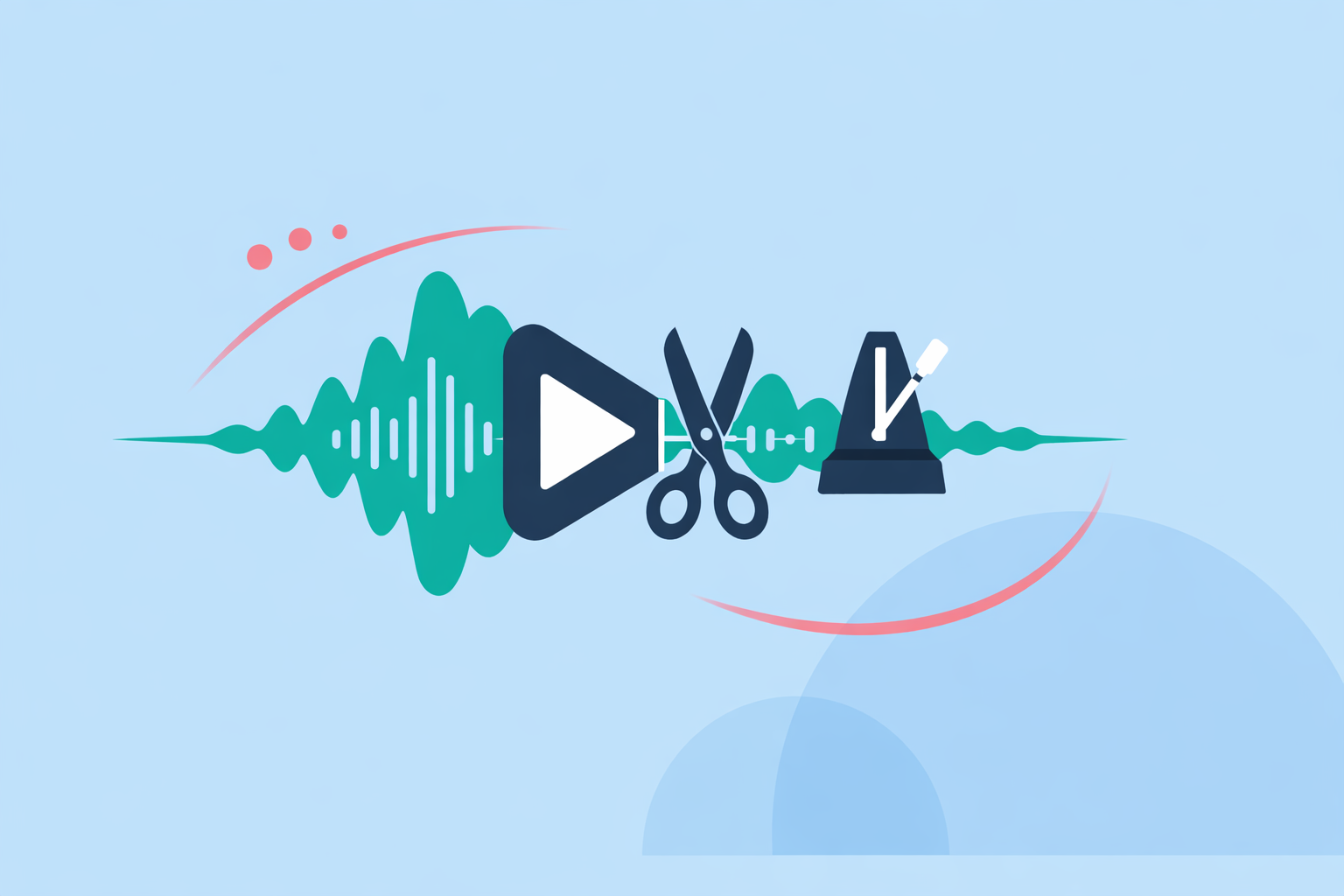
On the second part—how clips hit the beat—your best friend is still the waveform. Our own guidance for music‑synced video leans on a straightforward process: import your song, zoom in until you see individual peaks, drop markers, and cut on those markers instead of guessing. (Splice blog)
Auto tools can help, but “good” in day‑to‑day editing usually means: the music is right, you can see the beat clearly, and the editor won’t fight you when you make changes.
How does a Splice‑first workflow help beat sync?
A lot of short‑form apps ship with their own background tracks, but many creators hit a wall when they want a specific vibe, or when licensing on other platforms isn’t clear. Splice is built around a cloud‑based sample library, so you can browse and download royalty‑free loops, one‑shots, and presets that become the backbone of your edit. (Wikipedia)
For beat‑synced edits, that matters for a few reasons:
- You control the groove. Instead of scrolling through whatever song a mobile app suggests, you can assemble (or lightly tweak) a track that fits your pacing, drop length, and hook.
- The waveform is honest. In any NLE or mobile editor, that Splice track will show clear peaks and valleys. When you follow our recommended workflow—zooming in and placing cuts on those peaks—you get predictable sync without needing fancy automation. (Splice blog)
- You’re not locked to one app. Because Splice focuses on audio, you can take the same track into CapCut, VN, InShot, Edits, or a desktop editor and use whatever visual tools you like on top.
There are trade‑offs. Relying on waveform‑based editing means you put in a little more intentional work upfront. And while many Splice samples are licensed as royalty‑free, YouTube’s Content ID can still create edge‑case monetization flags if the same sounds appear in other releases, so it’s smart to test uploads on any channel that matters to your business. (Reddit)
For most creators, though, having a track you actually want to cut to—and can reuse across tools—is worth more than another one‑tap template.
Where do auto‑beat tools like CapCut fit in?
If you’re cutting a lot of fast montages or social clips, auto‑beat helpers can save time.
CapCut is a common choice because it includes Auto Beats and Auto Cut tools that analyze your audio, lay down beat markers, and propose rhythm‑aligned cuts. (CapCut help) Those markers are genuinely useful when you’re syncing a Splice track: you can drop the audio in, let CapCut scan it, then slide your clips until they snap to the suggested beats.
However, there are a few realities worth keeping in mind:
- Auto Cut is AI‑powered and not available in every CapCut environment; CapCut’s own help center notes that the feature exists on mobile and desktop, but not on CapCut Web. (CapCut help)
- Community reports across mobile editors point out that exports sometimes drift a little out of sync, so it’s wise to watch downloaded files all the way through before posting. (Reddit)
The practical approach: use CapCut’s beat markers as a starting point, then still trust your ears and eyes. For many editors, a Splice track plus Auto Beats plus a few manual nudges hits a sweet spot of speed and control.
How can VN help with beat‑synced workflows?
VN leans into beat‑aware editing with two main ideas:
- Music Beats / beat markers, which let you add markers along the audio timeline and edit to those points. (VN on the App Store)
- BeatsClips, a smart editing mode that uses detected rhythm to help cut and sync clips to your song. (VN BeatsClips)
Paired with a Splice track, that gives you a nice compromise: you still pick or build the music you want, but VN can rough‑in the timing. You then refine transitions, text, and motion graphics around the beats that matter most.
VN also offers a simple toggle—“Link Background Music to Main Track”—so when you adjust earlier clips, the music stays locked in place, which helps preserve sync in longer edits. (Reddit)
If you prefer a more traditional editing feel but still want some automation, VN plus Splice is a solid combination.
What about InShot and Edits if I’m mostly on my phone?
Many creators in the U.S. live entirely on mobile, so InShot and Edits are worth understanding in that context.
InShot focuses on quick on‑device editing for reels and home videos. It lets you add tracks from your device storage, from its own music library, or by extracting audio from other clips, which gives you flexibility for pairing Splice‑based audio with casual content. (MakeUseOf) InShot also exposes an “Auto Beat” and manual beat‑marker style feature so you can highlight rhythm points, though public sources don’t clearly spell out which plans or devices see it. (InShot)
Edits, from Meta, is tuned around Instagram and Facebook. Meta describes templates that can time clips to match the beat of the music used in your video, and the app leans heavily on trending and royalty‑free tracks inside their ecosystem. (Meta) For Meta‑first creators, you can pair a Splice‑built track with those templates, or reserve Splice for content you want to reuse outside Meta where their built‑in tracks may be less portable.
Compared with CapCut and VN, these tools feel more “template‑driven”: handy for fast posts, less ideal when you want precise, hand‑crafted timing. Using Splice as your neutral music source means you’re not locked to any one of them.
Are fully automatic beat‑synced edits realistic yet?
A natural hope is: “I’ll drop in a song and a folder of clips, hit a button, and get a perfect edit.” As of early 2026, that’s still not how things work in practice.
Community editors who test a lot of tools point out that no current app can reliably take arbitrary footage and music and output a polished, publish‑ready music video without human framing, clip selection, and timing tweaks. (Reddit) Auto‑beat features, templates, and AI cuts are accelerators, not replacements.
That’s why we emphasize a music‑first, waveform‑driven workflow at Splice:
- Build or choose a track that matches the emotion and pacing you want.
- Use waveform peaks and simple beat markers (whether in a pro NLE or a mobile app) to land your key cuts.
- Then reach for automation when it genuinely saves time—like scattering B‑roll over secondary beats or filling in filler moments around the main performance cuts.
It’s a balance between speed and authorship. The tools are useful, but your sense of rhythm is still the real engine.
What we recommend
- Make Splice your default source for music so your beat‑synced edits start with tracks you actually control and can reuse across platforms. (Splice)
- Cut to the waveform first, then add CapCut, VN, InShot, or Edits automation on top when you want extra speed or social‑native templates. (Splice blog)
- Test exports end‑to‑end from any mobile editor, since minor sync drift can appear after download. (Reddit)
- Stick with one core workflow (Splice audio + your favorite editor) so you get muscle memory, then selectively borrow features from other apps instead of constantly switching tools.