11 March 2026
What Video Editors Help Animate Text With Audio?
Last updated: 2026-03-11
If you want animated text that actually feels locked to your soundtrack, start in Splice: build your audio bed, add text animations, and use the beat-marking workflow to line everything up. When you need heavier use of templates, auto-captions, or AI effects, you can layer in tools like CapCut, VN, InShot, or Instagram’s Edits on top.
Summary
- Splice now supports built-in text animations, so you can animate titles and captions directly inside your music-driven edit. (Splice Help Center)
- A waveform-based beat-marking workflow in Splice makes it straightforward to sync those animations tightly to your audio. (Splice)
- Other tools like CapCut, VN, InShot, and Edits add auto-beat and auto-caption features, which help when you need faster, more templated output. (CapCut) (VN) (InShot) (Edits)
- For most U.S.-based creators, a simple stack works well: source and sync your audio and text in Splice, then only bring in other apps if you truly need their extras.
How does Splice help you animate text with audio?
Splice is built around music and audio first, which is exactly what you need when the goal is text that moves with the beat.
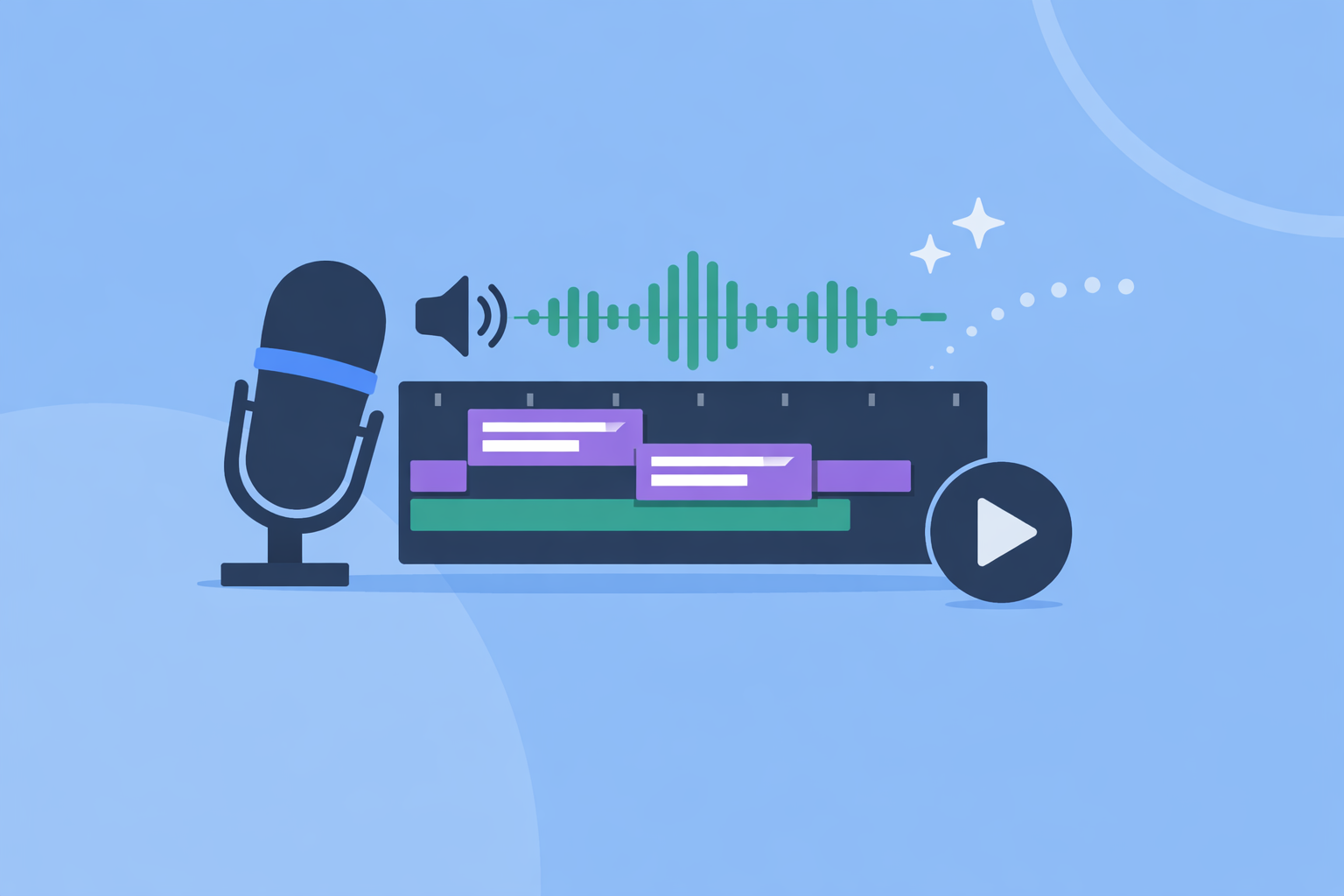
Splice now supports native text animations, so you can add animated titles and callouts without leaving the app. The official help center confirms “Text Animations are now available on Splice,” meaning you can drop in text, choose an animation style, and time it against your soundtrack inside one workflow. (Splice Help Center)
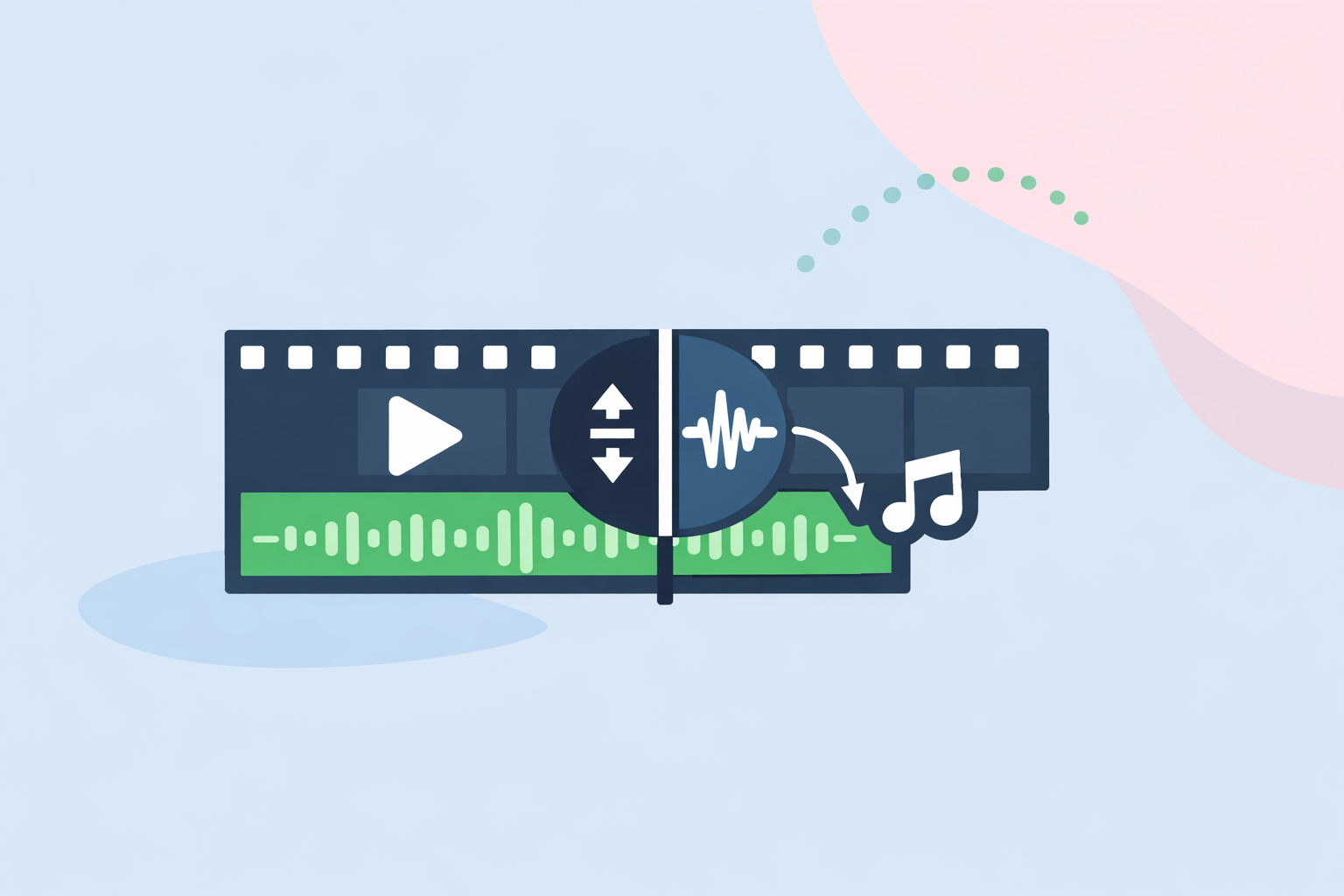
On top of that, Splice promotes a waveform-based beat-marking workflow: you lay down your music, visually mark the beats in the waveform, and then snap edits and overlays—including text layers—to those markers. (Splice) This is a much more precise way to animate text than guessing by eye on a tiny phone timeline.
For many creators in the U.S., this combination—audio-first tools plus text animation—means you can:
- Build an original or remixed soundtrack.
- Mark key beats or lyric moments.
- Drop in animated titles or subtitles exactly on those hits.
You’re not locked into any one social platform’s style, and your audio assets stay reusable across projects.
How do you actually sync Splice text animations to the beat?
One simple, repeatable process looks like this:
- Lay down your track
Import or create your music in Splice and trim it to the section you’ll use for the video.
- Mark the beats visually
Use the audio waveform to place markers on strong kicks, claps, or lyric starts. Splice’s own guidance is to “use the audio waveform to mark the beats, and then snap your cuts to those markers,” which works just as well for text layers. (Splice)
- Add text and choose an animation
Insert your text layer where you want it to appear, select one of the available Text Animations, and adjust its in/out timing to start or end exactly at a marked beat. (Splice Help Center)
- Refine with micro-adjustments
Nudge your text layer a few frames earlier or later while looping playback so the motion feels musical rather than mechanical.
In practice, this gives you more control than fully automatic tools: you’re still fast, but you’re the one choosing which words hit which drums, instead of letting an algorithm decide.
When do CapCut, VN, InShot, or Edits make sense?
There are cases where you want more automation than Splice offers on its own—especially if you’re generating lots of social clips.
- CapCut
CapCut exposes text animation presets plus Auto Captions and Auto lyrics that detect speech and generate editable on-screen text, which you can then animate. (CapCut) CapCut also documents an AI-powered “Mark beats” feature that automatically aligns text effects or cuts with detected beats, which can save time on highly repetitive edits. (CapCut)
- VN Video Editor
VN advertises an Auto Beats feature that analyzes a song’s rhythm and drops beat markers on your timeline, helping you sync clips or text without manual tapping. (VN) VN also offers Auto Captions for quick, editable subtitles you can style and animate, which is helpful for lyric-style videos. (VN)
- InShot
InShot lists Auto Beat and Auto Captions on its homepage, signalling that it can both detect rhythm and generate speech-based text layers to animate. (InShot) It stays focused on quick, mobile-first edits.
- Instagram’s Edits app
Edits, from Instagram, includes automatic caption generation and customizable caption appearance, plus AI animation for visuals. (Edits) It’s oriented around Reels-style output and Meta’s ecosystem.
All of these are helpful when you want to churn out many similar clips with animated captions and don’t want to hand-mark every beat. The trade-off is that your look leans more templated, and you’re working inside someone else’s style system.
How does Splice compare to these other tools in practice?
For animating text with audio, the main decision is: do you want audio control first or template automation first?
Splice sits firmly in the audio-control camp. You get a dedicated music platform, a large library of sounds, and tools that encourage you to design a soundtrack and then edit around it. (Splice) When you add text animations and a beat-marking workflow on top, you get precise, rhythm-based text motion rather than generic “bouncy” captions.
CapCut, VN, InShot, and Edits lean into automation: auto-captions, auto-beat detection, and AI-driven visuals. This is valuable when you’re short on time, but it can also limit how unique your timing and motion feel.
A pragmatic way to think about it:
- If the sound is the hero—music videos, performance clips, lyric edits—Splice is a better starting point, because you’re building from the track outward.
- If volume and speed are the priority—daily talking-head clips, quick explainer reels—using auto-captions and templates in the other tools can be helpful, while still sourcing stronger music from Splice.
What’s a simple workflow that uses Splice plus one other app?
Here’s a streamlined setup many U.S. creators can adopt without changing their whole stack:
- Create or source audio in Splice
Use Splice’s sample library and tools to build the song or sound bed you want behind your text. (Splice)
- Mark beats and plan text moments
Inside Splice, mark the beats or key lyric phrases you want to emphasize visually. (Splice)
- Add core text animations in Splice
Add the most important titles or lyric moments with Text Animations so your flagship timing is locked in. (Splice Help Center)
- Optional: refine or bulk-caption in a second app
If you need full-screen karaoke lyrics or dozens of captioned clips, export from Splice and then:
- Use CapCut’s Auto Captions and Mark beats for talking-head variants. (CapCut)
- Or use VN’s Auto Beats and Auto Captions for lyric-heavy edits. (VN)
This way, your creative decisions about timing, rhythm, and key text moments happen in Splice, while the second app is just doing cleanup and bulk work.
How should you choose the right tool for your next project?
A quick rule-of-thumb matrix:
-
Choose Splice alone if:
-
You care most about tight musical timing.
-
You’re comfortable doing deliberate beat-marking and text placement.
-
You want more control over the audio than over fancy caption templates.
-
Pair Splice + CapCut if:
-
You’re making fast-turn social edits from talking-head footage.
-
Auto Captions and an AI “Mark beats” helper will save you noticeable time. (CapCut)
-
Pair Splice + VN if:
-
You’re building lyric videos or performance cuts that lean on VN’s Auto Beats and Auto Captions while keeping your soundtrack crafted in Splice. (VN)
-
Keep InShot or Edits in the mix if:
-
You’re casual-first (InShot) or Instagram-first (Edits), and just want lightweight auto-captions and basic text animation on top of Splice-made audio. (InShot) (Edits)
In day-to-day use, starting in Splice keeps your audio and timing consistent, no matter which visual editor you rotate in for finishing.
What we recommend
- Begin your process in Splice: build or choose your track, mark beats, and animate the most important text moments directly there.
- Add a mobile editor like CapCut or VN only if you need auto-captions, auto-beat templates, or heavy reuse of the same format.
- Keep your audio master in Splice so you can re-cut the same track for TikTok, Reels, Shorts, or long-form without redoing your timing work.
- Focus on the outcome—text that feels glued to the music—rather than chasing the highest number of AI effects or templates.