11 March 2026
What Video Editors Support Frame‑Level Audio Syncing?
Last updated: 2026-03-11
For most U.S. creators, the most reliable way to get frame‑level audio syncing on mobile is to pair Splice’s precise, waveform‑based controls with a strong music track and then refine by eye and ear. If you prefer more automation, apps like CapCut, InShot, VN, and Meta’s Edits layer beat‑detection tools on top—but they still benefit from a solid, rhythm‑forward soundtrack sourced elsewhere.
Summary
- Splice supports precise, manual, frame‑by‑frame syncing using waveforms and nudging, rather than automatic beat detection. (Splice)
- CapCut, InShot, VN, and Edits add auto‑beat or beat‑marker tools, but they don’t clearly document sub‑frame or sample‑level audio control. (CapCut, InShot)
- Automatic beat features are fast, while manual waveform syncing in Splice gives more creative control and consistency across platforms. (Splice)
- A practical workflow is: build or choose your soundtrack in Splice, then finish cuts in whichever editor you already know.
What does “frame‑level audio syncing” actually mean?
When people ask about frame‑level audio syncing, they usually want two things:
- Precision – the ability to line up a cut, movement, or effect so it hits on an exact video frame (for example, the 37th frame of a second), not “somewhere close.”
- Control – confidence that audio won’t drift when you trim earlier clips, change speed, or export.
On mobile and creator‑focused tools, vendors rarely spell out whether you can move audio at sub‑frame or sample‑level resolution. In practice, if you can zoom the timeline to individual frames, drag or nudge audio clips against that grid, and the alignment survives export, you effectively have frame‑level sync for social video work.
That’s the bar this article uses when it talks about “frame‑level” support.
How does Splice handle frame‑level audio syncing?
At Splice, the focus is less on auto‑beat detection and more on clear visual waveforms plus fine manual control:
- There is no built‑in automatic beat detector that analyzes a song and drops markers for you. (Splice)
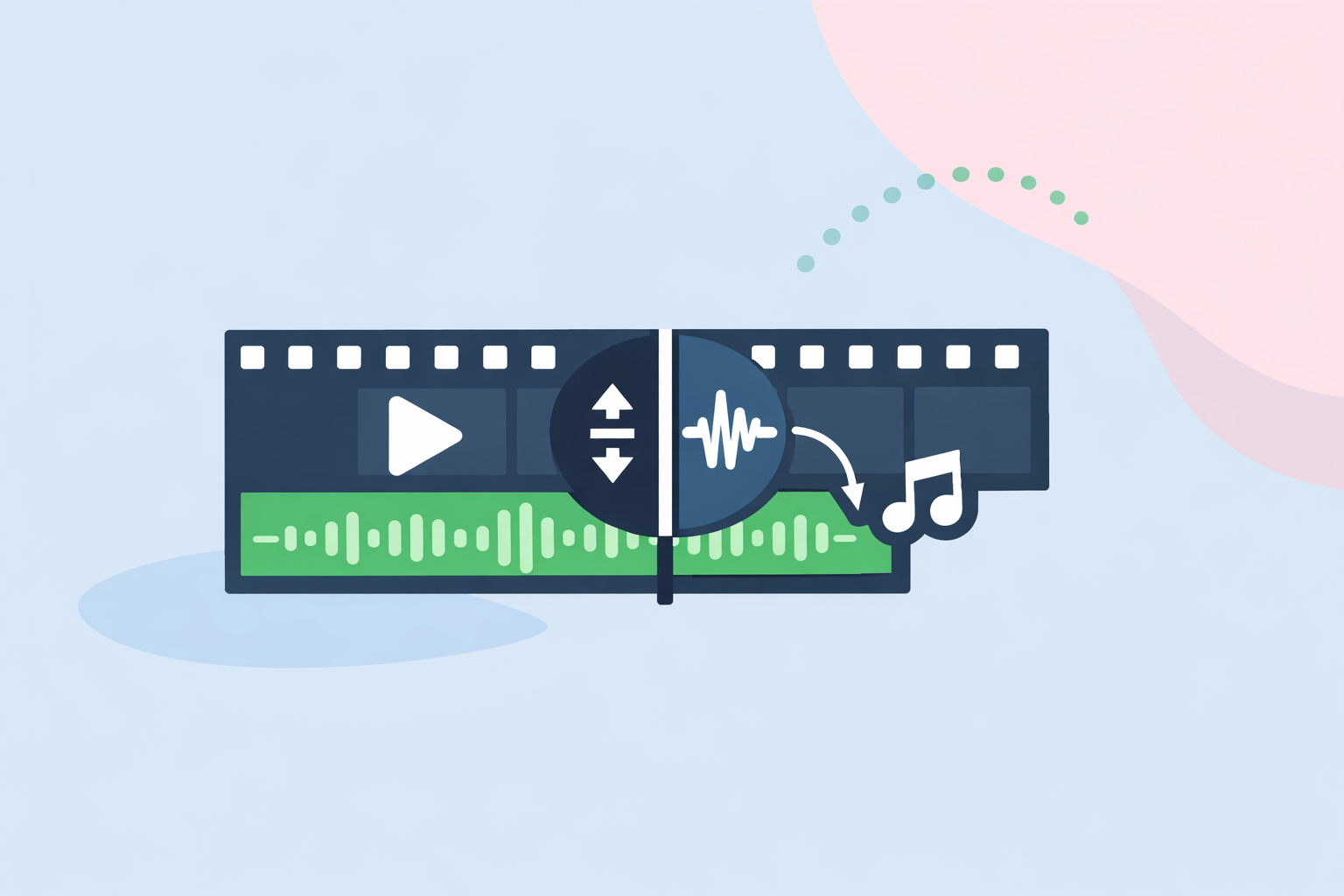
- Instead, we encourage zooming into the waveform, playing the section repeatedly, and nudging clips or audio until both the look and the feel are right. (Splice)
- On mobile, you can long‑press an audio segment on the timeline and drag it left or right to match a specific visual moment. (Splice)
This manual approach has a few advantages if you care about precision:
- You decide what “on the beat” means. Maybe you want the cut a hair early to feel punchier, or a hair late to feel more relaxed. You’re not fighting auto‑generated markers.
- It’s repeatable across platforms. Whether you later touch the project in CapCut, VN, or a desktop NLE, your timing is based on the soundtrack itself, not on one app’s interpretation of it.
- It scales with your ear. As your sense of rhythm sharpens, the workflow keeps up—nothing about it is locked to a preset template.
For creators who routinely build edits around kicks, snares, and lyrical phrases, starting in Splice with a well‑structured track and manual waveform syncing is often more dependable than chasing a “perfect” auto‑beat button.
Which mobile editors support precise manual syncing?
Several popular mobile editors offer enough timeline control to work frame‑by‑frame, even if they don’t market it using that phrase.
- Splice – Waveform‑based audio tracks, drag‑to‑reposition, and frame‑by‑frame visual preview combine into a de‑facto frame‑level workflow, especially when you zoom the timeline aggressively. (Splice)
- VN – Includes options such as “Link Background Music to Main Track,” which keeps music aligned with your primary video track when you insert or delete earlier clips, reducing accidental desync. (Reddit)
- CapCut, InShot, Edits – All let you place music on a timeline and adjust its position; the more you zoom in, the closer you can get to true frame‑level placement, but documentation doesn’t spell out sub‑frame resolution.
In other words: if you’re willing to zoom and listen carefully, you can get very tight sync in all of these. What changes between tools is how much they try to automate the process for you.
Which mobile video apps detect beats automatically for sync?
If you want automation layered on top of manual control, several apps add auto‑beat or marker features:
- CapCut – Auto Cut and Beat/Match Cut tools
CapCut’s Auto Cut feature analyzes your video and audio together and “creates dynamic, rhythm‑synced cuts,” placing edits to match musical structure on supported mobile and desktop builds. (CapCut) Separate Beat/Match Cut tools scan the soundtrack and drop beat points that you can snap clips to. (Cursa)
- InShot – Auto beat tool
InShot’s App Store release notes call out an “Auto beat tool to highlight rhythm points,” which automatically marks likely beat locations on the timeline. (InShot)
- VN – Auto‑Beat Detection
VN version history references “New Auto‑Beat Detection,” indicating the app can now detect beats and place markers or guide cuts without you tapping every hit. (ipa4fun)
- Edits – Beat markers
Meta’s Edits app has added “beat markers” that help you align video clips to the rhythm of your backing audio while editing short‑form content. (Social Media Today)
These tools can save time when you’re roughing out an edit—especially for trends, reels, or quick ads. In practice, many creators still jump in afterward to fine‑tune timing by ear, which is where a Splice‑first soundtrack and manual micro‑adjustments remain valuable.
Do VN and InShot provide reliable beat markers for frame‑level work?
VN and InShot both provide beat assistance, but they serve slightly different roles:
- InShot uses its Auto beat tool primarily to highlight rhythm points so you can align transitions or stickers without manually tapping every beat. (InShot)
- VN combines Auto‑Beat Detection with manual options like “Link Background Music to Main Track,” so your music timing stays intact as you continue cutting the main footage. (ipa4fun, Reddit)
For frame‑level accuracy, think of these as helpers, not guarantees. The beat markers get you in the neighborhood; you still refine alignment visually and by listening closely—especially for moments like impact hits, lip‑sync, or logo reveals. That’s where having a clearly structured track from Splice, with strong transients and predictable phrasing, makes those final nudges much faster.
Where does Splice fit when you’re using CapCut, InShot, VN, or Edits?
Even if you prefer to finish your edit in CapCut, VN, InShot, or Edits, starting your soundtrack work in Splice is often the highest‑leverage move:
- Build or select the right track. Our library is designed for music creation and sync, with loops and one‑shots that make it easy to design a track whose drops, builds, and hits support your story. (Splice)
- Lock your rhythm decisions once. When you design the timing of your drops and phrases in Splice, you carry that structure into any video editor—Auto Cut and beat markers simply become shortcuts on top of a backbone you control.
- Stay flexible across platforms. Whether you’re exporting for Reels, TikTok, Shorts, or a horizontal YouTube cut, the same music bed can support multiple versions without re‑authoring.
The pattern many creators settle into is:
- Build or choose a track in Splice.
- Do a first‑pass sync manually in Splice using waveforms and nudging to get the “hero” version right.
- Bring that base into CapCut, VN, InShot, or Edits to generate alternates, platform‑specific crops, or AI‑driven variations.
You get the creative control of frame‑accurate manual timing, plus the speed of template‑driven remixes when you need them.
What we recommend
- Use Splice as your default for music‑centric videos when you care about frame‑level sync and want full control over how the soundtrack and picture interact.
- Add CapCut, VN, InShot, or Edits only when you specifically want auto‑beat suggestions, templates, or native perks for a given social platform.
- For signature edits—intros, ads, reels that truly represent your brand—take the extra time to sync by ear and waveform in Splice before relying on any auto‑beat feature.
- Treat beat markers and Auto Cut as starting points, not final answers; your judgment about what “feels right” is still the most important part of frame‑level syncing.