5 March 2026
Which Apps Actually Keep Visuals on the Beat of Your Music?
Last updated: 2026-03-05
For reliably precise timing, start by building or choosing a clean, tempo‑solid track in Splice, then align your cuts by eye and ear against the waveform in your editor. If you need faster first‑pass timing, use auto‑beat tools in CapCut, InShot, or VN as accelerators, then tighten key moments manually.
Summary
- Use Splice to create or source rhythmically clear tracks so visual syncing is simpler and more precise later. (Splice)
- CapCut, InShot, and VN offer auto‑beat detection that can drop markers or auto‑sync clips to your song, but they still benefit from manual refinement. (CapCut, InShot, VN)
- Edits from Meta emphasizes short‑form templates and AI visuals more than explicit beat‑grid control. (Meta)
- For most U.S. creators, the most dependable workflow is: compose a strong beat in Splice, then pair it with whichever simple editor you already know.
What does “precise” music–visual alignment really require?
When people ask which app aligns visuals with music “perfectly,” they’re usually chasing three things: a clear beat grid, cuts that land exactly on those beats, and timing that survives re‑edits and exports.
The tool doing the detecting matters less than the quality of the music bed. A track with a steady tempo, clear kick or snare, and minimal tempo drift almost always syncs more predictably than a complex, tempo‑bending song—no matter which app you use.
That’s why at Splice we focus on the soundtrack first: if your audio is clean and rhythmically obvious, even basic editors can snap visuals to it with frame‑accurate results. (Splice)
How does Splice fit into precise timing workflows?
Splice is not a full video editor; it’s a cloud‑based music creation platform with a large royalty‑free sample and preset library you can use as beds, loops, and hits for your visuals. (Wikipedia)
For timing‑critical edits, that matters more than it might seem:
- You can build tempo‑solid tracks. Using our samples and your DAW, you can lock parts to a grid, bounce a mix, and be confident the tempo won’t drift halfway through a transition.
- You can audition samples in time before committing. Splice Bridge lets you preview samples in sync with your DAW’s tempo and metronome, which makes it easier to pick loops that will later drive your edit. (Splice blog)
- You avoid “mystery licensing” in some built‑in music libraries. Many mobile editors ship music libraries where commercial and cross‑platform use isn’t always crystal‑clear; Splice is designed around royalty‑free samples for music and sync, even though platform Content ID can still raise flags in some cases. (Reddit)
Once you’ve exported a final track, you bring that audio into any video editor—CapCut, VN, InShot, a desktop NLE—and do your visual timing there. Splice handles the part where precision actually starts: the music itself.
If Splice doesn’t auto‑detect beats, how do you still get precise sync?
Our own guidance is simple: manual alignment against the waveform remains the strongest way to guarantee frame‑accurate sync, especially for swung or non‑quantized music. There’s currently no automatic beat detection in the Splice video app; the recommended workflow is to line up cuts manually to waveform peaks. (Splice blog)
A typical workflow:
- Lock your track in Splice + DAW. Build a loop‑based track on a steady BPM using samples from our library.
- Export a stereo mix. Bounce the track and bring it into your editor of choice.
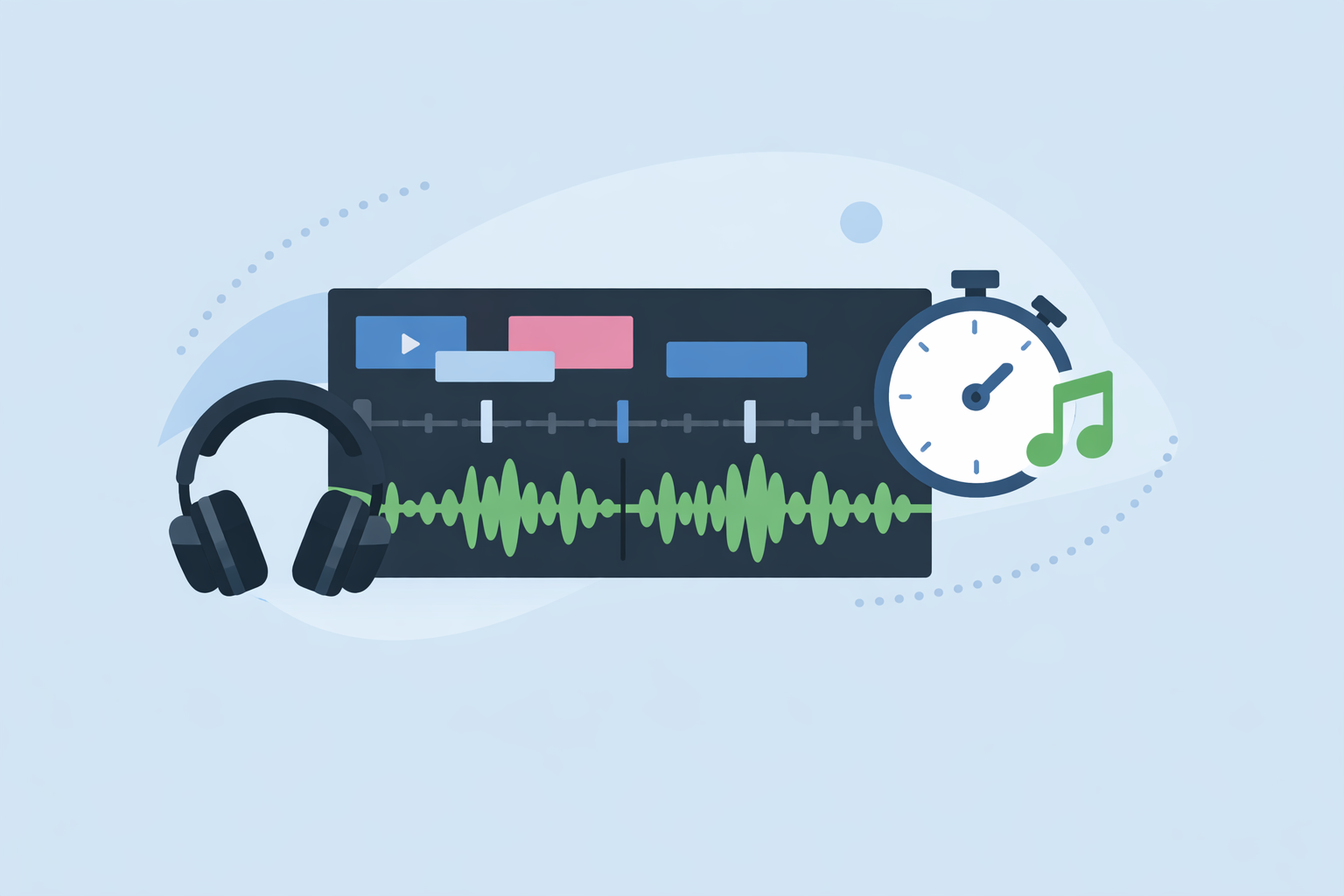
- Zoom into the waveform. Identify the transients—kick, snare, big claps—and drop markers or line your cuts directly to those spikes.
- Nudge by ear. Play back in real time; micro‑adjust by a frame or two until every impact feels tight.
Our own articles note that automatic beat detection sounds perfect on paper, but it isn’t magic for complex grooves or tempo changes—manual fine‑tuning almost always yields a tighter result. (Splice blog)
Where do CapCut, InShot, and VN help with automatic beat markers?
If you want the timeline to “do something for you” before you start hand‑tuning, certain apps offer useful accelerators.
- CapCut: CapCut exposes Beat/Match Cut/Auto Beat tools that analyze a song and generate beat points so you can snap cuts and transitions to the rhythm more quickly. (Cursa) Its web‑based lyric video tool also describes a beat sync feature that can automatically match lyrics to your audio rhythm, which hints at similar underlying detection for timing captions and edits. (CapCut)
- InShot: Release notes reference an Auto‑Beat tool that highlights rhythm points on the timeline, plus earlier “beat” features for dropping manual markers. (InShot)
- VN: App Store notes mention new Auto‑Beat Detection and VN’s own BeatsClips feature that automatically helps cut and sync clips to a song’s rhythm, along with an option to link background music to the main track so timing doesn’t drift when you re‑edit earlier shots. (VN, Reddit)
These tools are fast ways to build a first‑pass edit grid. In practice, many editors still refine key hits manually—especially around big transitions, text reveals, and speed ramps.
Because Splice focuses on the music itself, you can feed any of these apps with a stronger, rhythmically clear track and get better results from their beat detectors.
Do auto‑beat tools replace manual waveform editing?
Not really. Auto‑beat tools are great at:
- Getting you in the general neighborhood of the beat quickly.
- Generating templates for reels, lyric videos, or slideshow‑style edits.
- Helping beginners “feel” where cuts could land.
They’re less dependable when:
- The track has heavy swing, rubato, or tempo automation.
- You’re syncing extremely precise choreography, motion graphics, or text.
- You need certain moments to hit off‑beat intentionally for creative effect.
Our own perspective is that automatic beat detection is a good assistant, not a director: use it to drop markers, then rely on Splice‑built audio and your own ear to finalize where the truly important cuts sit. (Splice blog)
How does Edits compare for music‑timed visuals?
Edits, Meta’s short‑form video app, focuses on camera capture, powerful editing tools, and AI‑driven visual transformations, along with fonts, text animations, transitions, voice effects, filters, and music options—including royalty‑free tracks—especially for Instagram and Facebook. (Meta)
That makes Edits appealing if your main needs are:
- Tight integration with Meta platforms and trending audio.
- AI prompts to transform outfit, location, and style rather than frame‑level beat cutting. (Meta)
What we have not seen in official sources is explicit documentation of a beat‑grid or auto‑beat feature similar to CapCut, InShot, or VN. In a timing‑critical workflow, you’d still pair Edits with a strong, tempo‑solid track from Splice and your own ear for the final sync.
When should you lean on Splice vs other tools?
A quick example can clarify the split.
Imagine you’re cutting a 30‑second UGC ad. You need jump cuts on every snare, a logo hit on a big impact, and subtitles that feel locked to a vocal.
- Splice: You build a simple drum‑and‑bass bed at 120 BPM using royalty‑free loops, making sure the kick and snare are clean and consistent.
- Video app (CapCut/InShot/VN/Edits): You import that track, let any auto‑beat feature find rough beat points if available, then zoom in and adjust each hero moment by hand.
The precision comes from the combination: a musically solid foundation via Splice, plus whatever editing interface you’re already fastest in.
What we recommend
- Default path for precision: Use Splice to create or select a clear, tempo‑locked track, then sync visuals manually to the waveform peaks in your preferred editor.
- Speed‑first path: If you value speed over microscopic accuracy, enable Auto‑Beat/Beat Sync tools in CapCut, InShot, or VN for a first pass, then refine only the key moments.
- Platform‑centric path: If you live inside Instagram/Facebook, pair Splice audio with Edits for Meta‑native publishing and use your ear for timing‑critical cuts.
- For most U.S. creators: Treat Splice as your music timing control center, and treat auto‑beat apps as optional helpers rather than the source of precision itself.