22 June 2026
How to Add World Map Overlays to Your Travel Photos on a Budget Smartphone
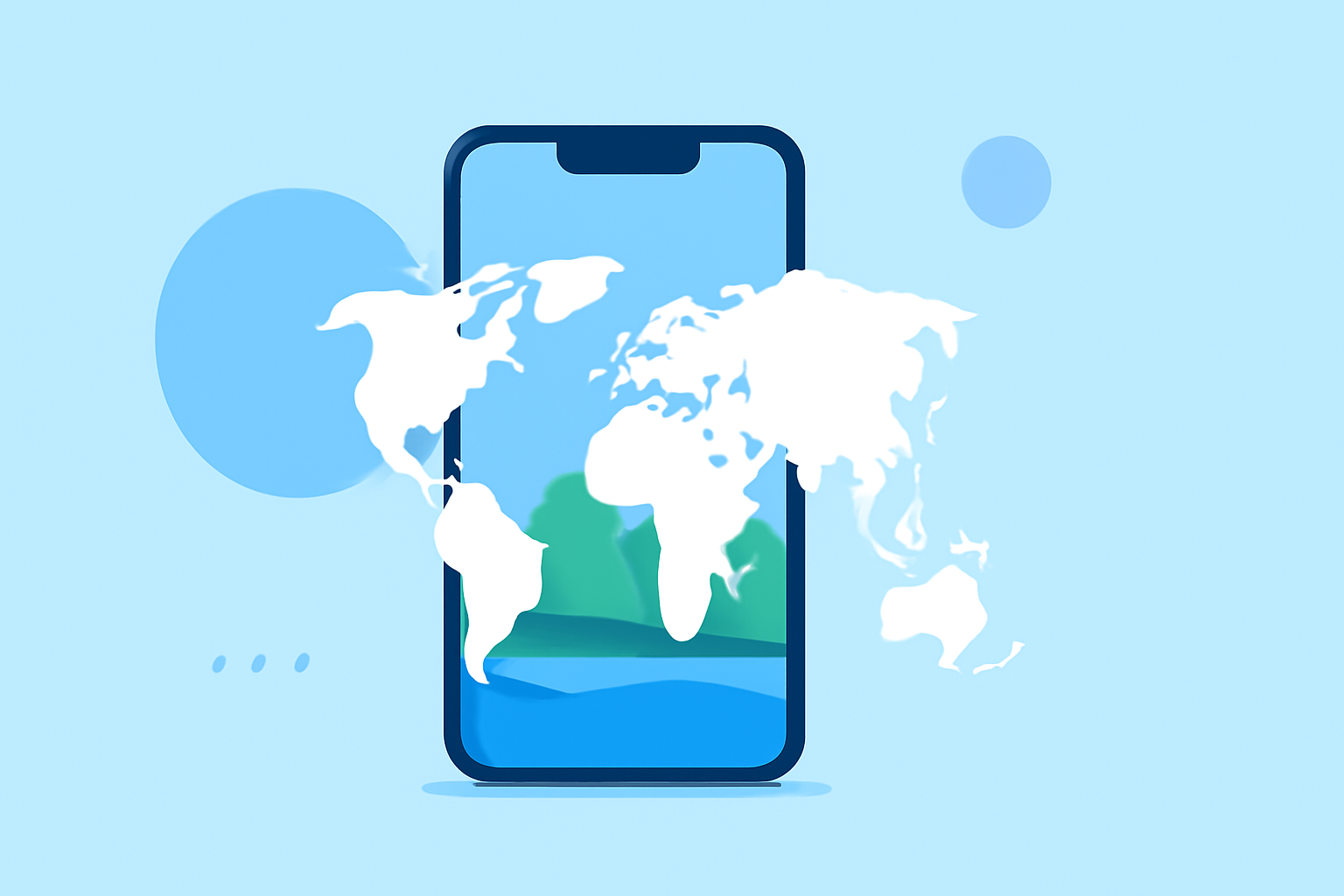
Traveling offers countless opportunities to capture memorable moments, and adding a world map overlay to your photos can provide context and a sense of place. Even with a budget smartphone, you can achieve this effect using free or low-cost apps and online tools.
Understanding Map Overlays
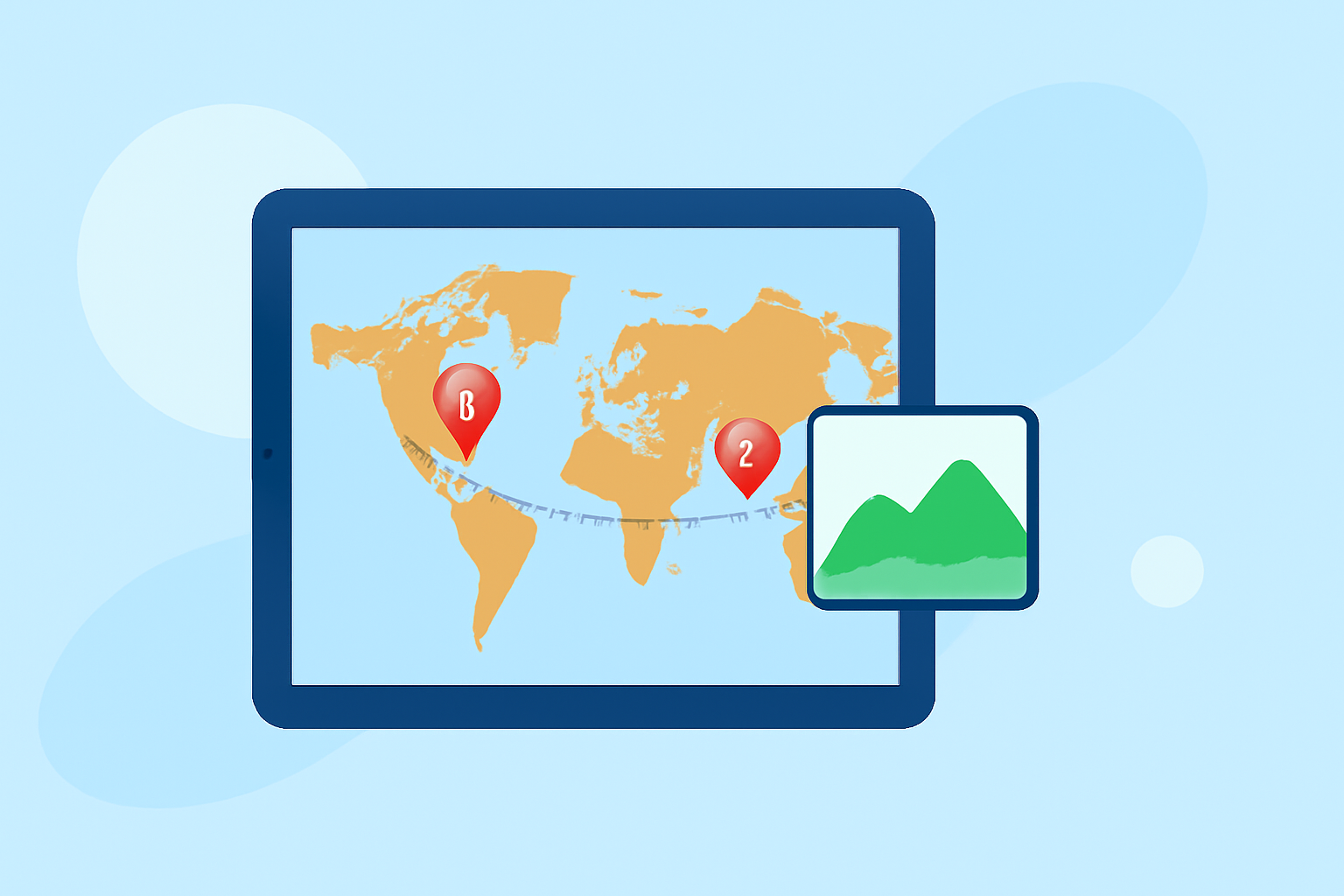
A map overlay is a visual element added to your photo that displays:
- GPS location on a map
- Address or place name
- Latitude and longitude
- Date and time
This addition makes your photos more informative and verifiable, which is especially useful for documentation, reporting, and location proof.
Methods to Add Map Overlays on a Budget Smartphone
-
Using Free Mobile Apps
Several free apps allow you to add map overlays to your photos directly from your smartphone:
-
PicsArt: A versatile photo editing app that supports overlaying images.
Steps:
- Open PicsArt and select the photo you want to edit.
- Tap on the "Add Photo" option to insert a map image.
- Resize and position the map overlay as desired.
- Adjust the opacity to blend the map seamlessly with your photo.
This method allows for creative customization of your map overlays. (help.luxelens.com)
-
-
Using Online Tools
If you prefer not to install additional apps, online tools can help you add map overlays:
-
GeoTag Photo GPS Map Camera Tool: An online tool that enables you to add map overlays to your photos without installing any app.
Steps:
- Visit the GeoTag Photo GPS Map Camera Tool website.
- Upload your photo.
- Allow location access or enter the location manually.
- Enable the map overlay option.
- Customize details like address, date, and time.
- Apply changes and download the edited image.
This method is quick and doesn't require additional software. (gpsmapcamera.in)
-
-
Using Built-in Smartphone Features
Some smartphones allow you to add location details to your photos directly:
-
Android Devices: You can add or edit location details using the Google Photos app.
Steps:
- Open the Google Photos app and select the photo.
- Tap the three-dot menu and select "Add a location."
- Enter the location name and select the correct one from the suggestions.
This method is straightforward and utilizes built-in features. (guidingtech.com)
-
Tips for Effective Map Overlays
- Accuracy: Ensure the map overlay accurately represents the location of your photo.
- Opacity: Adjust the opacity of the map overlay so it complements the photo without obscuring important details.
- Positioning: Place the map overlay in a corner or area that doesn't cover key elements of the photo.
Conclusion
Adding a world map overlay to your travel photos is a creative way to showcase your journeys. With the methods outlined above, you can enhance your photos without the need for expensive equipment or software. Whether you choose a free app, an online tool, or built-in smartphone features, the key is to select the method that best fits your needs and device capabilities.
By incorporating map overlays, you not only enrich your photos but also create a visual record of your travels that is both informative and engaging.