22 June 2026
Easy Map Overlay Text Labels Editing for Beginners
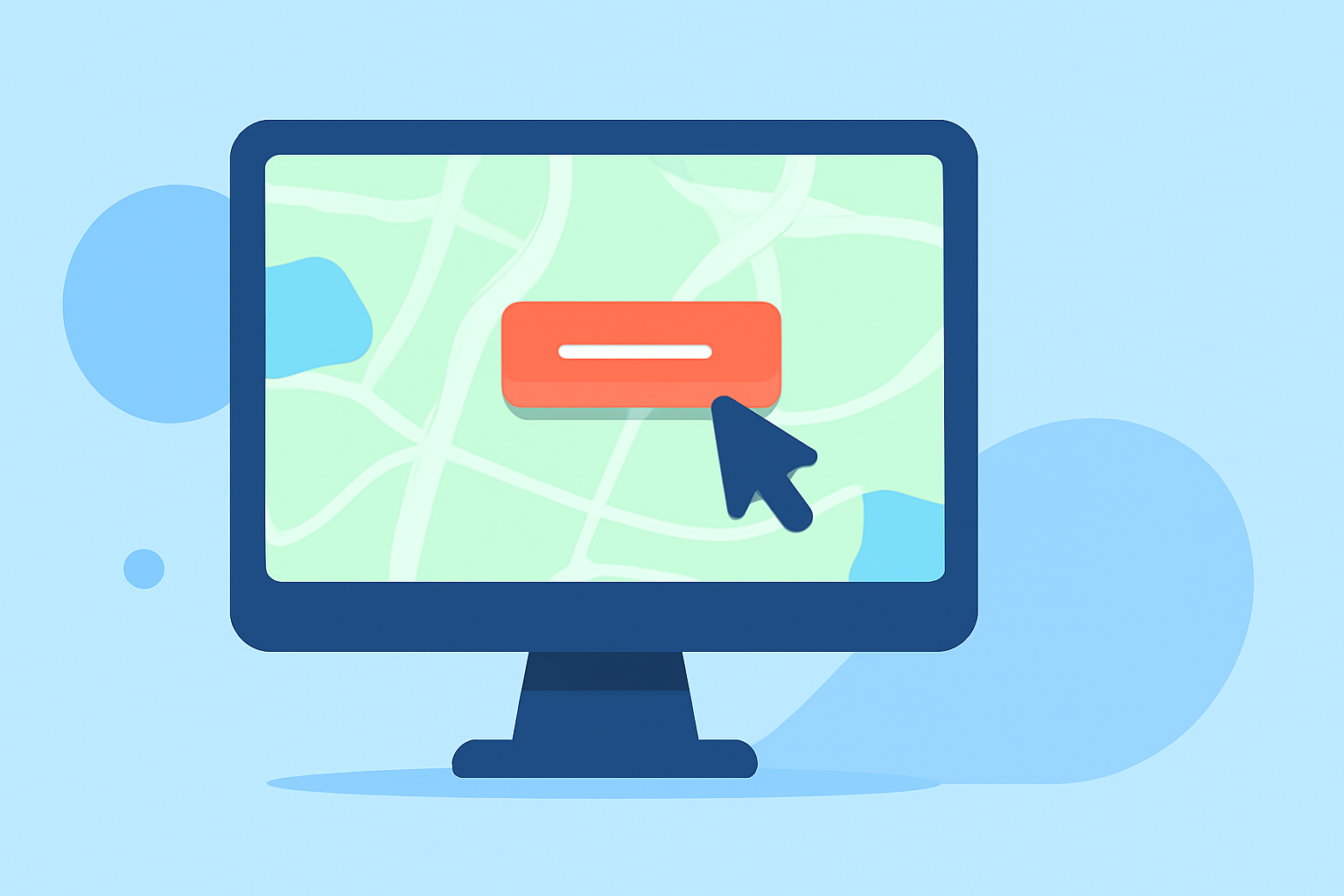
Adding text labels to map overlays is a fundamental skill for creating informative and visually appealing maps. Whether you're a novice or looking to enhance your mapping projects, this guide will introduce you to user-friendly tools and techniques for effective text label editing.
Understanding Map Overlays and Text Labels
A map overlay involves superimposing additional information—such as shapes, lines, or text—onto a base map to highlight specific data points or areas. Text labels serve as annotations, providing context or identifying features within the overlay.
Choosing the Right Tool for Beginners
For those new to map editing, selecting an intuitive tool is crucial. One such option is Planes Live, a user-friendly platform designed to simplify the process of adding and editing text labels on map overlays.
Getting Started with Planes Live
-
Access the Platform: Navigate to the Planes Live website and sign up for an account.
-
Create a New Map Project: Once logged in, initiate a new project by selecting a base map that suits your needs.
-
Add an Overlay Layer: Upload your overlay data, which could be in formats like KML, GeoJSON, or shapefiles.
-
Insert Text Labels: Utilize the platform's drawing tools to place text labels on your overlay. You can click on specific points or areas to add labels, which can be customized in terms of font, size, color, and orientation.
-
Edit and Position Labels: Click on any label to edit its content or adjust its position. Drag labels to reposition them, ensuring they are clear and do not overlap with other elements.
-
Save and Share Your Map: After finalizing your labels, save your project. Planes Live allows you to share your map via a link or embed it into websites, making it easy to disseminate your work.
Tips for Effective Text Labeling
-
Clarity is Key: Choose legible fonts and appropriate sizes to ensure readability across different devices and screen sizes.
-
Avoid Overcrowding: Space out labels adequately to prevent overlap, which can confuse viewers.
-
Use Contrasting Colors: Select text colors that stand out against the map's background and overlay colors.
-
Maintain Consistency: Use uniform font styles and sizes for similar types of information to create a cohesive look.
Additional Resources
For more advanced features and tutorials on map labeling, consider exploring the following resources:
-
ArcGIS Pro Documentation: Offers comprehensive guides on labeling and annotation techniques. (pro.arcgis.com)
-
Maptitude Learning Portal: Provides tutorials on managing and customizing map labels. (caliper.com)
By leveraging user-friendly tools like Planes Live and adhering to best practices in text labeling, beginners can create informative and visually appealing map overlays with ease.