22 June 2026
Editing Airport Footage on Your Phone: A Comprehensive Guide
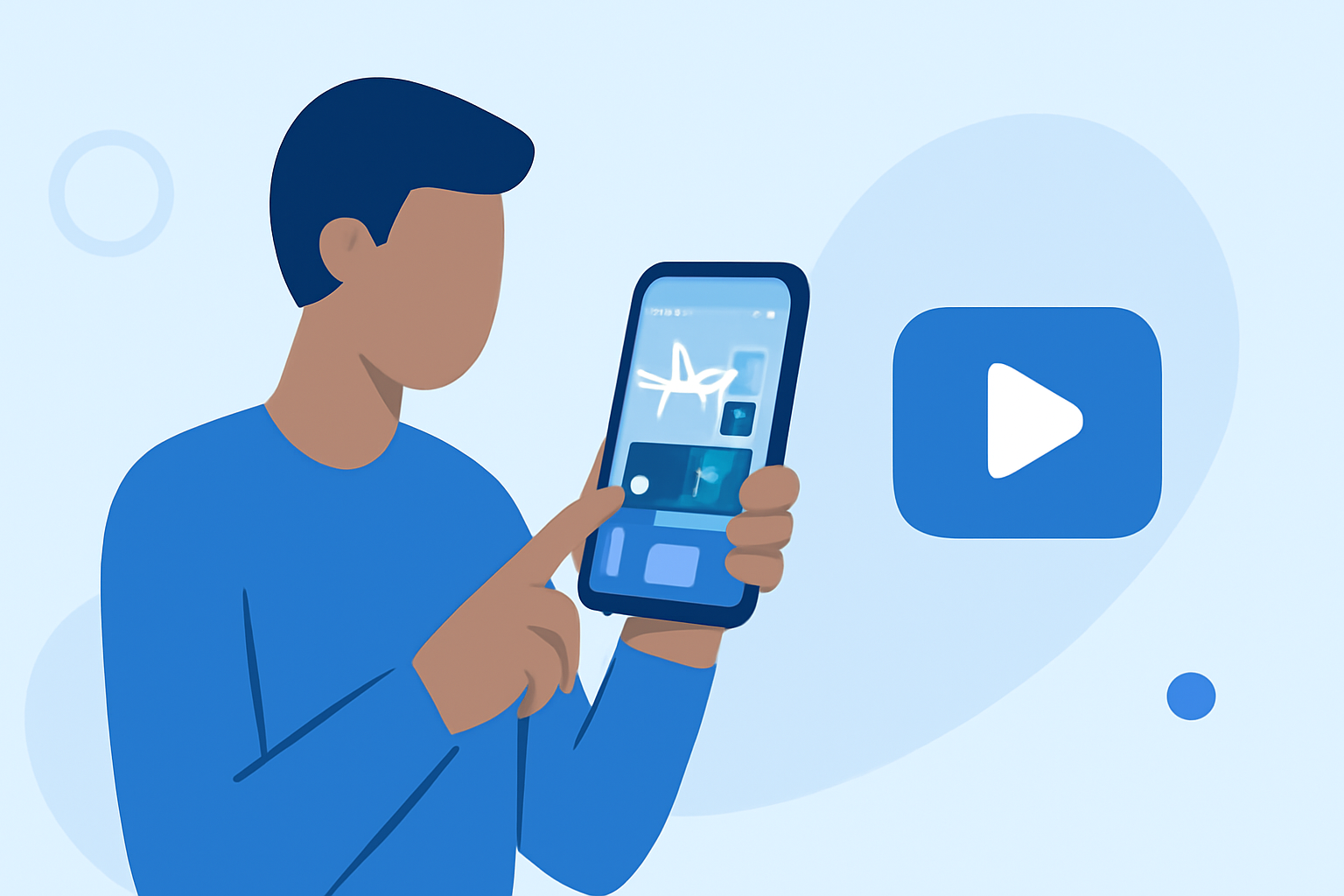
Capturing airport scenes offers a unique glimpse into the dynamic world of travel. Whether you're documenting a bustling terminal or the serene moments before takeoff, editing these clips on your mobile device allows for flexibility and convenience. This guide provides step-by-step instructions to help you transform your raw airport footage into polished videos using your smartphone.
1. Transfer Your Footage to Your Mobile Device
Before you begin editing, ensure your footage is accessible on your phone. If you're using a drone, such as the DJI Avata 360, follow these steps:
-
Connect Your Drone to Your Phone: Use the appropriate cable or wireless connection to link your drone to your mobile device.
-
Download the Footage: Open the DJI Fly app, navigate to the "Album" section, and select the videos you wish to transfer. Tap the "Download" button to save them to your device.
2. Choose an Editing App Suited for Mobile Devices
Selecting the right app is crucial for a smooth editing experience. Here are some mobile-friendly options:
-
DJI Fly App: Specifically designed for DJI drones, this app offers built-in editing tools that allow you to trim, split, and apply transitions to your footage.
-
CapCut: A versatile video editor with a user-friendly interface, CapCut provides a range of features including filters, effects, and text overlays.
-
LumaFusion: A professional-grade video editor for iOS devices, LumaFusion offers multi-track editing, advanced effects, and a comprehensive suite of tools for detailed editing.
3. Import and Organize Your Footage
Once you've selected an editing app:
-
Import Your Videos: Open the app and create a new project. Import the airport footage you've transferred to your device.
-
Organize Clips: Arrange your clips in the desired sequence on the timeline. This step helps in visualizing the flow of your video.
4. Edit Your Footage
Enhance your airport footage by applying various editing techniques:
-
Trimming and Splitting: Remove unwanted sections by trimming or splitting clips. This helps in focusing on the most compelling parts of your footage.
-
Adding Transitions: Incorporate smooth transitions between clips to maintain a cohesive flow. Most editing apps offer a variety of transition effects.
-
Applying Filters and Effects: Enhance the visual appeal by applying filters or effects that complement the airport setting.
-
Adjusting Audio: Ensure the audio levels are balanced. You can add background music or adjust the volume of the original audio to highlight specific sounds.
5. Export and Share Your Edited Video
After finalizing your edits:
-
Export Settings: Choose the appropriate resolution and frame rate for your intended platform. For instance, 1080p at 30fps is standard for most social media platforms.
-
Save and Share: Save the edited video to your device and share it directly to social media platforms or with friends and family.
6. Enhance Your Editing with AI-Powered Tools
For a more streamlined editing process, consider using AI-powered tools that offer templates and automated editing features. Platforms like Pippit provide airport video edit templates that can be customized to fit your footage, allowing for quick and professional-looking results. (pippit.ai)
Conclusion
Editing airport footage on your mobile device is both feasible and efficient. By following these steps and utilizing the right tools, you can create engaging videos that capture the essence of the airport experience. Remember to experiment with different editing techniques to find a style that best represents your vision.