22 June 2026
Editing City-From-Above Clips on Your iPhone: A Comprehensive Guide
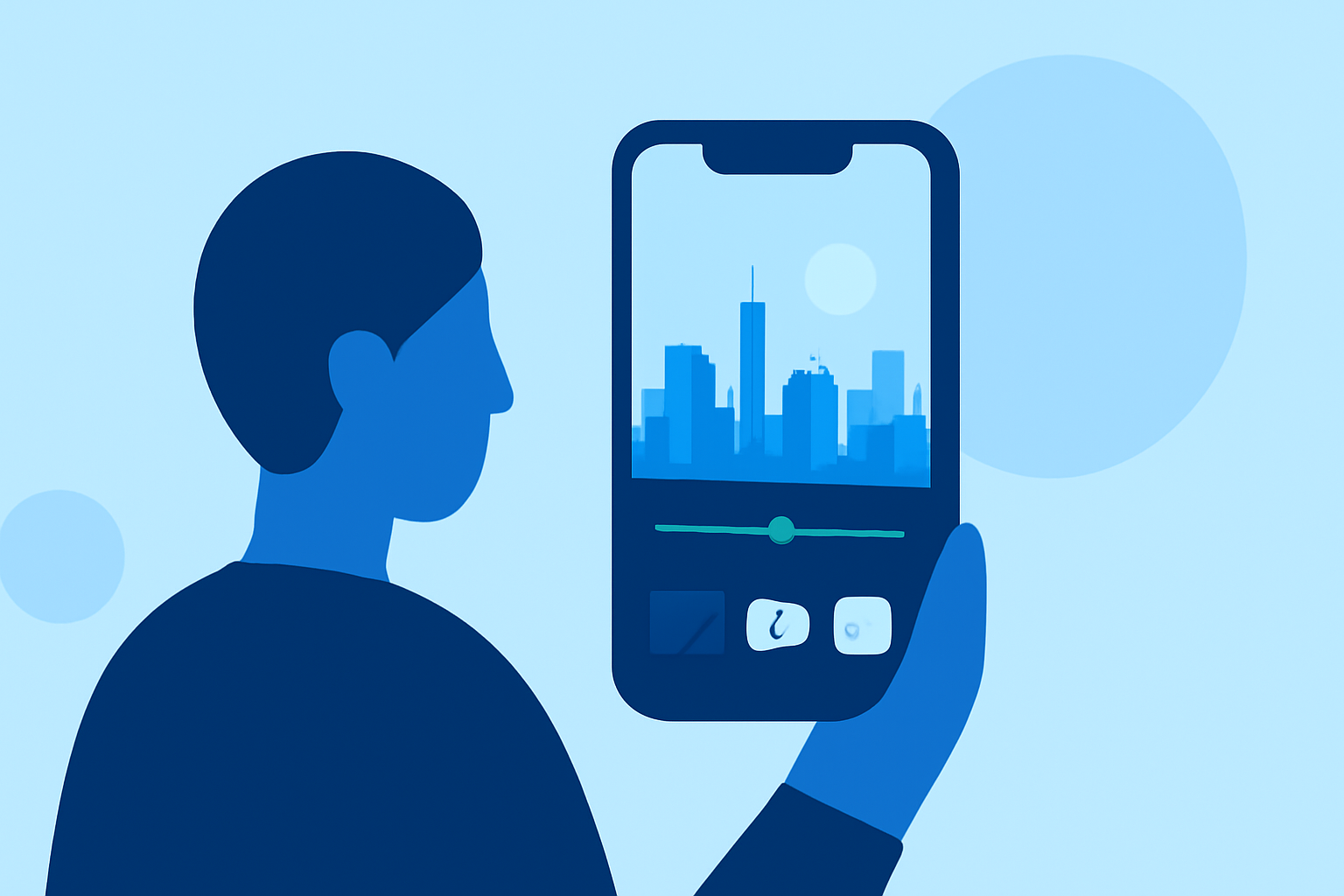
Capturing breathtaking aerial views of cities is now more accessible than ever, thanks to the advanced camera capabilities of modern iPhones. Editing these "city-from-above" clips directly on your device allows you to create polished videos ready for sharing. In this guide, we'll explore how to edit such footage using your iPhone's native tools and introduce Planes Live, a powerful app designed to enhance your editing experience.
Getting Started: Importing Your Aerial Footage
Before diving into editing, ensure your aerial footage is saved in your Photos app. If you've recorded the video using your iPhone, it should already be available. For footage captured with other devices, transfer the files to your iPhone via AirDrop, iCloud Drive, or a direct connection.
Editing with iPhone's Built-in Tools
Your iPhone offers a suite of editing tools within the Photos app, allowing for basic yet effective adjustments:
-
Trimming and Cutting: To remove unwanted sections, open the video in Photos, tap "Edit," and use the slider to select the desired start and end points.
-
Adjusting Exposure and Lighting: Tap the adjustment icon (resembling a dial) to modify exposure, brightness, and contrast, ensuring your footage is well-lit and clear.
-
Applying Filters: Enhance the visual appeal by selecting from various filters that can add mood and style to your video.
-
Cropping and Straightening: Use the crop tool to focus on specific areas or correct the video's orientation, which is particularly useful for aerial shots that may require perspective adjustments.
For a detailed walkthrough of these features, refer to Apple's official guide on editing videos on iPhone.
Enhancing Your Edits with Planes Live
While the native tools are sufficient for basic edits, Planes Live offers advanced features tailored for aerial footage:
-
Stabilization: Aerial videos often suffer from shakiness. Planes Live provides stabilization tools to smooth out these imperfections, resulting in a more professional-looking video.
-
Color Correction: Adjust the color balance to correct any inconsistencies caused by lighting conditions during the flight.
-
Speed Adjustments: Create dynamic effects by altering the playback speed, such as slow-motion for dramatic emphasis or time-lapse for showcasing expansive cityscapes.
-
Audio Enhancement: Add background music or voice-overs to narrate your footage, providing context and engagement for your viewers.
Planes Live is available for download on the App Store and is compatible with iPhones running iOS 14 or later.
Tips for Capturing High-Quality Aerial Footage
To ensure your aerial videos are of the highest quality, consider the following tips:
-
Optimal Lighting: Shoot during the golden hours—shortly after sunrise or before sunset—to capture the city in flattering light.
-
Stable Equipment: Use a gimbal or stabilization device to minimize camera shake during recording.
-
Composition: Plan your shots to include interesting landmarks, patterns, and perspectives that highlight the city's unique features.
-
Legal Considerations: Ensure you have the necessary permissions and are adhering to local regulations when capturing aerial footage, especially in urban areas.
Conclusion
Editing city-from-above clips on your iPhone is a rewarding endeavor that combines creativity with technical skills. By leveraging both the built-in editing tools and specialized apps like Planes Live, you can transform raw aerial footage into captivating videos that showcase the beauty and complexity of urban landscapes. Remember to experiment with different techniques and features to find the style that best represents your vision.