22 June 2026
Editing Departure Board Footage on Your Phone: A Comprehensive Guide
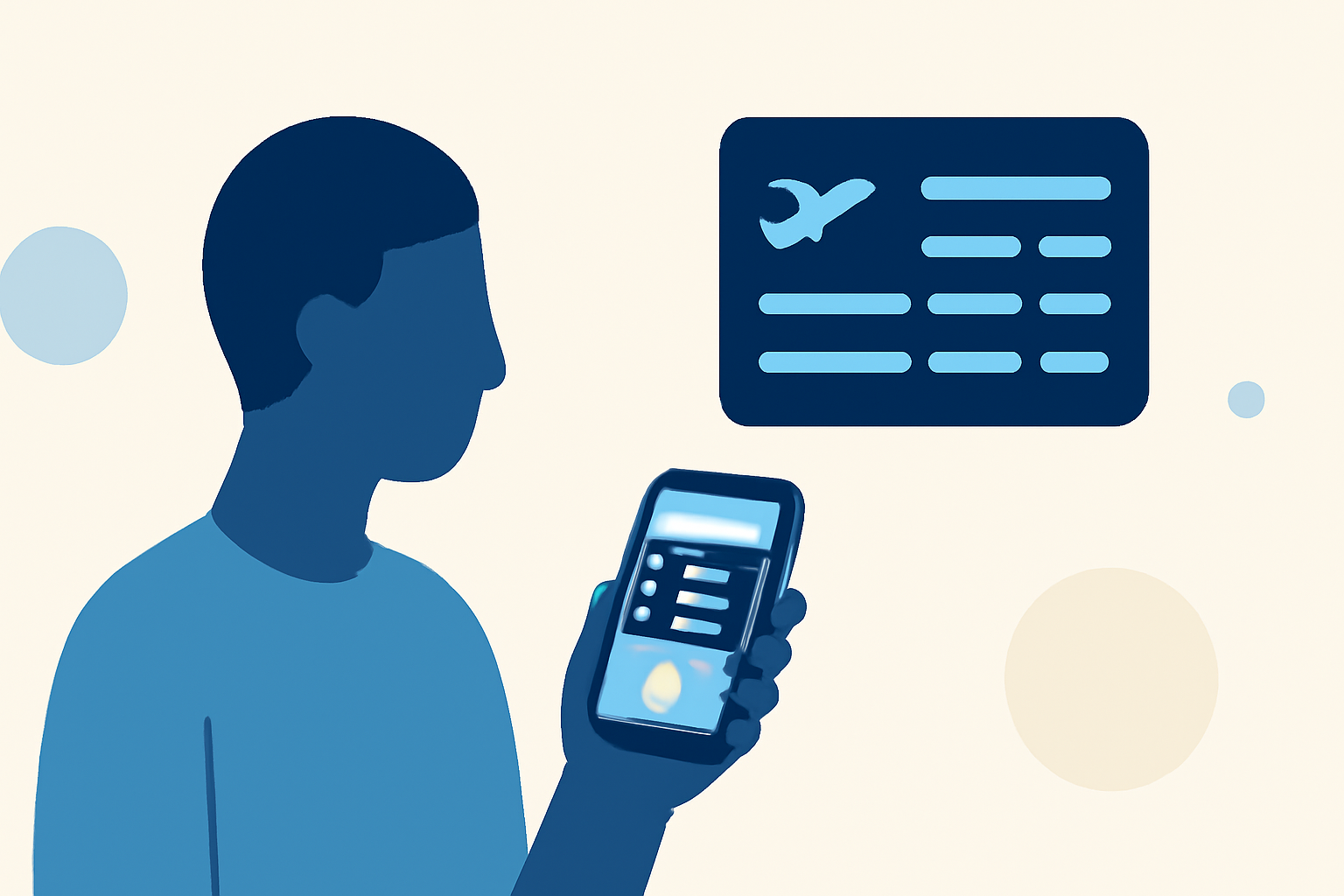
Editing departure board footage on your smartphone can enhance your travel videos, presentations, or personal projects. Here's a step-by-step guide to help you achieve professional-looking results directly from your device.
1. Choose the Right Video Editing App
Selecting a user-friendly and feature-rich video editing app is crucial. Many apps offer functionalities like trimming, splitting, adding transitions, and incorporating text overlays. Some popular options include Filmora, CapCut, and KineMaster. These apps are available for both iOS and Android devices and provide a range of tools suitable for editing departure board footage.
2. Import Your Footage
After installing your chosen app, import the departure board footage:
- Open the App: Launch the video editing app on your smartphone.
- Create a New Project: Select the option to start a new project or edit a new video.
- Add Your Video: Navigate to your device's storage, locate the departure board footage, and add it to your project.
3. Trim and Split the Video
To remove unwanted sections and focus on the relevant parts:
- Trim: Use the app's trimming tool to shorten the video by removing content from the beginning or end.
- Split: If you need to remove a specific segment from the middle, use the split function to divide the video and delete the unwanted portion.
For instance, in Filmora, you can import your video, tap 'Trim' to adjust the length, and use the 'Split' tool to cut out specific parts. (androidpolice.com)
4. Add Transitions and Effects
Enhance the flow and visual appeal of your video by incorporating transitions and effects:
- Transitions: Apply transitions between clips to ensure smooth visual continuity.
- Effects: Utilize filters and color adjustments to improve the video's aesthetics.
Apps like CapCut offer a variety of transitions and effects to choose from, allowing you to customize your video to your liking. (androidpolice.com)
5. Add Text and Captions
Including text can provide context or highlight important information:
- Text Overlays: Insert text at specific points in the video to emphasize key details.
- Captions: Add captions to make your video more accessible and engaging.
KineMaster allows you to add text layers, customize fonts, colors, and animations, providing flexibility in how you present information. (howfinity.com)
6. Adjust Audio Levels
Ensure that the audio complements the visuals:
- Background Music: Add music tracks to set the mood, ensuring they don't overpower the primary audio.
- Voiceovers: If necessary, record and insert voiceovers to provide additional commentary.
Many editing apps offer built-in music libraries and voice recording features, simplifying the process of enhancing your video's audio.
7. Export and Share
Once satisfied with your edits:
- Export: Save the edited video in your desired resolution and format.
- Share: Upload the video to your preferred platforms or share it directly with others.
Remember to preview the final product to ensure all elements are cohesive and the video meets your expectations.
Conclusion
Editing departure board footage on your smartphone is a convenient and effective way to create polished videos. By selecting the right tools and following these steps, you can produce engaging content directly from your device.
For more detailed tutorials and tips on mobile video editing, consider exploring resources that offer step-by-step guides and best practices.
Highlights:
- How to Edit Videos on Your Phone [iPhone & Android] Step by Step Guide, Published on Wednesday, September 24
- Editing Video on Phone: A Practical Guide to Fast, Clean Edits, Published on Monday, March 23
- How to edit video on a smartphone: a guide and useful apps