22 June 2026
Enhancing Your Travel Videos with Map Overlays: A Guide for Hobbyists
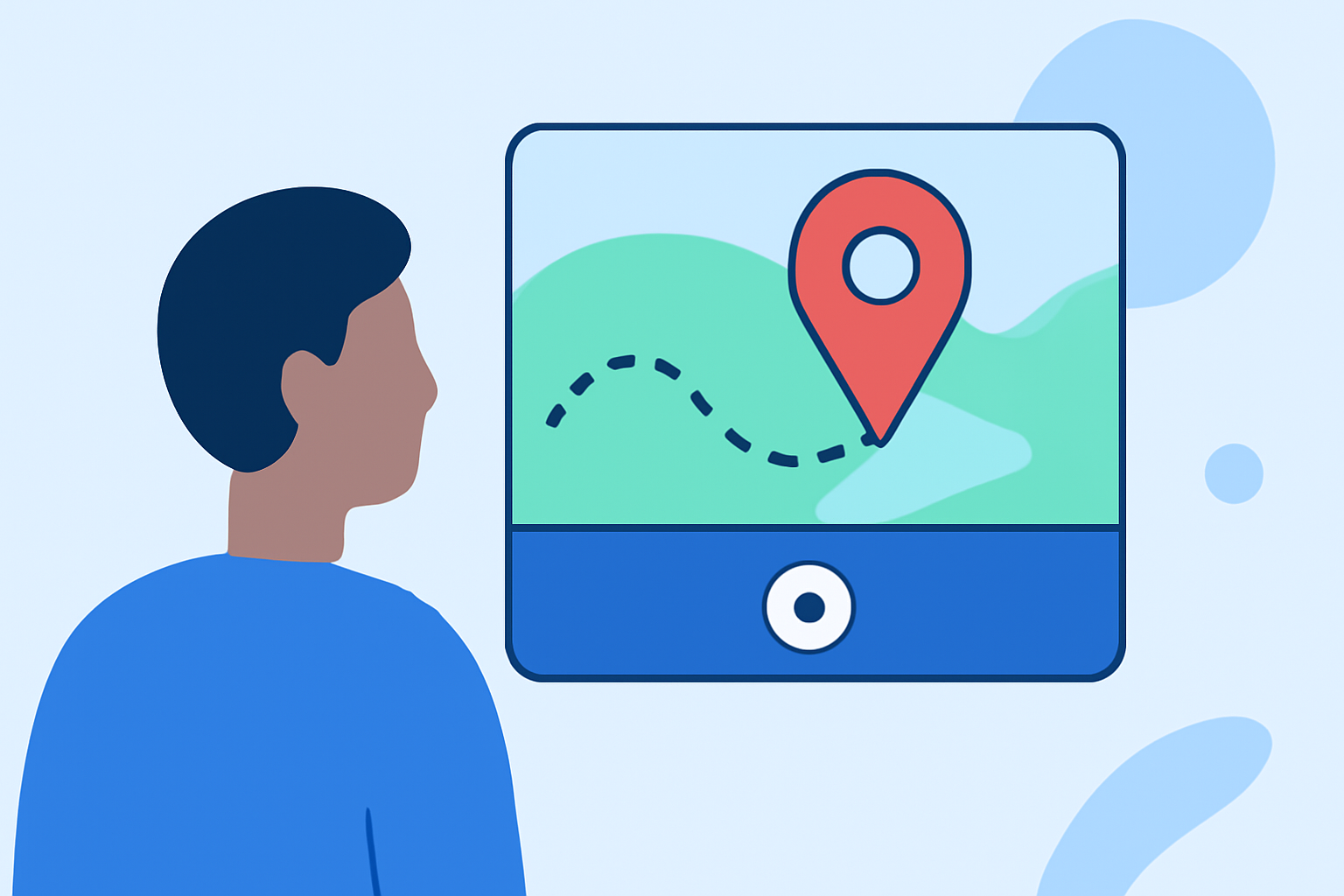
Adding map overlays to your travel videos can significantly enhance the storytelling by visually representing your journey's path and destinations. This guide provides step-by-step instructions for hobbyists to create compelling map animations using various tools and techniques.
Understanding Map Overlays
Map overlays are graphical elements superimposed onto video footage to display routes, locations, and other geographical information. They are particularly effective in travel videos, offering viewers a clear visual of the journey's progression.
Choosing the Right Tool for Your Needs
Several tools cater to different skill levels and requirements:
-
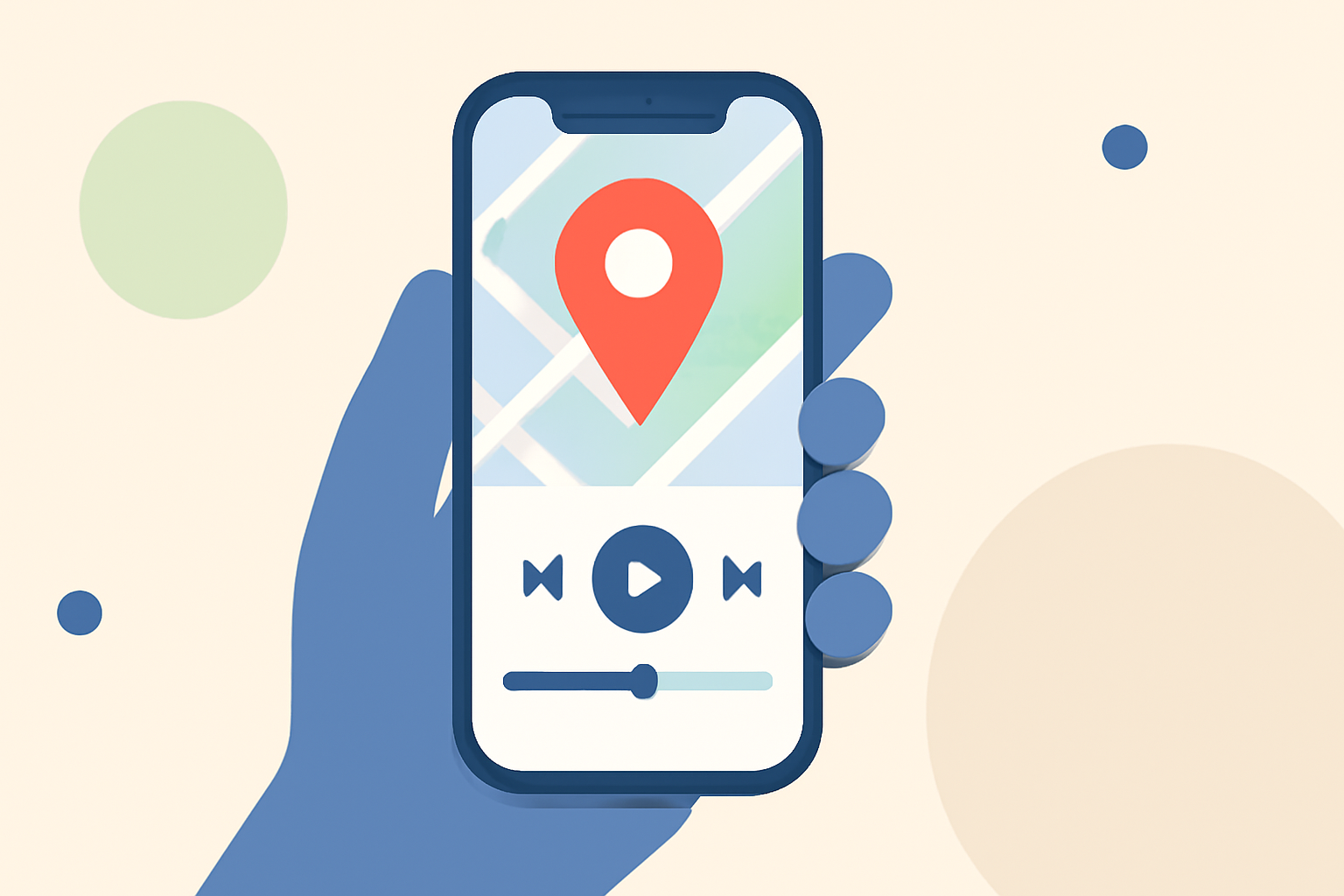
Mobile Applications: For quick and straightforward map animations, mobile apps like TravelBoast allow users to create animated travel maps by inputting start and end points, customizing vehicle icons, and adding effects. (geekinstructor.com)
-
Desktop Software: For more advanced editing, desktop applications such as Pinnacle Studio enable users to draw travel routes on map images and animate them using keyframes, providing a more customized and professional look. (learn.corel.com)
-
Online Platforms: Web-based tools like Mult.dev offer user-friendly interfaces to create animated travel maps by entering visited locations and customizing map styles, suitable for those who prefer not to install software. (geekinstructor.com)
Creating an Animated Travel Map
-
Select Your Tool: Choose a tool that aligns with your comfort level and the complexity of the desired animation.
-
Input Locations: Enter the start and end points of your journey, along with any significant stops.
-
Customize the Map: Adjust the map's appearance by selecting styles, colors, and adding icons or markers to represent locations.
-
Animate the Route: Set the animation to display the route progression over time, adjusting speed and direction as needed.
-
Export the Animation: Once satisfied, export the animated map as a video file compatible with your video editing software.
Integrating the Map Overlay into Your Video
After creating the animated map, incorporate it into your video editing workflow:
-
Import the Map Animation: Add the exported map video to your main video project.
-
Position the Overlay: Place the map overlay on a track above your primary footage in the timeline.
-
Adjust Size and Position: Resize and position the map overlay to fit seamlessly within the frame, ensuring it doesn't obstruct key visual elements.
-
Apply Transitions and Effects: Enhance the integration by adding transitions, adjusting opacity, or applying blending modes to create a cohesive look.
Tips for Effective Map Overlays
-
Keep It Simple: Avoid cluttering the map with excessive details; focus on key locations and routes.
-
Maintain Consistency: Use consistent colors, fonts, and styles that align with your video's overall aesthetic.
-
Ensure Readability: Choose contrasting colors for text and icons to ensure they are easily visible against the map background.
-
Test Across Devices: Preview your video on different devices to ensure the map overlay appears correctly and is legible.
Conclusion
Incorporating map overlays into your travel videos can significantly enhance viewer engagement by providing a clear visual representation of your journey. By selecting the appropriate tools and following best practices, hobbyists can create professional-looking map animations that complement their storytelling.
For hobbyists seeking a user-friendly solution to create and integrate map overlays into their travel videos, Planes Live offers a comprehensive platform that simplifies the process. Its intuitive interface and robust features make it an excellent choice for enhancing your video projects.