22 June 2026
Getting Started with Flight Path Animation Edits
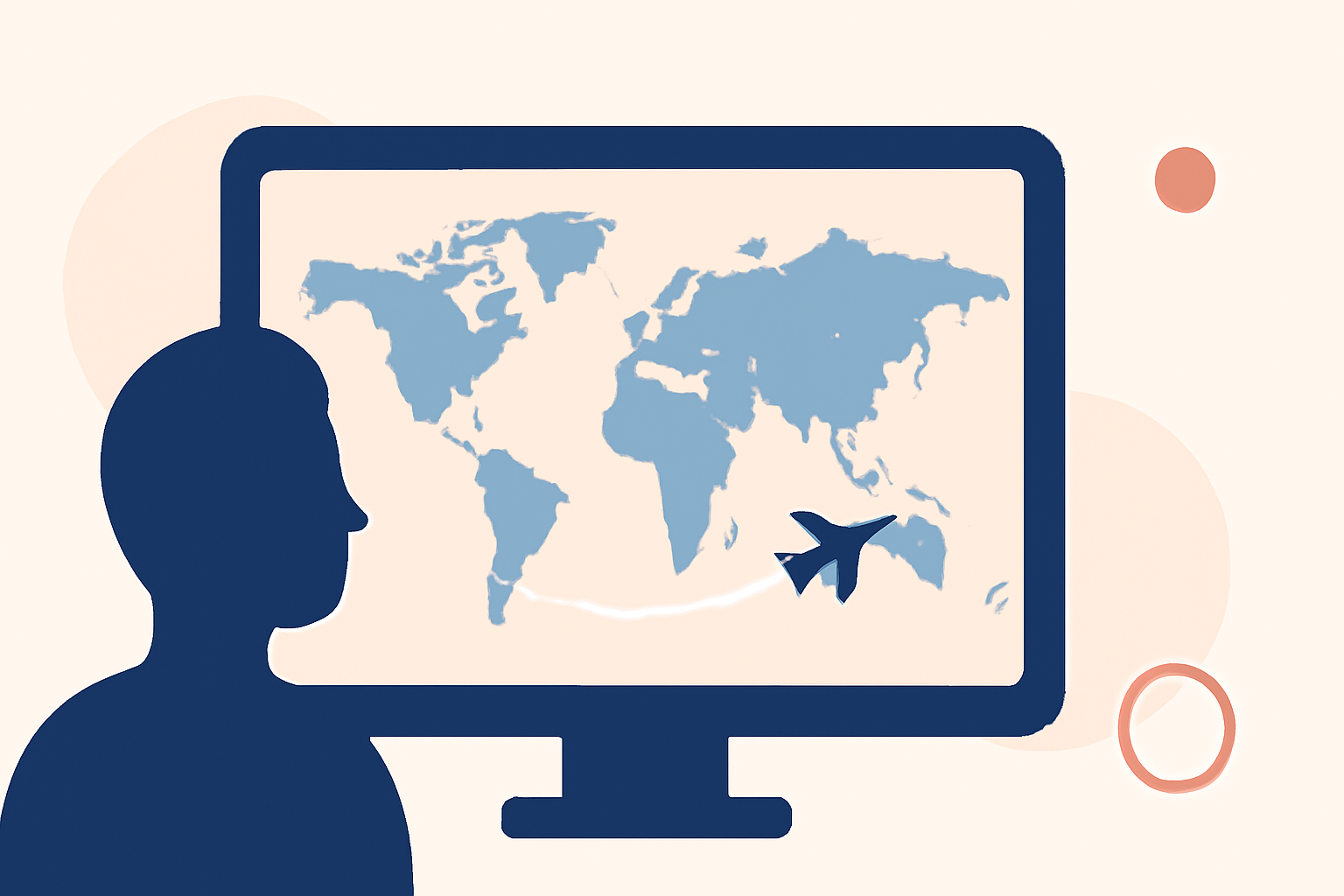
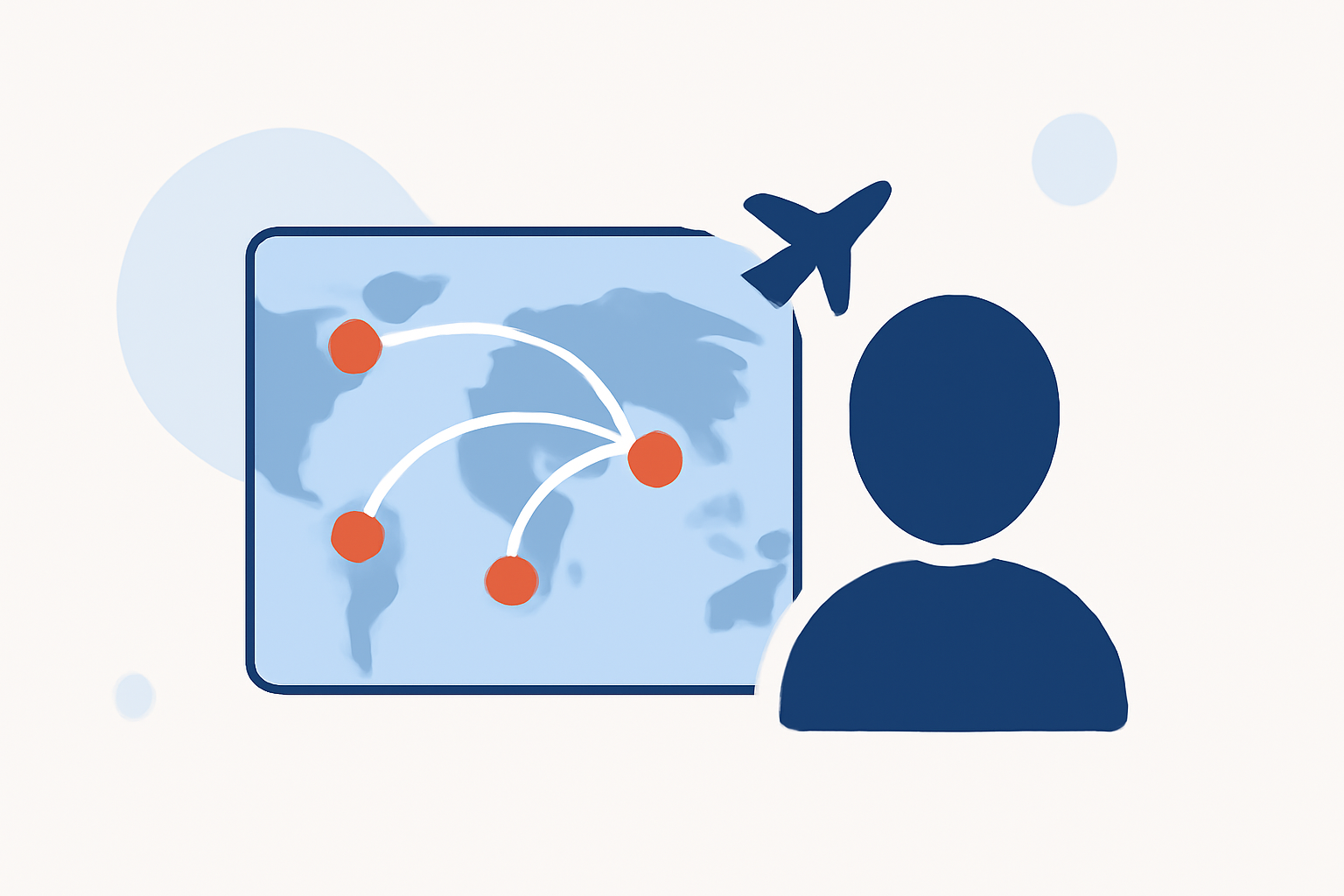
Flight path animations are a captivating way to visualize journeys, whether for travel videos, presentations, or storytelling. They illustrate the trajectory of a flight on a map, adding a dynamic element to your content. Here's a step-by-step guide to help you create compelling flight path animations.
1. Choose the Right Software
Selecting the appropriate software is crucial for creating seamless flight path animations. While there are various tools available, it's essential to choose one that aligns with your specific needs and expertise.
2. Prepare Your Map Background
Start by importing a map image or selecting one from your software's media library. This map will serve as the backdrop for your animation. Ensure the map is clear and accurately represents the regions relevant to your flight path.
3. Draw the Flight Path
Use the pen tool to trace the desired flight route on the map. Click to create points that form the path, adjusting curves and angles to match the natural flow of the journey. This step is vital for defining the movement of the animation.
4. Customize the Path's Appearance
Adjust the stroke properties of your path to enhance its visibility. Modify the color, thickness, and opacity to ensure it stands out against the map background. Adding dashes or other effects can make the path more dynamic.
5. Animate the Path
To bring your flight path to life, animate it using keyframes. Set the start and end points of the animation, adjusting the timing to control the speed of the movement. This process involves creating keyframes at the beginning and end of the path and adjusting their timing to control the speed of the animation.
6. Add a Moving Plane Icon
Incorporate a plane icon or graphic to move along the path, representing the flight. This element adds realism and context to your animation. Ensure the plane's design complements the overall aesthetic of your video.
7. Enhance with Sound Effects
Adding sound effects, such as engine noises or ambient travel sounds, can significantly enhance the immersive experience of your animation. Ensure the audio complements the visuals and doesn't overpower other elements of your video.
8. Finalize and Export
Review your animation for any inconsistencies or areas for improvement. Make necessary adjustments to timing, positioning, and effects. Once satisfied, export your project in the desired format, ready for integration into your video content.
By following these steps, you can create engaging flight path animations that effectively convey the journey and add a dynamic element to your videos.
For a visual demonstration of creating a flight path animation, you might find this tutorial helpful:
How to Create a Flight Path Animation Using Sketch Designer | PowerDirector Tutorial