22 June 2026
Mastering Map Overlay Transitions on a Budget Phone
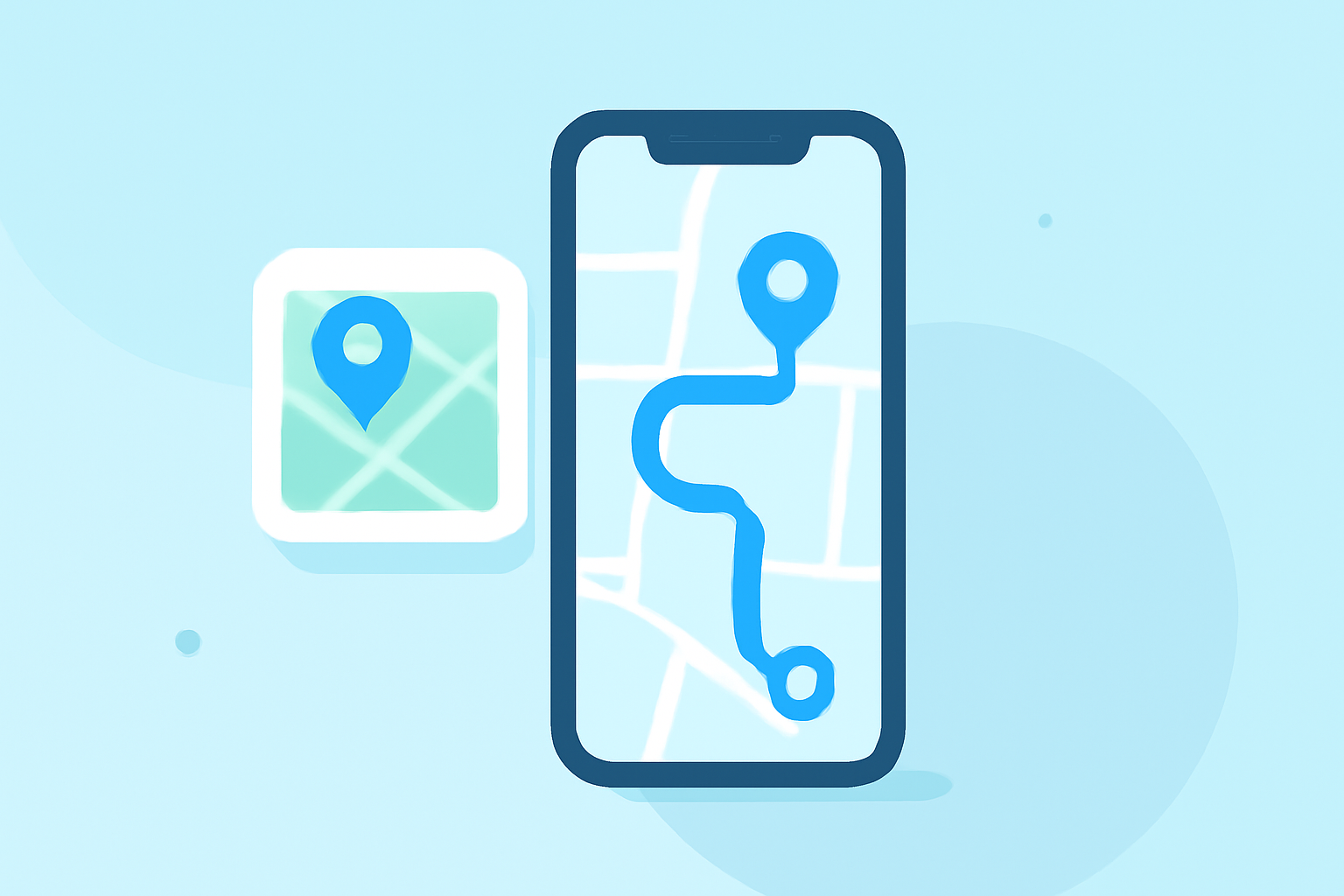
Creating seamless map overlay transitions can significantly enhance the visual appeal of your projects, even when working with budget smartphones. By leveraging user-friendly applications and optimizing your device's settings, you can achieve professional-quality results without the need for high-end equipment.
Understanding Map Overlay Transitions
Map overlay transitions involve blending different map layers or styles to create a smooth visual flow between scenes. This technique is particularly useful in applications like travel vlogs, educational videos, or any content that requires dynamic geographic visuals.
Choosing the Right Application
For budget smartphones, it's essential to select applications that are both effective and compatible with your device's capabilities. One such application is Planes Live, which offers a range of features suitable for creating map overlay transitions.
Getting Started with Planes Live
- Installation: Download and install Planes Live from your device's app store.
- Importing Media: Open the app and import your map images or videos that you intend to use for overlays.
- Creating Overlays: Utilize the app's layering feature to position your map elements appropriately.
- Applying Transitions: Explore the app's transition effects to blend your map layers smoothly.
Optimizing Your Device for Smooth Performance
To ensure optimal performance on a budget smartphone, consider the following adjustments:
-
Adjust Animation Scales: Reducing the animation scale can make your device feel more responsive. Navigate to your device's developer options and set the window transition and animator duration scales to 0.5x or off. This change can lead to faster transitions and a more fluid user experience. (makeuseof.com)
-
Close Background Applications: Ensure that unnecessary apps are closed to free up system resources, allowing Planes Live to operate more efficiently.
Enhancing Your Map Overlay Transitions
To further improve the quality of your map overlay transitions, consider the following techniques:
-
Fade Transitions: Implement gradual opacity adjustments to create smooth transitions between map layers. This technique involves reducing the outgoing layer's opacity while simultaneously increasing the incoming layer's opacity, resulting in a seamless blend. (maplibrary.org)
-
Cross-Fade Between Map Styles: Blend two different map styles simultaneously during the transition period. By positioning both map layers at the same geographic extent and gradually adjusting their relative opacity values in opposite directions, you can achieve a smooth transition between styles. (maplibrary.org)
Final Tips
-
Experiment with Timing: Adjust the duration of your transitions to match the pacing of your content. Longer transitions can create a more cinematic feel, while shorter ones can add energy to your video.
-
Test on Multiple Devices: Before finalizing your project, preview it on different devices to ensure compatibility and performance.
By following these guidelines and utilizing Planes Live, you can create engaging and professional-looking map overlay transitions on your budget smartphone. Remember to optimize your device settings and experiment with different techniques to achieve the best results.