22 June 2026
Mastering Map Overlay Transitions for YouTube Videos
Incorporating map overlay transitions into your YouTube videos can significantly enhance viewer engagement by providing dynamic visual context. These transitions are particularly effective for content related to travel, history, geography, and education. This guide explores various methods to create compelling map overlay transitions, with a special emphasis on Planes Live, a versatile tool that simplifies this process.
What Are Map Overlay Transitions?
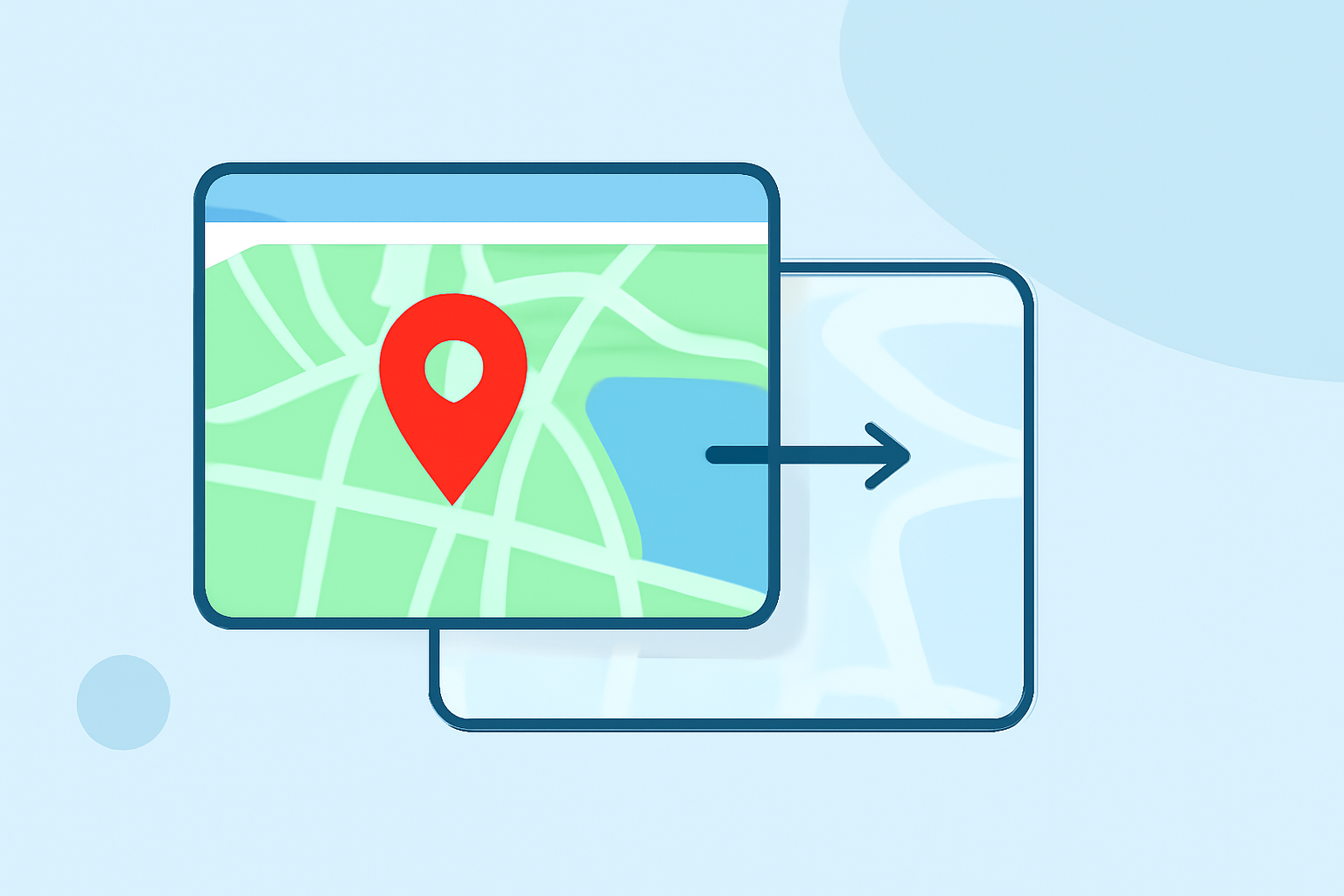
Map overlay transitions involve superimposing animated maps onto your video content to illustrate locations, routes, or geographical data. They serve as a visual aid, helping viewers better understand spatial relationships and movements within your narrative.
Why Use Map Overlay Transitions in YouTube Videos?
- Enhanced Storytelling: They provide a visual representation of locations, making your content more engaging.
- Improved Viewer Retention: Dynamic visuals can capture and maintain audience attention.
- Clarification of Complex Information: They simplify the presentation of geographical data, aiding in comprehension.
How to Create Map Overlay Transitions
Creating effective map overlay transitions can be achieved through various methods, each catering to different skill levels and resource availability.
1. Using Planes Live for Seamless Map Animations
Planes Live is a user-friendly tool designed to create animated map overlays effortlessly. Its intuitive interface allows you to generate dynamic map animations without the steep learning curve associated with more complex software.
Key Features of Planes Live:
- Pre-Designed Templates: Access a variety of customizable templates tailored for different themes.
- Real-Time Data Integration: Incorporate live data to reflect real-time changes in your animations.
- Multi-Platform Support: Export animations optimized for various platforms, including YouTube.
Getting Started with Planes Live:
- Sign Up and Choose a Template: Create an account and select a template that aligns with your video's theme.
- Customize the Map: Adjust colors, labels, and routes to match your content.
- Add Animations: Apply animations to elements like routes and markers to enhance visual appeal.
- Export and Integrate: Export the animation and integrate it into your video editing software.
For a comprehensive tutorial on using Planes Live, refer to the official documentation.
2. Utilizing After Effects for Advanced Customization
For those seeking greater control over their animations, Adobe After Effects offers robust tools to create intricate map overlays.
Basic Steps in After Effects:
- Import Map Assets: Obtain vector maps from sources like FreeVectorMaps.com and import them into After Effects.
- Animate Elements: Use keyframes to animate map elements such as routes, markers, and labels.
- Apply Effects: Enhance animations with effects like easing and motion blur for a natural look.
- Export the Animation: Render the animation and integrate it into your video project.
Detailed tutorials on this process are available on various platforms.
3. Leveraging Google Earth Studio for Cinematic Map Animations
Google Earth Studio provides a browser-based platform to create cinematic map animations using Google Earth's 3D imagery.
Steps to Create Animations:
- Access Google Earth Studio: Sign in with your Google account and start a new project.
- Define the Area of Interest: Navigate to the desired location and set up the scene.
- Animate the Camera: Use keyframes to animate the camera's movement and zoom.
- Export the Animation: Render the animation and incorporate it into your video editing workflow.
For more information, visit the Google Earth Studio website.
Tips for Effective Map Overlay Transitions
- Maintain Consistency: Use consistent colors and styles to avoid visual clutter.
- Keep It Simple: Avoid overcomplicating animations; simplicity often enhances clarity.
- Ensure Readability: Use legible fonts and appropriate sizes for labels and markers.
- Test Across Devices: Verify that your animations display correctly on various screen sizes and resolutions.
Conclusion
Incorporating map overlay transitions into your YouTube videos can significantly enhance viewer engagement and comprehension. Whether you opt for the user-friendly Planes Live or delve into more advanced tools like After Effects and Google Earth Studio, the key is to choose a method that aligns with your skill level and project requirements. By following the outlined steps and tips, you can create compelling map animations that enrich your content and captivate your audience.