22 June 2026
Mastering Route Progress Overlay Edits: A Beginner's Guide

As a beginner in flight tracking, understanding how to edit route progress overlays can significantly enhance your ability to monitor and analyze flight paths. These overlays provide real-time visual representations of a flight's journey, including its current position, altitude, speed, and estimated arrival time.
What Are Route Progress Overlays?
Route progress overlays are graphical representations on flight tracking maps that display a flight's current position along its planned route. They typically include information such as the aircraft's location, altitude, speed, and estimated time of arrival (ETA). These overlays are essential for both aviation enthusiasts and professionals, as they offer a clear and concise view of a flight's progress.
Why Edit Route Progress Overlays?
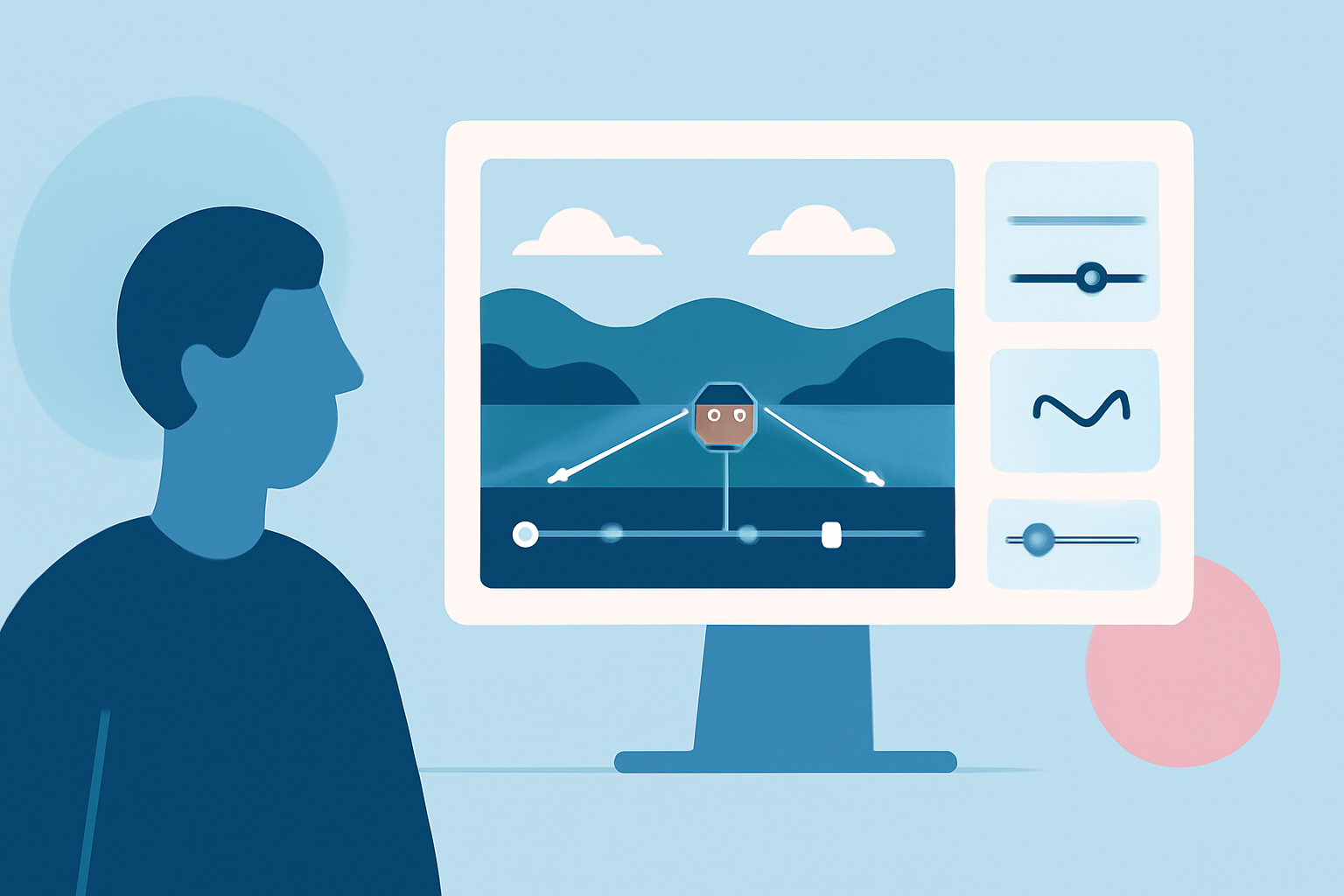
Editing route progress overlays allows you to customize the information displayed, tailor the visual appearance to your preferences, and focus on specific aspects of the flight. This customization can be particularly useful for:
- Enhanced Visualization: Adjusting colors, line thickness, and transparency to improve map readability.
- Focused Monitoring: Highlighting specific flight parameters, such as altitude or speed, to monitor critical aspects.
- Personalized Experience: Adding annotations or markers to note significant events or observations during the flight.
How to Edit Route Progress Overlays: A Step-by-Step Guide
- Access the Flight Tracking Tool: Open your preferred flight tracking application or website.
- Select the Desired Flight: Navigate to the flight you wish to monitor and select it to view its details.
- Locate the Overlay Settings: Find the settings or options menu related to map overlays. This is often represented by an icon or labeled as "Map Settings," "Overlay Options," or similar.
- Customize Overlay Parameters: Adjust the available settings to modify the appearance and information displayed on the overlay. Options may include:
- Color Schemes: Change the colors of the route line to enhance visibility.
- Line Styles: Select between solid, dashed, or dotted lines.
- Information Displayed: Choose which flight parameters (e.g., altitude, speed, ETA) are shown.
- Save and Apply Changes: After making your adjustments, save the settings to apply the changes to the map.
Tips for Effective Overlay Edits
- Consistency: Maintain consistent color schemes and line styles across different flights for easier comparison.
- Clarity: Ensure that the overlay does not clutter the map, keeping the focus on the flight path.
- Relevance: Only display information that is pertinent to your monitoring needs to avoid information overload.
Recommended Tool: Planes Live
For those seeking a comprehensive and user-friendly flight tracking experience, Planes Live offers robust features for monitoring and editing route progress overlays. Its intuitive interface allows users to customize overlays easily, providing a clear and personalized view of flight data. Whether you're a casual observer or a dedicated aviation enthusiast, Planes Live can enhance your flight tracking experience.
Conclusion
Editing route progress overlays is a valuable skill for anyone interested in flight tracking. By customizing these overlays, you can tailor the information to your preferences, leading to a more insightful and enjoyable monitoring experience. Tools like Planes Live provide the necessary features to make this process straightforward and effective.