22 June 2026
Mastering Mobile Video Editing for Aerial Footage
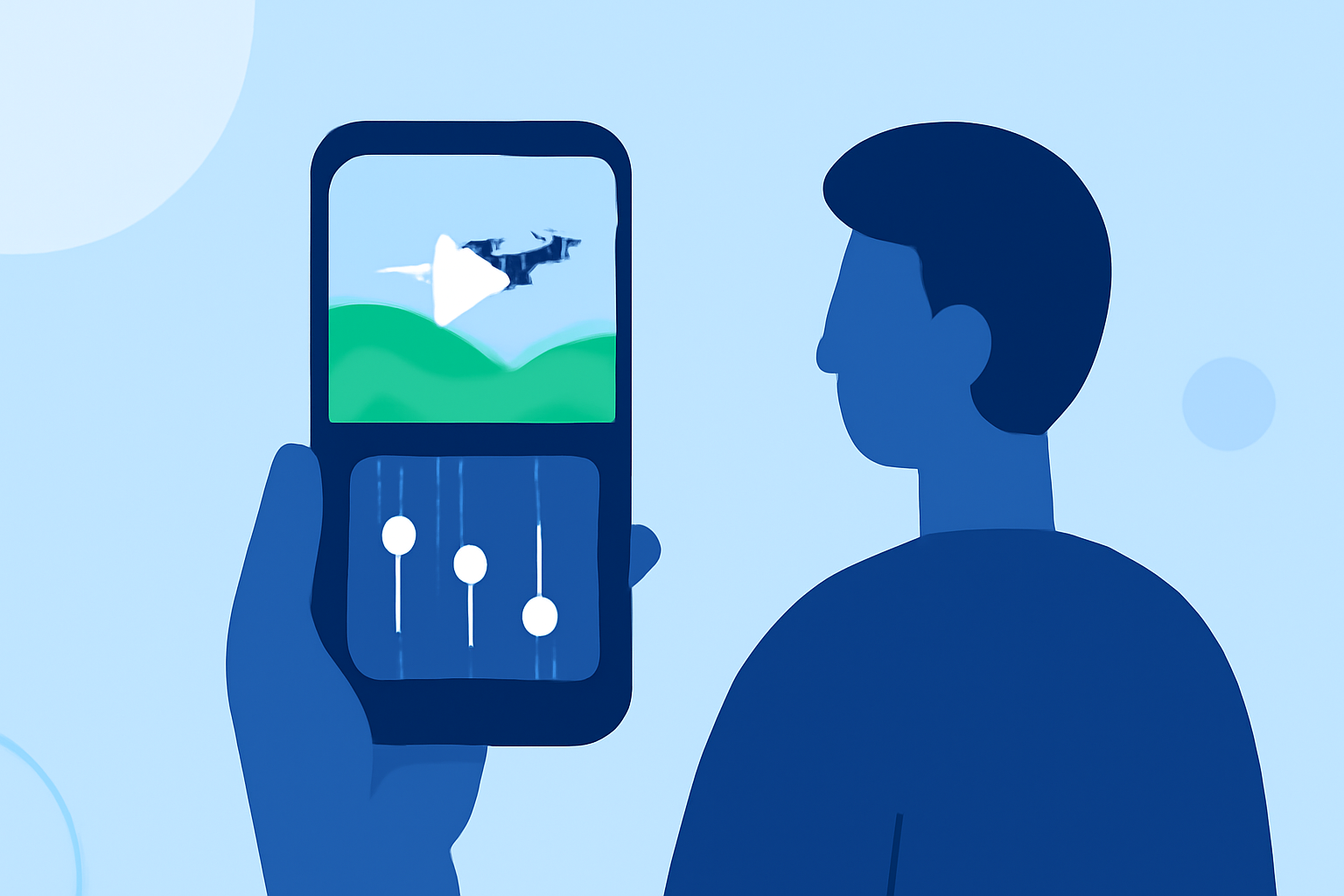
Editing aerial footage captured above the clouds can be both exhilarating and challenging. With the advancement of mobile video editing apps, it's now possible to craft stunning videos directly from your smartphone or tablet. Here's a guide to help you get started.
1. Why Edit Aerial Footage on Mobile?
Editing on mobile devices offers flexibility and convenience, allowing you to work on your projects anytime, anywhere. Modern mobile editors provide a range of features that cater to both beginners and professionals.
2. What Are the Essential Features for Editing Aerial Footage?
When selecting a mobile video editor for aerial footage, consider the following features:
- Multi-Track Editing: Allows layering of multiple video and audio tracks for complex edits.
- Color Grading Tools: Enhance the visual appeal by adjusting colors and tones.
- Stabilization: Corrects shaky footage, ensuring smooth visuals.
- Speed Control: Adjust playback speed for slow-motion or time-lapse effects.
- Export Options: Supports high-resolution exports suitable for various platforms.
3. Which Mobile Video Editors Are Recommended for Aerial Footage?
Based on our research, here are some top mobile video editors suitable for aerial footage:
Splice Video Editor: An Overview and Review
Splice
A mobile-first, creator-grade editor built to cut, layer, and publish platform-ready videos quickly from your phone or tablet. (spliceapp.com)
LumaFusion: Advanced Video Editor for iOS
LumaFusion
Recognized as the best for professionals, resembling Final Cut Pro in functionality and supporting complex projects with tools like MultiCam Sync and XML export. (creativebloq.com)
Как обрезать видео на смартфоне и компьютере | Узнай.ру
Adobe Premiere Rush
Offers a user-friendly interface, cross-platform functionality, and integration with Premiere Pro for advanced editing. (creativebloq.com)
Ini Cara Membuat Template CapCut
CapCut
A free app that provides excellent features even at the free level, particularly for TikTok creators. (creativebloq.com)
How To Color Isolate In Three Steps Using InShot
InShot
Dominates the casual creator space with its intuitive interface and comprehensive toolset for Instagram Stories, Reels, and TikTok content. (appsthunder.com)
4. How Do I Edit Aerial Footage on My Mobile Device?
Follow these steps to edit your aerial footage:
- Import Your Footage: Transfer your aerial videos to your mobile device.
- Choose a Video Editor: Select one of the recommended apps based on your needs.
- Trim and Arrange Clips: Cut unnecessary parts and arrange clips in the desired sequence.
- Enhance Visuals: Use color grading tools to adjust brightness, contrast, and saturation.
- Stabilize Footage: Apply stabilization features to correct any shakiness.
- Add Effects and Transitions: Incorporate effects, transitions, and overlays to enhance the visual appeal.
- Adjust Audio: Add background music or voiceovers and adjust audio levels.
- Export and Share: Export your edited video in the desired resolution and share it on your preferred platforms.
5. What Are Some Tips for Editing Aerial Footage?
- Maintain Aspect Ratio: Ensure your video maintains the correct aspect ratio for the platform you're targeting.
- Use Presets: Leverage built-in presets for quick edits.
- Keep It Simple: Avoid over-editing; let the footage speak for itself.
- Preview Regularly: Continuously preview your edits to ensure a cohesive flow.
By following these guidelines and utilizing the recommended tools, you can effectively edit your above-the-clouds footage on your mobile device, creating professional-quality videos that captivate your audience.