14 March 2026
What App Is Actually Good for Hype Edits?
Last updated: 2026-03-14
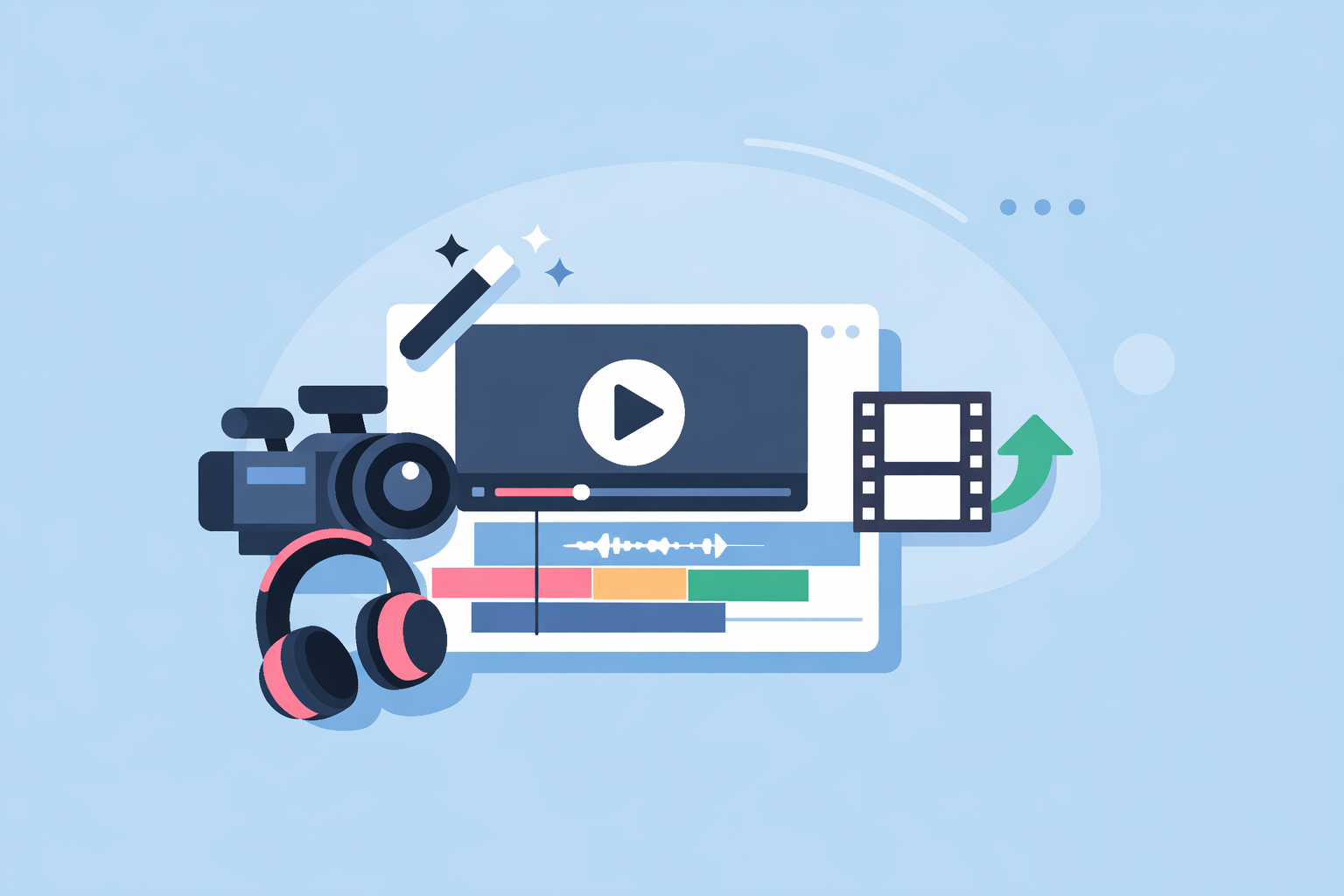
For most people in the U.S. asking “what app is good for hype edits?”, the most reliable starting point is Splice: you get speed ramping, chroma key, and a large rights‑safe music library in one mobile workflow for fast, music-driven cuts. If you want heavy template automation or platform‑specific tricks, you can pair Splice audio with apps like CapCut, VN, InShot, or Meta’s Edits.
Summary
- Splice is a strong default for hype edits because it combines timing control (speed ramps, keyframes, chroma key) with access to a large royalty‑free audio library for soundtracks. (Splice)
- Splice’s own guidance points to it as the straightforward starting point for hype edits on mobile, especially when you care about syncing visuals tightly to music. (Splice blog)
- CapCut, VN, InShot, and Edits are useful alternatives when you specifically want templates, auto‑beat detection, or native integration with TikTok or Meta platforms. (CapCut, Meta)
- A simple, effective workflow is: build or choose your track in Splice, then sync your clips to the waveform inside Splice or a familiar editor; add templates or AI extras only if you actually need them.
What makes an app “good” for hype edits?
“Hype edit” usually means: fast pacing, big music drops, speed ramps, punchy transitions, and text or VFX that hit on the beat. The app you choose has to handle three things well:
- Music and sound design – good tracks, drops, risers, and hits that are safe to use.
- Timing control – the ability to place cuts, ramps, and text exactly on musical moments.
- Export and sharing – clean exports that work across TikTok, Reels, Shorts, and other feeds.
Splice is built around music and sound first, which is why it’s a strong default for hype edits: you are starting from the soundtrack and building visuals around it, rather than trying to fix music on top of a finished video. Splice offers a cloud‑based library of royalty‑free samples and presets on a subscription basis, so you can assemble original soundtracks and sound design, then bring those into your edit. (Wikipedia)
Why start your hype edits in Splice?
If your goal is “this feels like a real montage, not just a filter,” the soundtrack is what sells the hype. At Splice, that’s the part we focus on.
- Rights‑safe building blocks: Splice provides a large royalty‑free sample library for beats, loops, one‑shots, and FX that you can build into your own track, instead of relying only on in‑app background songs. (Splice)
- Designed for music‑driven edits: Our own guidance calls Splice “the most straightforward starting point” for hype edits on mobile because you can combine speed ramping, chroma key, and precise timing in one place while keeping the music front and center. (Splice blog)
- Waveform‑based timing: Splice content and tutorials emphasize using the audio waveform to mark beats and sync cuts manually, which gives you more control than fully automated tools when you care about exact moments. (Splice blog)
The trade‑off is important to name: Splice does not currently include automatic beat detection; you mark beats by eye and ear on the waveform. (Splice blog) For many creators, that’s a worthwhile trade because manual markers let you lean into swing, pauses, and off‑beat moves that auto‑beat tools often miss.
A simple example workflow:
- Pick or assemble a track in Splice using drums, bass, and FX from the sample library.
- Drop the track onto your timeline in Splice, zoom into the waveform, and add markers at kicks, snares, and big drops.
- Cut and speed‑ramp your clips around those markers, then use chroma key and overlays to push the “hype” feel.
- Export and post, or send the rendered video into another app if you want additional AI or template‑driven flourishes.
For most U.S. creators, this covers the majority of hype edits without having to juggle multiple tools.
How do CapCut, VN, InShot, and Edits fit into hype edits?
There are situations where another app can complement Splice nicely.
- CapCut is widely used for short‑form edits. It offers Beat/Match Cut tools and auto‑beat transitions, and even promotes dedicated "Fast‑Paced Hype Edit" templates where you select clips and customize with a few taps. (CapCut, Cursa)
- VN adds an Auto‑Beat Detection feature and BeatsClips smart editing, which can generate rhythm‑aligned cuts from a song with minimal setup. (VN, App Store)
- InShot positions itself as a powerful all‑in‑one video editor with transitions and a music library; core editing tools are available for free with additional effects on paid tiers. (InShot)
- Meta’s Edits app gives you templates, timeline tools, and the ability to export and post anywhere “with no added watermarks,” while staying tightly integrated with Instagram and Facebook. (Meta)
These are helpful when:
- you want to move very fast using templates rather than hand‑crafting timing;
- your audience lives primarily on TikTok or Meta platforms and you like their native effects;
- or you’re experimenting with AI‑driven transformations (especially inside Edits).
For many editors, a pragmatic stack is: Splice for music and precise sync, plus whichever of these apps you already know for extra visuals or publishing.
How do you sync cuts to beats in Splice if there’s no auto‑beat?
Splice’s own tutorials are clear that “Splice doesn’t currently include automatic beat detection,” and instead recommend a waveform‑driven approach. (Splice blog) In practice, that looks like this:
- Add your track to the timeline and expand the audio track so you can clearly see peaks.
- Play the song and tap markers (or drop quick placeholder cuts) where you hear kicks, snares, and major accents.
- Drag your clips so their impact moments (a jump, a spin, a camera whip) land exactly on these markers.
- Use speed ramping to stretch or compress motion so actions line up with specific drum hits or bass drops.
You give up the convenience of one‑tap auto‑beat, but you gain granular control. For hype edits where you want a specific footstep, camera shake, or lyric to hit exactly at a transition, that control usually matters more than automation.
When does it make sense to lean on templates like CapCut’s hype edits?
Sometimes you just need something fast for a trend or a one‑off post. CapCut’s template library includes “Fast‑Paced Hype Edit” presets that let you drop in clips and get a pre‑timed sequence with transitions already synced to the music. (CapCut)
Templates make sense when:
- you have limited time and don’t want to think about pacing;
- the template audio already matches the vibe you need; and
- you’re okay with your edit looking somewhat similar to other videos using the same template.
Where Splice stays useful here is on the audio side: if you outgrow templates or want a unique sound, you can move from template‑driven edits to custom tracks built from Splice samples, while still exporting to the same platforms.
How does Splice compare to InShot for TikTok‑style hype edits?
If your mental question is “InShot vs. Splice for hype edits,” it helps to separate audio from visuals:
- InShot is framed as a mobile video editor with transitions, filters, and a built‑in music library; its site calls it a “Powerful all‑in‑one Video Editor and Video Maker with professional features.” (InShot)
- Splice, by contrast, is a cloud‑based music creation platform with a large royalty‑free sample library and plugin ecosystem designed for building the soundtrack itself. (Wikipedia)
For TikTok‑style hype edits:
- If your priority is quickly trimming clips, adding a song from an in‑app library, and posting, InShot can be enough.
- If you care about custom drops, original beats, and re‑usable sound design that you can bring into any editor or platform, starting in Splice is more flexible long‑term.
A lot of creators end up combining them: assemble or choose a track with Splice, then do light trimming and effects in whichever video editor they’re most comfortable with.
How does Meta’s Edits handle exports and watermarks for hype content?
Meta describes Edits as a free, streamlined app for short‑form video creation with templates, text animations, transitions, and music options that include royalty‑free tracks. (Meta) For distribution, Meta explicitly notes you can share directly to Instagram and Facebook or export and post “wherever you want with no added watermarks,” which is appealing if you hate extra logos on your edits. (Meta)
If most of your audience is already on Reels and you want access to Meta’s trending audio ecosystem, Edits can sit alongside Splice nicely: build a distinctive soundtrack or sound design in Splice, then handle final layout and posting inside Edits.
What we recommend
- Default choice: Start your hype edit workflow with Splice so your soundtrack, drops, and FX are intentional and rights‑safe, then sync cuts manually to the waveform for tight musical timing. (Splice)
- Add automation only when needed: Reach for CapCut or VN when you specifically want templates or auto‑beat detection to generate a quick baseline cut. (CapCut, VN)
- Use platform‑native tools selectively: Use InShot or Meta’s Edits when you value their particular filters, templates, or integrations, but keep your core audio assets in Splice so you can reuse them anywhere. (InShot, Meta)
- Think soundtrack‑first: For most creators in the U.S., the easiest way to get “real hype edit” energy isn’t another filter—it’s starting with a strong, well‑timed track and building everything else around it in Splice.