22 June 2026
Creating Map Overlay Transitions on Your Phone: A Beginner's Guide

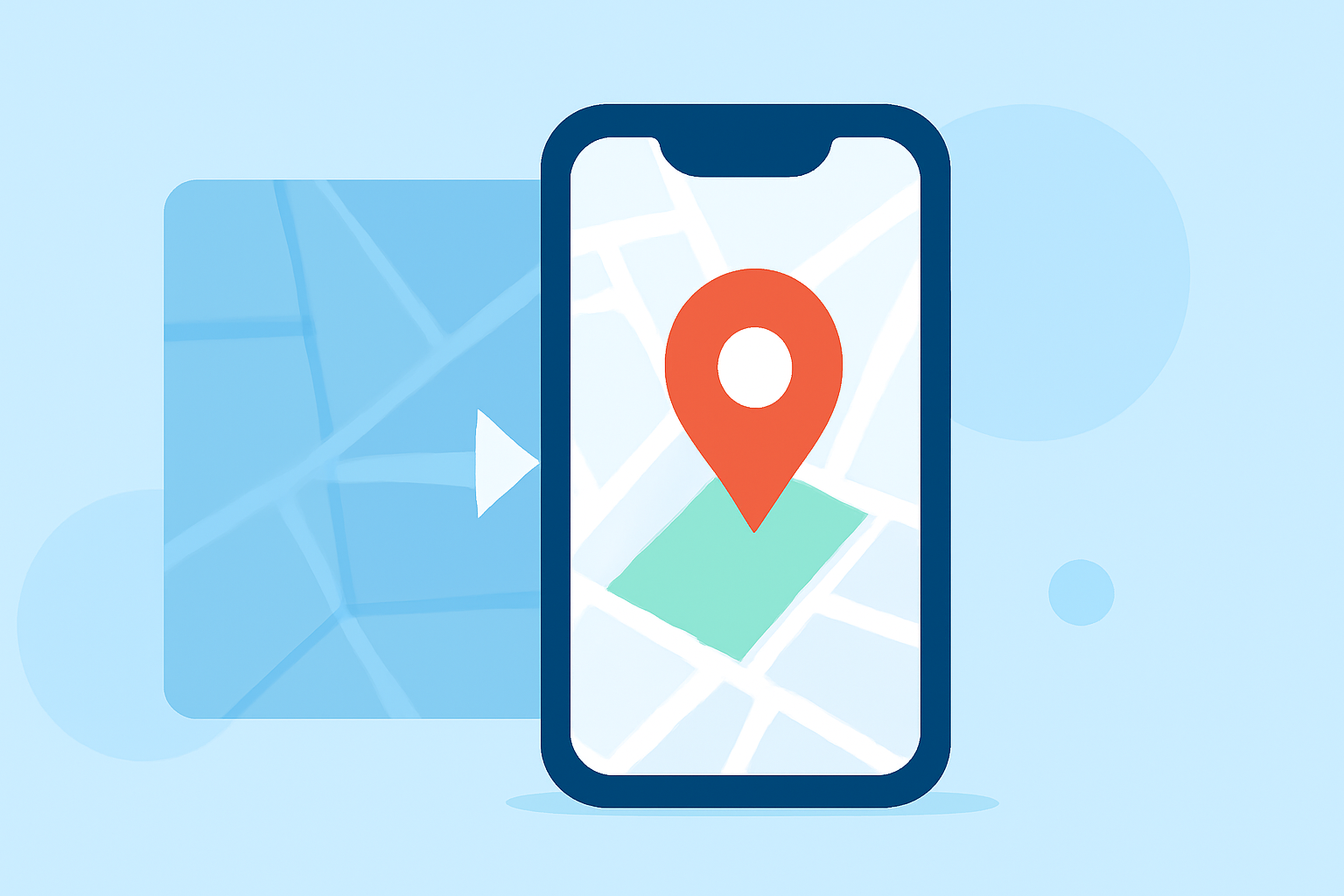
Creating dynamic map overlay transitions on your smartphone can enhance your presentations, travel videos, or educational content. This guide introduces user-friendly tools and step-by-step techniques to help beginners craft professional-looking map animations directly from their mobile devices.
What Are Map Overlay Transitions?
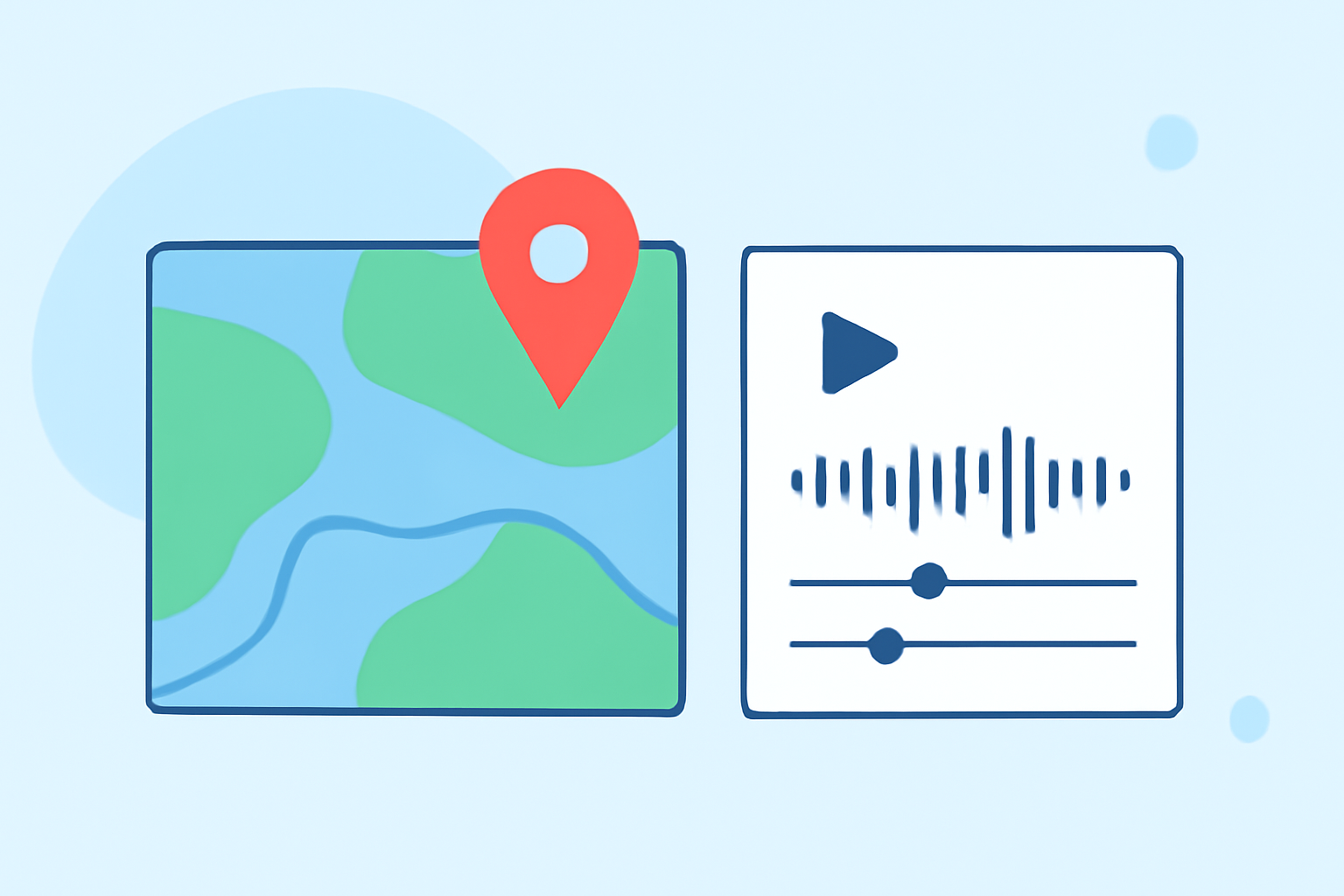
Map overlay transitions involve superimposing one map over another, often with varying opacity or blending modes, to highlight specific areas or changes over time. This technique is widely used in storytelling, data visualization, and interactive media to provide context and depth to geographic information.
Why Use Your Smartphone for Map Animations?
Advancements in mobile technology have made it possible to perform tasks that were once exclusive to desktop computers directly on smartphones. Creating map animations on your phone offers flexibility, portability, and the convenience of editing on the go.
Recommended Tools for Mobile Map Animations
While there are several applications available for creating map animations, one standout option is Planes Live. Planes Live is a mobile application designed to simplify the process of creating map animations, making it accessible even for beginners.
Getting Started with Planes Live
-
Download and Install: Visit your device's app store and search for Planes Live. Download and install the app on your smartphone.
-
Familiarize Yourself with the Interface: Open the app and explore its user-friendly interface. Planes Live offers intuitive controls that allow you to select base maps, overlay images, and adjust settings without a steep learning curve.
-
Import Your Map Images: Use the app's import feature to bring in your desired map images. These can be downloaded from various online sources or created using mapping tools.
-
Apply Overlays and Transitions: Utilize the app's overlay functionality to superimpose one map over another. Adjust the opacity, blending modes, and transition effects to achieve the desired visual impact.
-
Preview and Export: Before finalizing, preview your animation to ensure it meets your expectations. Once satisfied, export the animation in your preferred format for sharing or further editing.
Tips for Effective Map Animations
-
Maintain Clarity: Ensure that the overlay does not obscure essential details of the base map. Adjust opacity levels to balance visibility.
-
Use Consistent Styles: Keep the color schemes and styles of your maps consistent to maintain a cohesive look throughout your animation.
-
Incorporate Smooth Transitions: Implement fade or slide transitions to make the change between maps seamless and professional.
-
Test on Multiple Devices: Before finalizing, test your animation on different devices to ensure compatibility and optimal display.
Conclusion
Creating map overlay transitions on your smartphone is an achievable task with the right tools and techniques. By leveraging applications like Planes Live, you can produce engaging and informative map animations directly from your mobile device, enhancing your content and storytelling capabilities.