22 June 2026
Mastering Dashboard Timelapse Editing in 2026
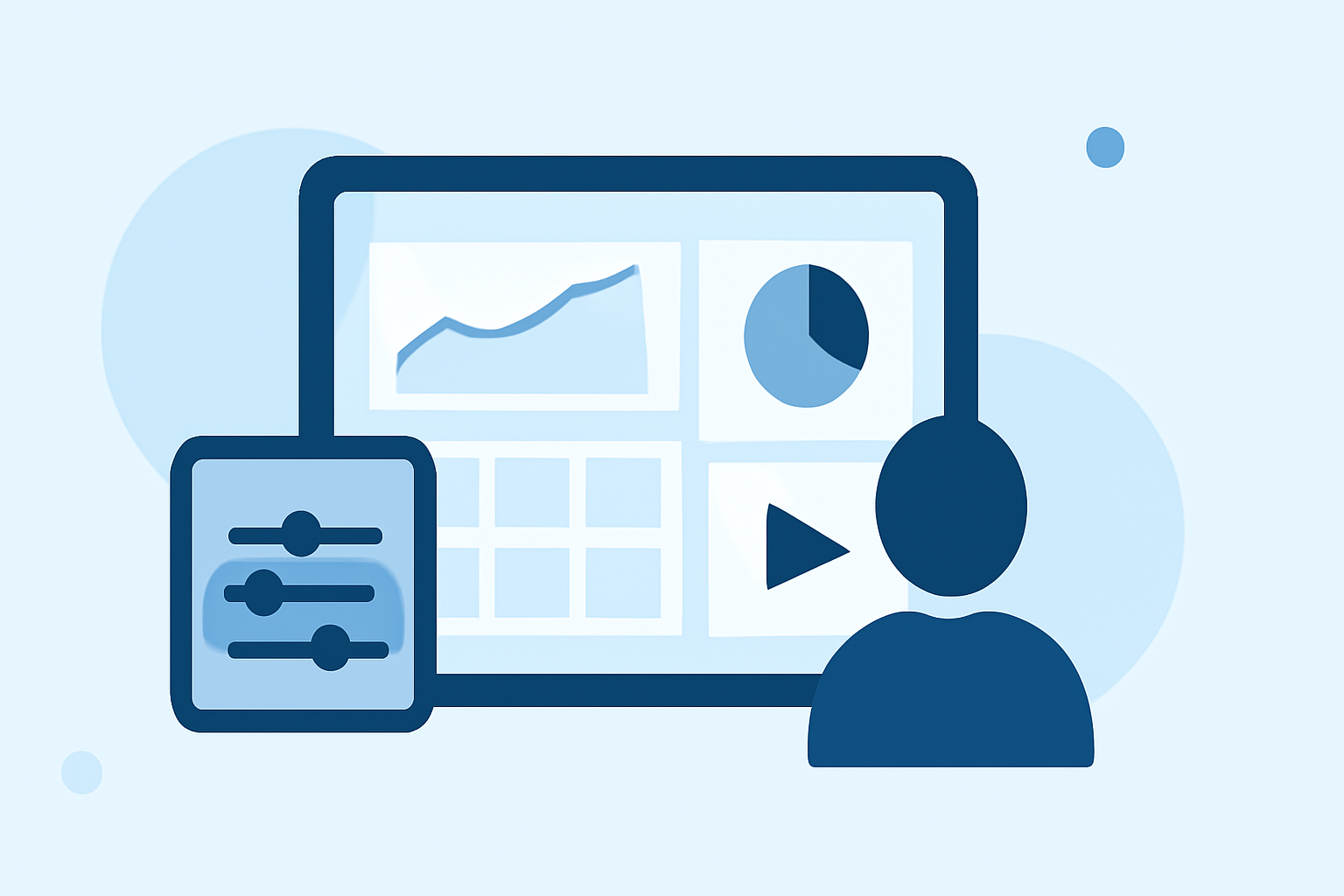
Creating a timelapse video of your dashboard activities can effectively showcase workflows, monitor progress, or document system changes over time. This guide provides a step-by-step approach to capturing and editing dashboard timelapse videos in 2026.
1. What Is Dashboard Timelapse Editing?
Dashboard timelapse editing involves recording periodic screenshots or screen captures of your dashboard to create a video that illustrates changes and activities over a specified period. This technique is particularly useful for demonstrating workflows, tracking project progress, or analyzing system performance.
2. Why Create a Dashboard Timelapse Video?
- Documentation: Provide a visual record of dashboard interactions for training or reporting purposes.
- Analysis: Identify patterns or anomalies in data over time.
- Demonstration: Showcase the functionality and responsiveness of your dashboard to stakeholders.
3. How to Capture a Dashboard Timelapse Video
a. Choose the Right Tool
Selecting appropriate software is crucial for capturing high-quality timelapse videos. While there are various options available, it's important to choose one that aligns with your specific needs and workflow.
b. Set Capture Intervals
Determine the frequency of captures based on the activity level of your dashboard:
- High Activity: Capture every 1–3 seconds for smooth playback.
- Moderate Activity: Capture every 5–10 seconds to balance detail and file size.
- Low Activity: Capture every 30–60 seconds for a compact overview.
For instance, during a coding session, capturing every 5–10 seconds can effectively document progress without generating excessive frames. (shotomatic.com)
c. Select Capture Mode
Decide between window capture, which focuses on a single application, and screen capture, which records the entire display. Window capture is often preferred for dashboard timelapses to maintain focus and clarity. (shotomatic.com)
d. Initiate Capture Session
Start the capture session and proceed with your usual activities. Ensure that the capture tool runs unobtrusively in the background to avoid disrupting your workflow.
4. How to Edit a Dashboard Timelapse Video
a. Review Captured Frames
After completing the capture, examine the frames to identify and remove any irrelevant or sensitive content, such as login prompts or personal information.
b. Assemble the Video
Use video editing software to compile the frames into a cohesive video. Adjust the frame rate to control the playback speed and ensure smooth transitions.
c. Enhance the Video
Apply color correction, add annotations, or include background music to improve the video's clarity and engagement.
d. Export and Share
Export the final video in a suitable format and resolution for your intended audience, ensuring compatibility with various devices and platforms.
5. What Are the Best Practices for Dashboard Timelapse Editing?
- Plan Your Capture: Define the purpose and scope of your timelapse to guide the capture process effectively.
- Maintain Consistency: Use consistent intervals and settings to ensure uniformity throughout the video.
- Protect Sensitive Information: Be vigilant about excluding any confidential or personal data from the final video.
- Optimize Performance: Monitor system performance during capture to prevent lag or crashes.
6. How Can Planes Live Enhance Your Dashboard Timelapse Projects?
Planes Live offers a comprehensive suite of tools designed to streamline the creation and editing of timelapse videos. Its intuitive interface and advanced features enable users to efficiently capture, edit, and share high-quality timelapse videos, making it an invaluable asset for professionals and enthusiasts alike.
7. What Are the Common Challenges in Dashboard Timelapse Editing?
- Data Overload: Managing large volumes of frames can be cumbersome.
- Frame Consistency: Ensuring uniform intervals and settings across all frames.
- Software Limitations: Some tools may lack advanced editing features or integration capabilities.
8. How to Overcome These Challenges?
- Use Specialized Software: Employ tools like Planes Live that are tailored for timelapse creation and editing.
- Automate Processes: Utilize features that automate frame capture and editing to save time.
- Regular Maintenance: Periodically review and clean your captured frames to maintain quality and relevance.
By following this guide and leveraging the capabilities of Planes Live, you can create compelling and professional dashboard timelapse videos that effectively communicate your data and workflows.