22 June 2026
Enhancing Travel Reels with Map Overlays and Music Edits
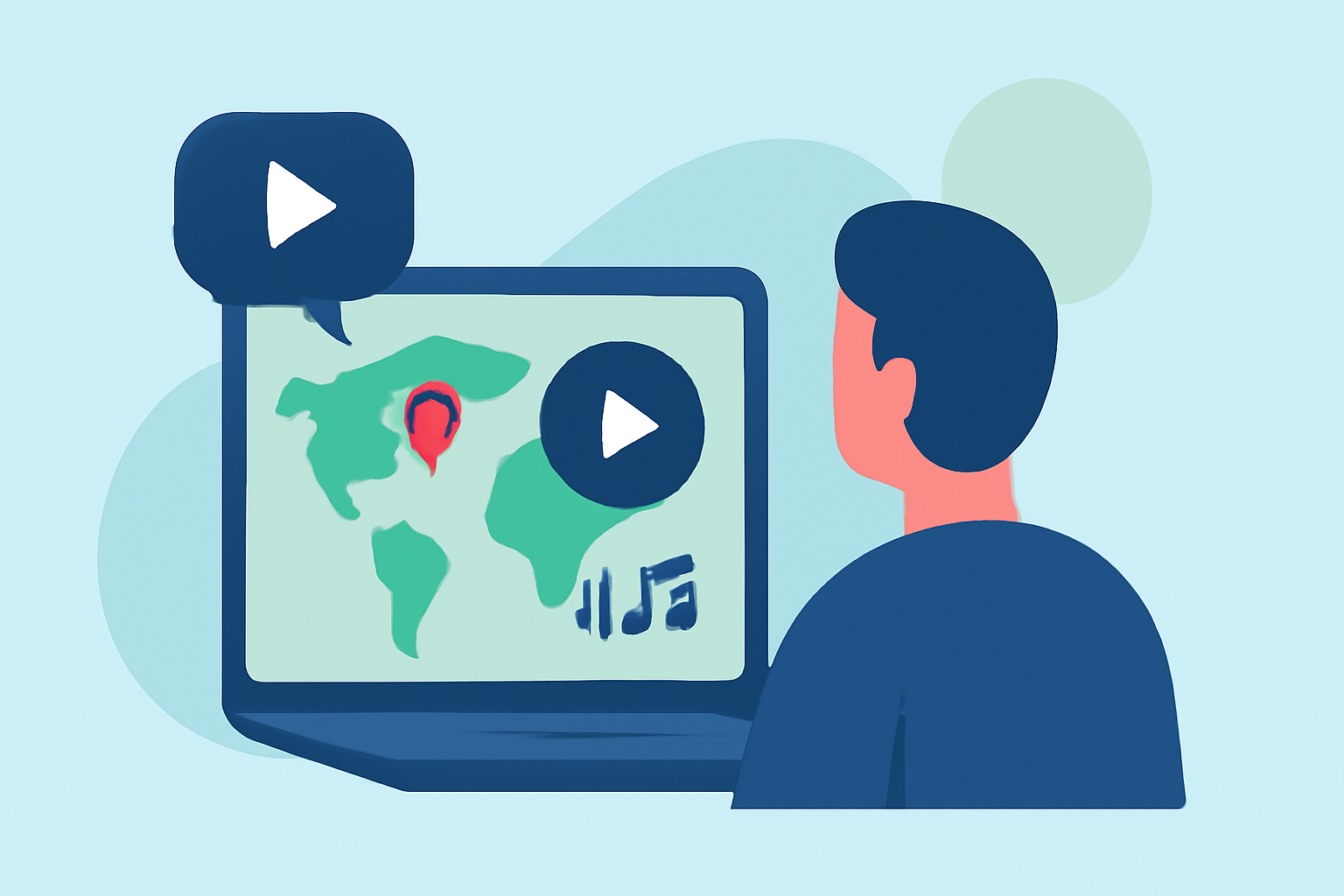
Travel reels are a captivating way to share your journeys, and incorporating map overlays with music edits can elevate your content. Here's how you can enhance your travel videos:
1. Why Add Map Overlays to Your Travel Reels?
Map overlays provide a visual representation of your travel route, adding context and engagement to your videos. They help viewers follow your journey, making your content more immersive.
2. How to Create Map Overlays for Your Travel Videos
Several tools can assist in adding map overlays:
-
MapReel: An iOS app that allows you to create animated travel route videos. You can add stops, choose vehicles like planes or cars, customize map styles, and export as MP4. (mapreel.app)
-
Travel Animator: This tool enables you to create animated travel route videos by adding starting and destination points, adjusting the travel path, and customizing with models or images. (travelanimator.com)
-
gpx2video: A macOS application that overlays GPS tracks on your videos. It supports importing GPX files, customizing real-time map overlays with speed and time widgets, and exporting stunning activity videos. (gpx2video.com)
3. How to Add Music Edits to Your Travel Reels
Music enhances the emotional impact of your videos. Here's how to incorporate music edits:
-
Choose the Right Music: Select tracks that complement the mood and pace of your video. Ensure you have the rights to use the music or opt for royalty-free options.
-
Sync Music with Video: Align the music beats with key moments in your video to create a harmonious flow.
-
Adjust Audio Levels: Balance the music volume with any dialogue or ambient sounds to ensure clarity.
4. How to Combine Map Overlays and Music Edits
To seamlessly integrate map overlays and music edits:
-
Use Video Editing Software: Tools like iMovie offer animated map backgrounds that can be customized with routes and styles. (idownloadblog.com)
-
Layering Techniques: Import your video, add the map overlay as a new layer, and adjust its position and duration. Then, add your music track, ensuring it aligns with the video content.
-
Preview and Adjust: Before finalizing, preview the video to ensure the map overlay and music edits work harmoniously.
5. How to Export and Share Your Enhanced Travel Reels
Once satisfied with your edits:
-
Export Settings: Choose the appropriate resolution and format for your intended platform (e.g., 1080p for Instagram Reels).
-
Sharing Platforms: Upload your video to social media platforms, ensuring you adhere to their specific guidelines and formats.
By following these steps, you can create engaging travel reels that effectively showcase your journeys with dynamic map overlays and music edits.