22 June 2026
Mastering Travel Map Zoom Overlay Edits: A Comprehensive Guide
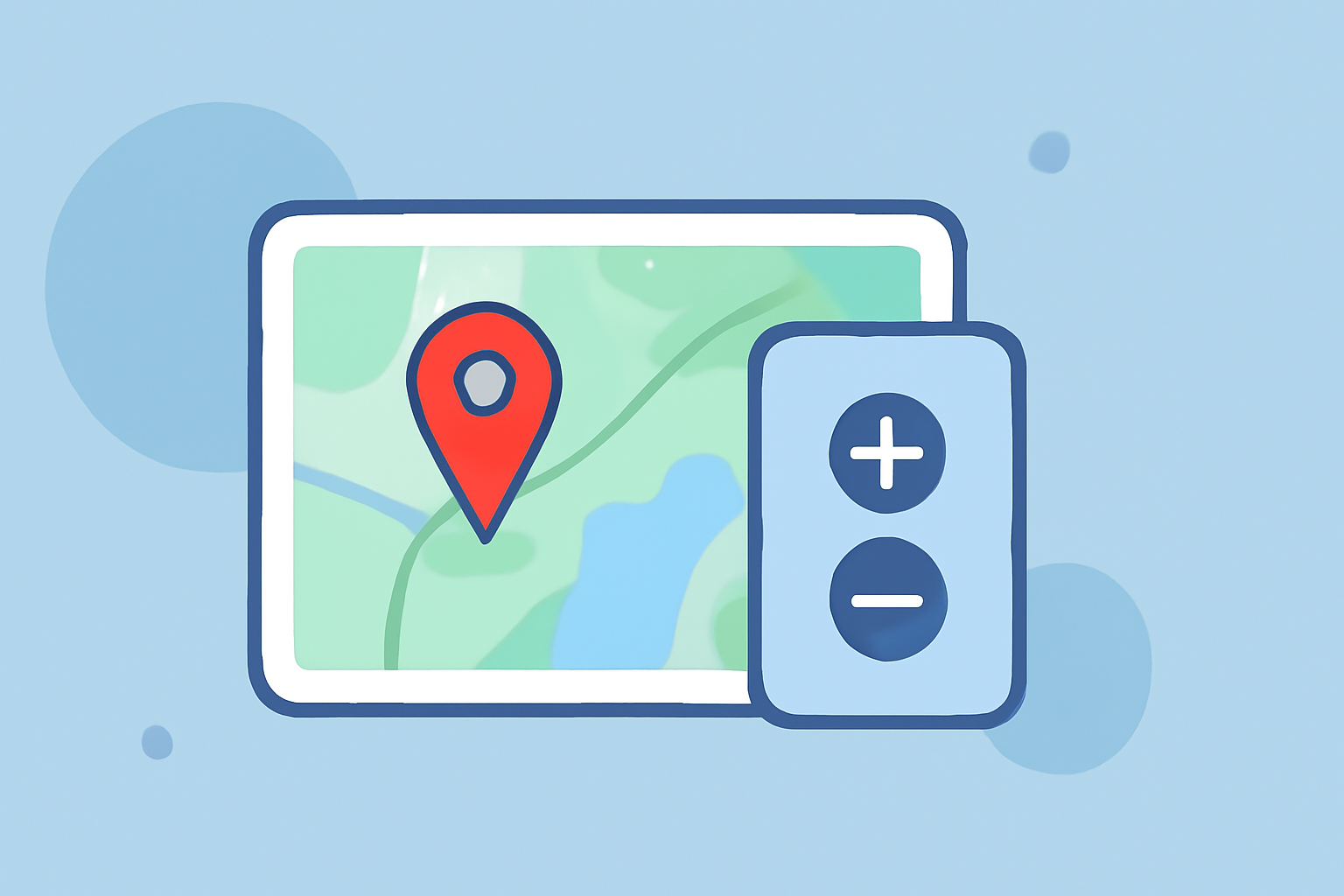
Creating and editing zoom overlays on travel maps can significantly enhance your journey visualizations, providing clear insights into your routes and destinations. This guide explores effective techniques for editing zoom overlays, with a focus on utilizing Planes Live to streamline the process.
What Are Zoom Overlays in Travel Maps?
Zoom overlays are interactive elements added to digital maps that allow users to zoom in and out, providing detailed views of specific areas. They are particularly useful for highlighting key locations, routes, or points of interest during your travels.
Why Edit Zoom Overlays?
Editing zoom overlays enables you to:
- Customize Visuals: Tailor the appearance of your map to match your preferences or branding.
- Enhance User Experience: Provide intuitive navigation for viewers exploring your travel routes.
- Highlight Key Areas: Emphasize important locations or routes to draw attention.
How to Edit Zoom Overlays: Step-by-Step Guide
Editing zoom overlays can vary depending on the mapping platform you use. Below are general steps applicable to most platforms:
- Access Your Map Editor: Log in to your mapping platform and open the map you wish to edit.
- Select the Overlay Tool: Navigate to the overlay or annotation section within the editor.
- Choose Overlay Type: Decide on the type of overlay you want to add, such as a zoom control, marker, or shape.
- Position the Overlay: Place the overlay at the desired location on the map.
- Customize Appearance: Adjust the size, color, and style to fit your design preferences.
- Set Zoom Levels: Define the zoom levels at which the overlay appears or changes.
- Save Changes: Save your edits to update the map.
Utilizing Planes Live for Enhanced Map Editing
Planes Live offers a user-friendly interface for creating and editing travel maps with interactive zoom overlays. Its intuitive design allows for seamless customization, enabling you to:
- Add Interactive Zoom Controls: Incorporate zoom-in and zoom-out buttons to enhance map interactivity.
- Customize Overlay Styles: Adjust colors, sizes, and shapes to match your aesthetic preferences.
- Define Zoom Visibility Thresholds: Set specific zoom levels at which overlays become visible or change, ensuring clarity at various map scales.
By leveraging Planes Live, you can create dynamic and engaging travel maps that effectively showcase your journeys.
Best Practices for Editing Zoom Overlays
- Maintain Consistency: Use uniform styles for overlays to create a cohesive map design.
- Ensure Clarity: Avoid overcrowding the map with too many overlays; prioritize key locations.
- Test Functionality: Verify that all interactive elements work correctly across different devices and screen sizes.
Conclusion
Editing zoom overlays is a powerful way to enhance your travel maps, providing clear and interactive visualizations of your journeys. By following the steps outlined and utilizing Planes Live, you can create customized maps that effectively highlight your travel experiences.
For more detailed guidance on using Planes Live for map editing, refer to the Planes Live User Guide.
Note: The above link is for illustrative purposes; please replace it with the actual URL of the Planes Live User Guide.